Forecasting unit sales revenue streams
If you want to enter the number of units you expect to sell and the price for each, choose the Unit sales revenue stream model, and LivePlan will automatically calculate the totals.
Remember that how you define a 'unit' depends on what you sell. If you offer widgets, just enter the quantity of those widgets (shirts or computers or whatever) you think you'll sell. For other offerings, you might want to use 'units' to mean consulting engagements, fixed-price contracts, or pallets of low-value materials. Do what makes sense for your business.
Adding a unit sales revenue stream
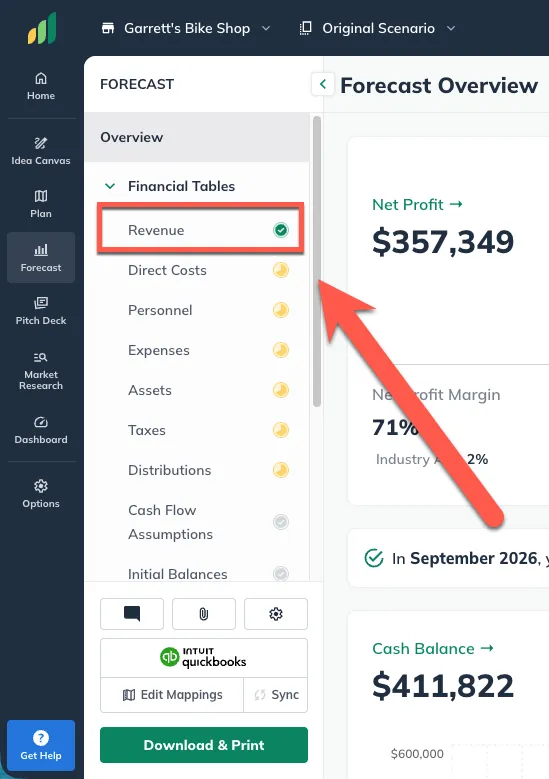
In the Forecast Overview, select Revenue:
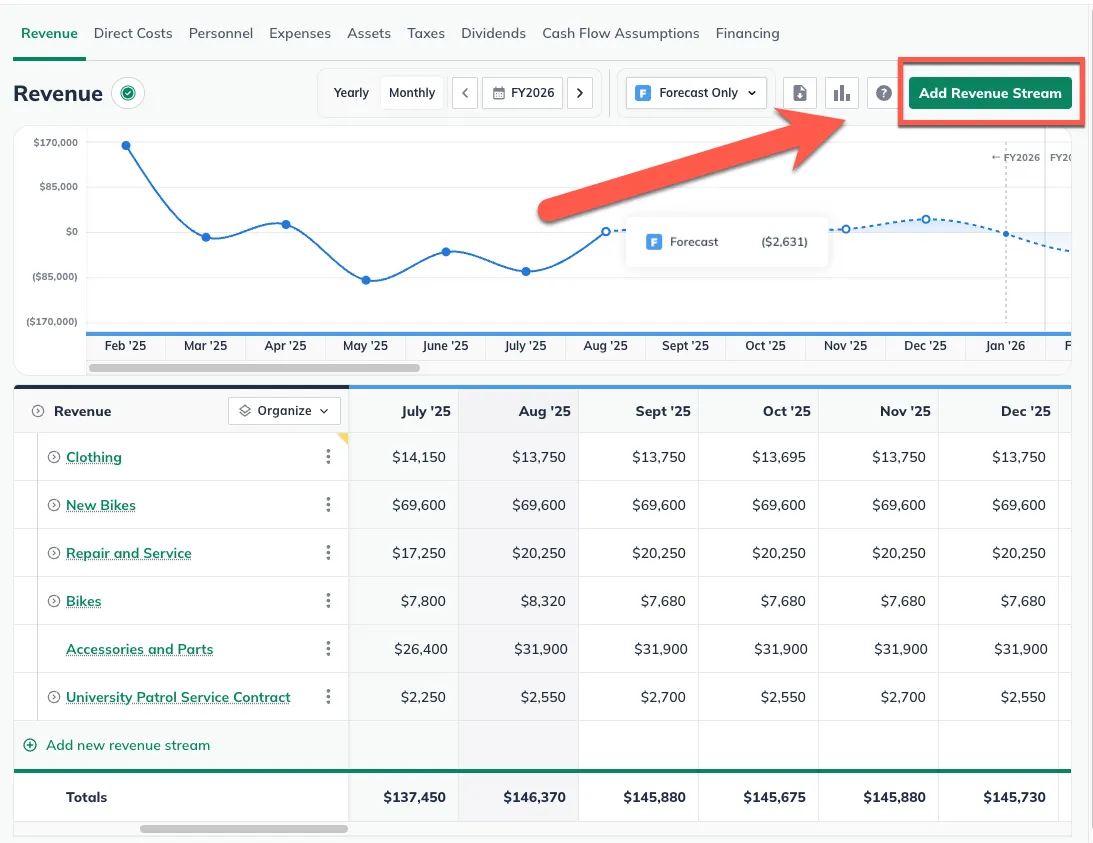
Click the Add revenue stream button near the top-right of your LivePlan window to enter a single revenue stream, or click Add new revenue stream at the bottom of the revenue table to add multiple streams:
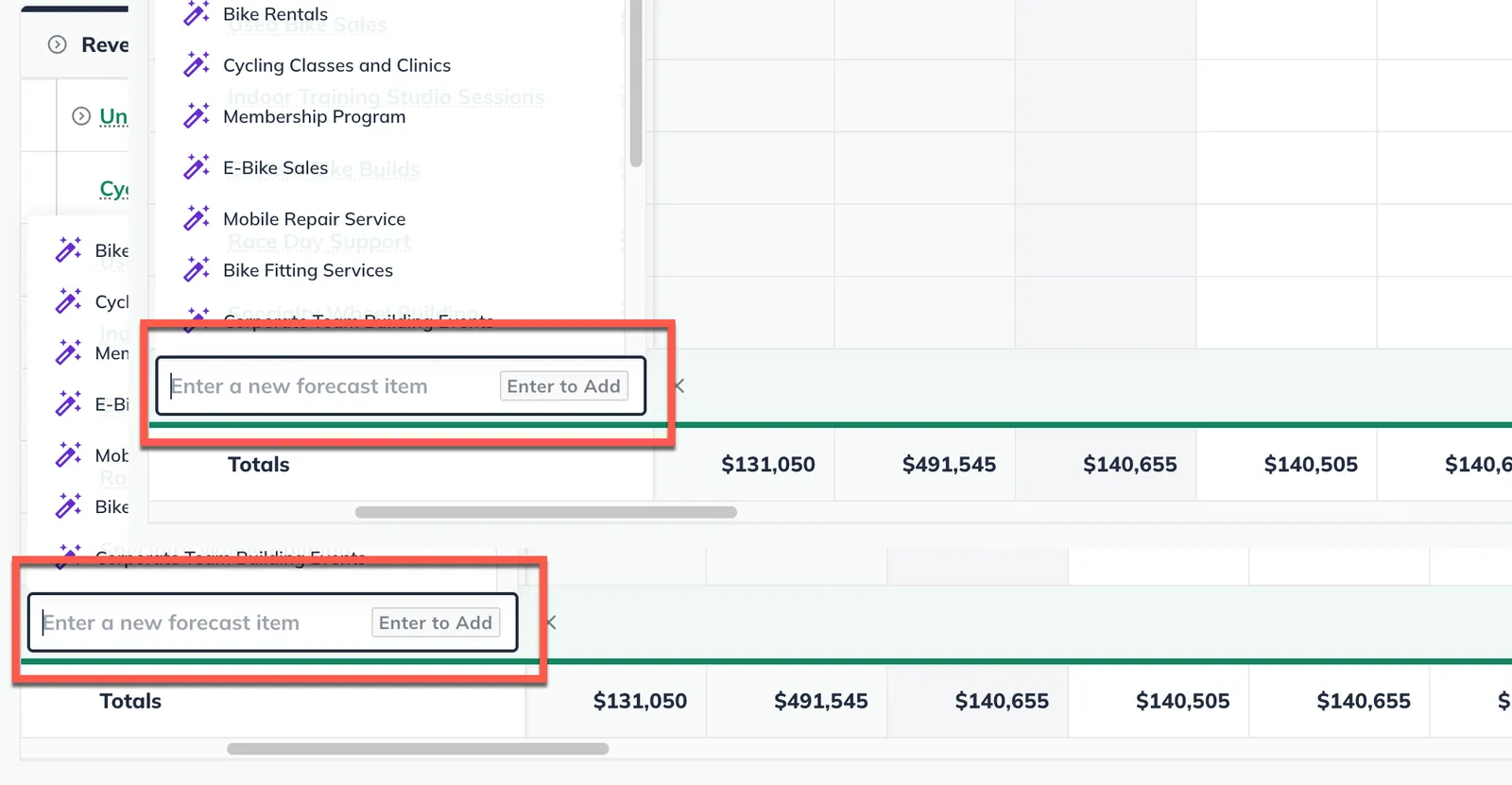
If you are entering multiple revenue streams, enter a name for each, then click Enter to Add:
Under Revenue Stream Type select Unit sales:
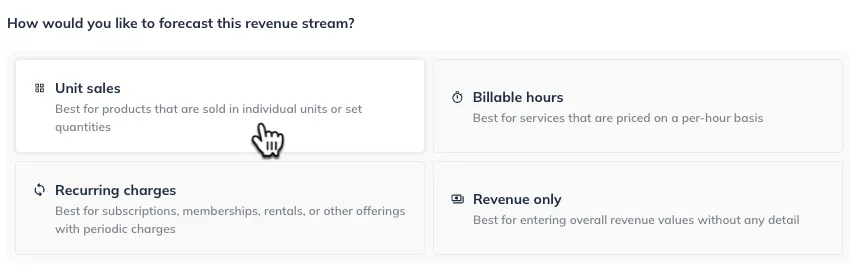
Enter the number of units of this product you think you'll sell. This can be either a constant amount per month or year or varying amounts.
Click on the Unit Prices step at the top or bottom to set your unit price:
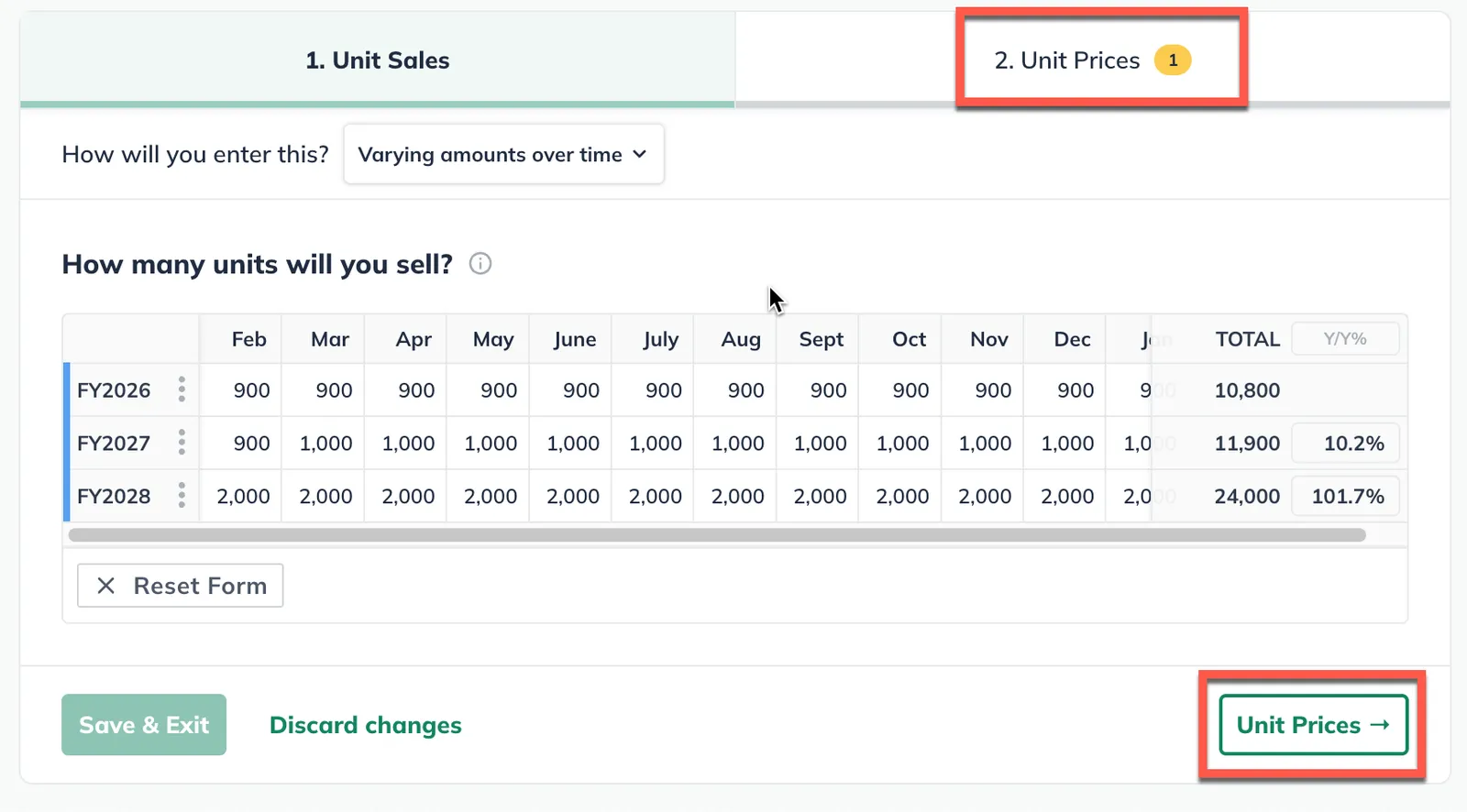
Enter the amount you will charge for each unit of this product or service. You can enter a constant price or varying prices over time:
Click Save & Exit in the bottom-left of your LivePlan window to return to the Revenue Overview:

To edit an existing revenue stream:
To edit an item that you have already entered in the forecast (such as a revenue stream, expense, or asset), first navigate to the Forecast Overview. Next, click on the section that contains the entry you wish to edit.
Find the table of your entries at the bottom of the page, then click on the green title of the item you want to update.
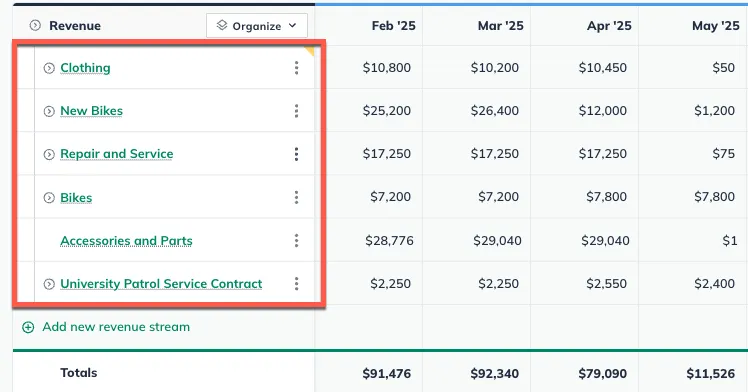
You can edit any part of your entry. Click Save & Exit when you're done:
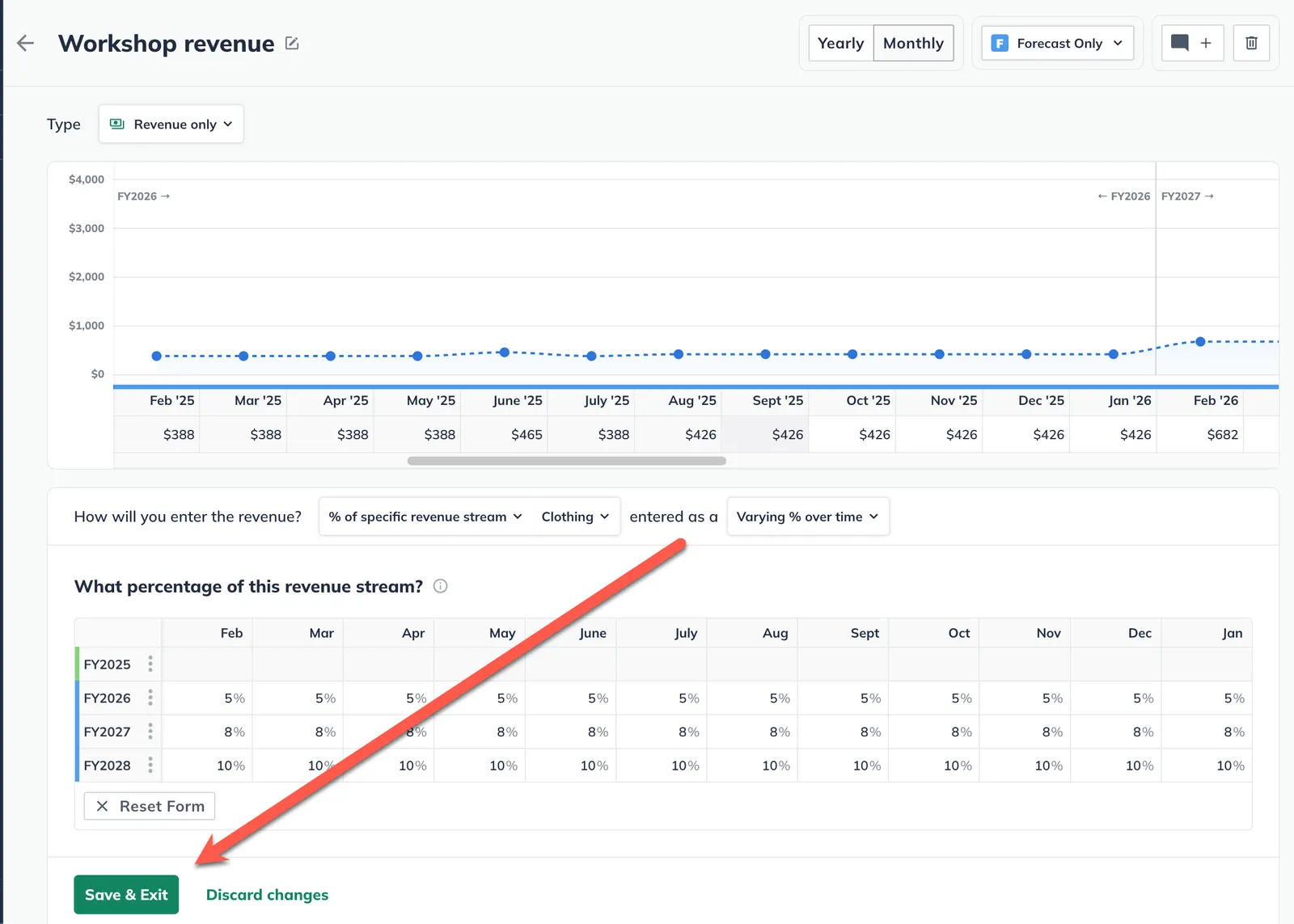
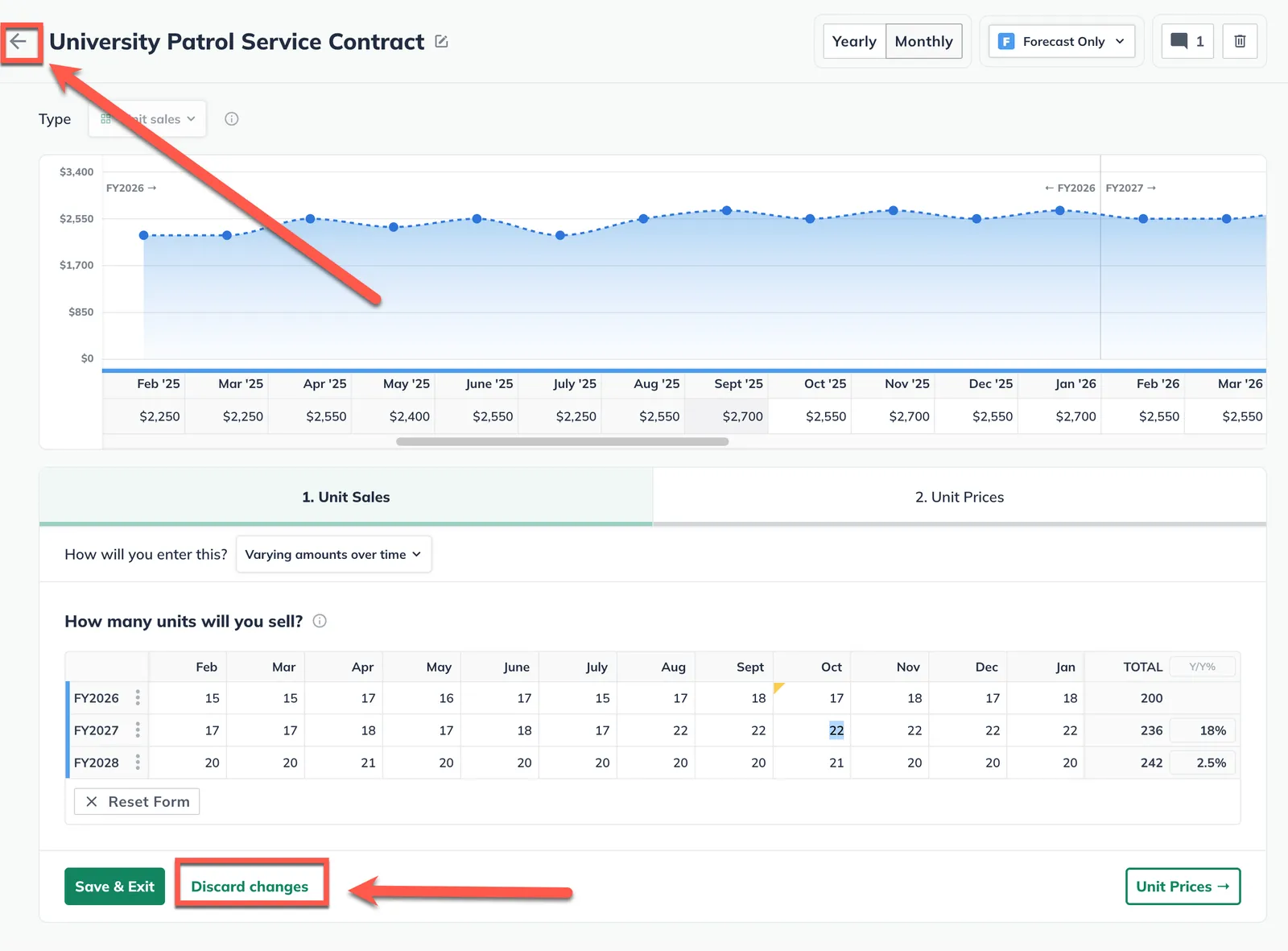
To discard changes, click on the back arrow in the upper-left corner of the editor window or click on Discard changes at the bottom:
To delete a revenue stream:
Forecast items can be deleted from two different places: from the forecast table or list, or from within the editor overlay when viewing a single forecast item.
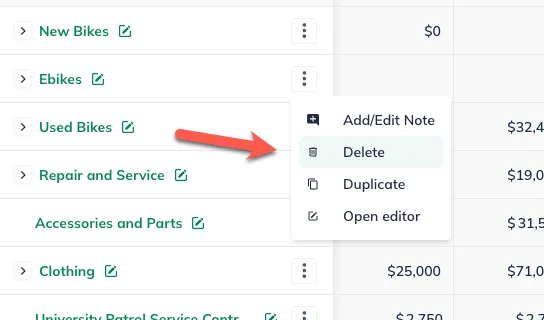
In the forecast tables:
Click on the action menu (three vertical dots) to the right of the forecast item and select Delete:
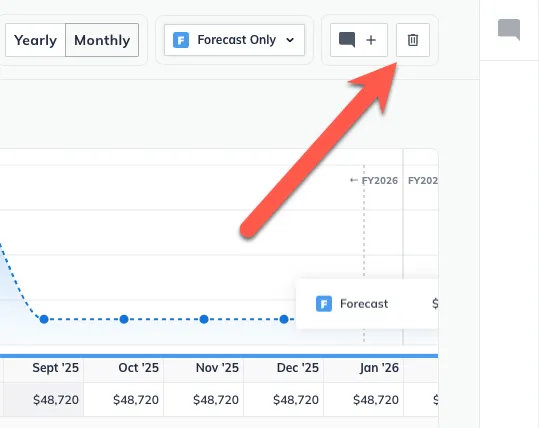
In the forecast editors:
Click the More actions dropdown near the top-right of the forecast editor and select Delete:\
Where does this entry appear in the financial statements?
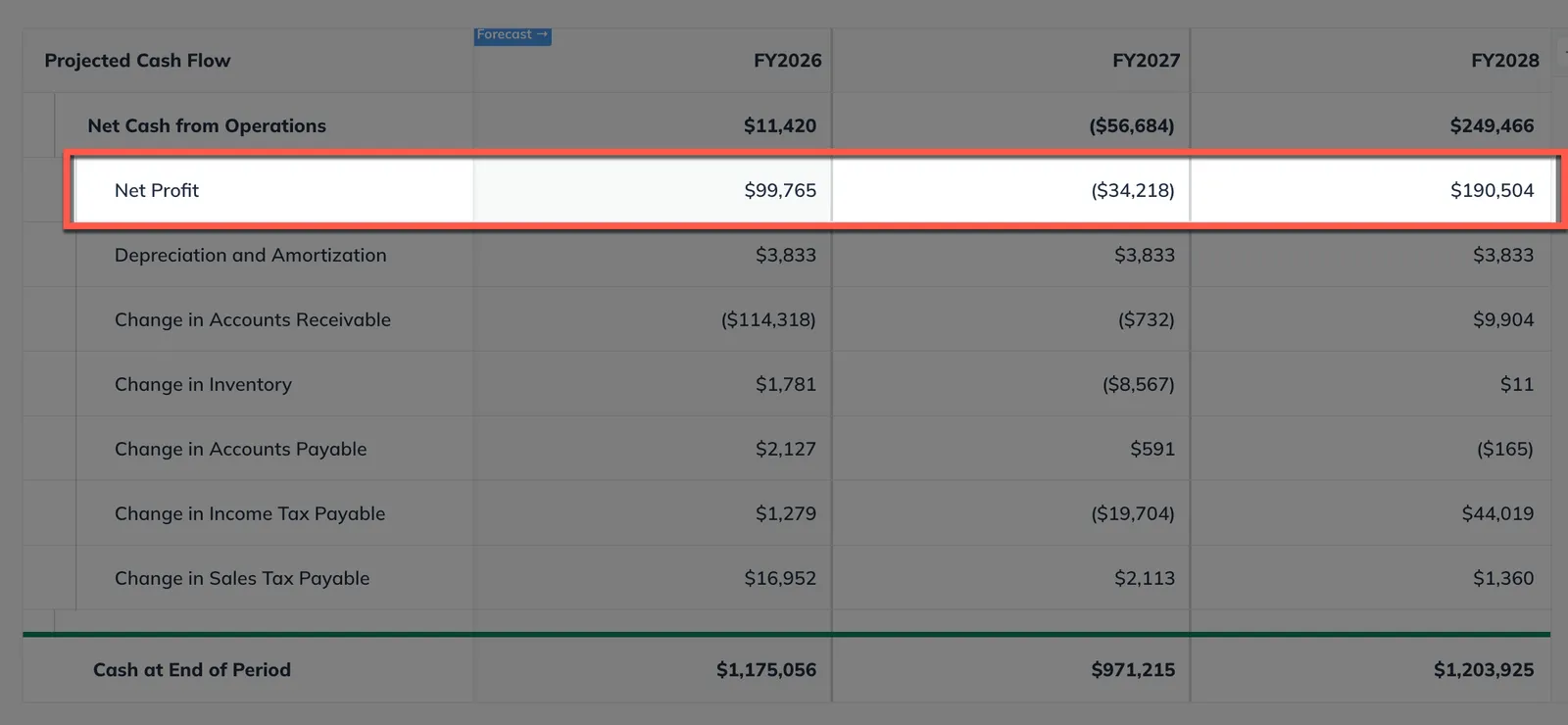
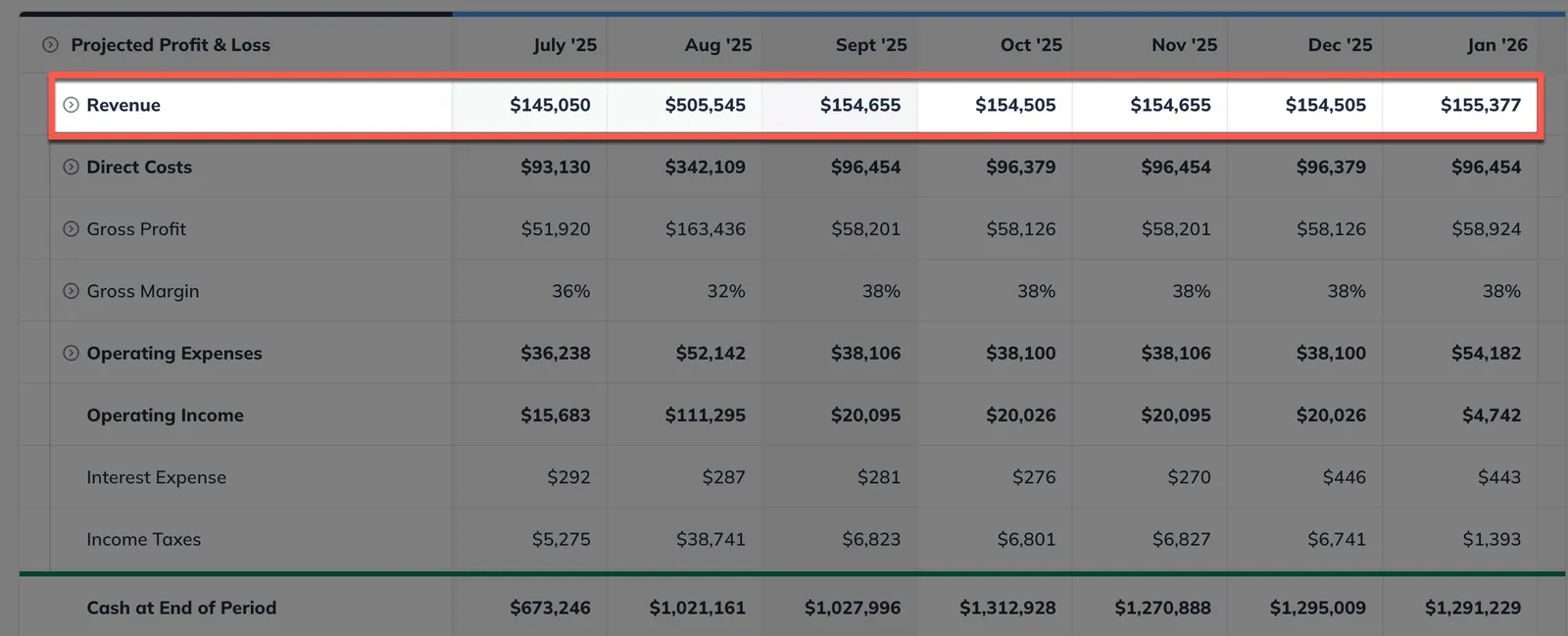
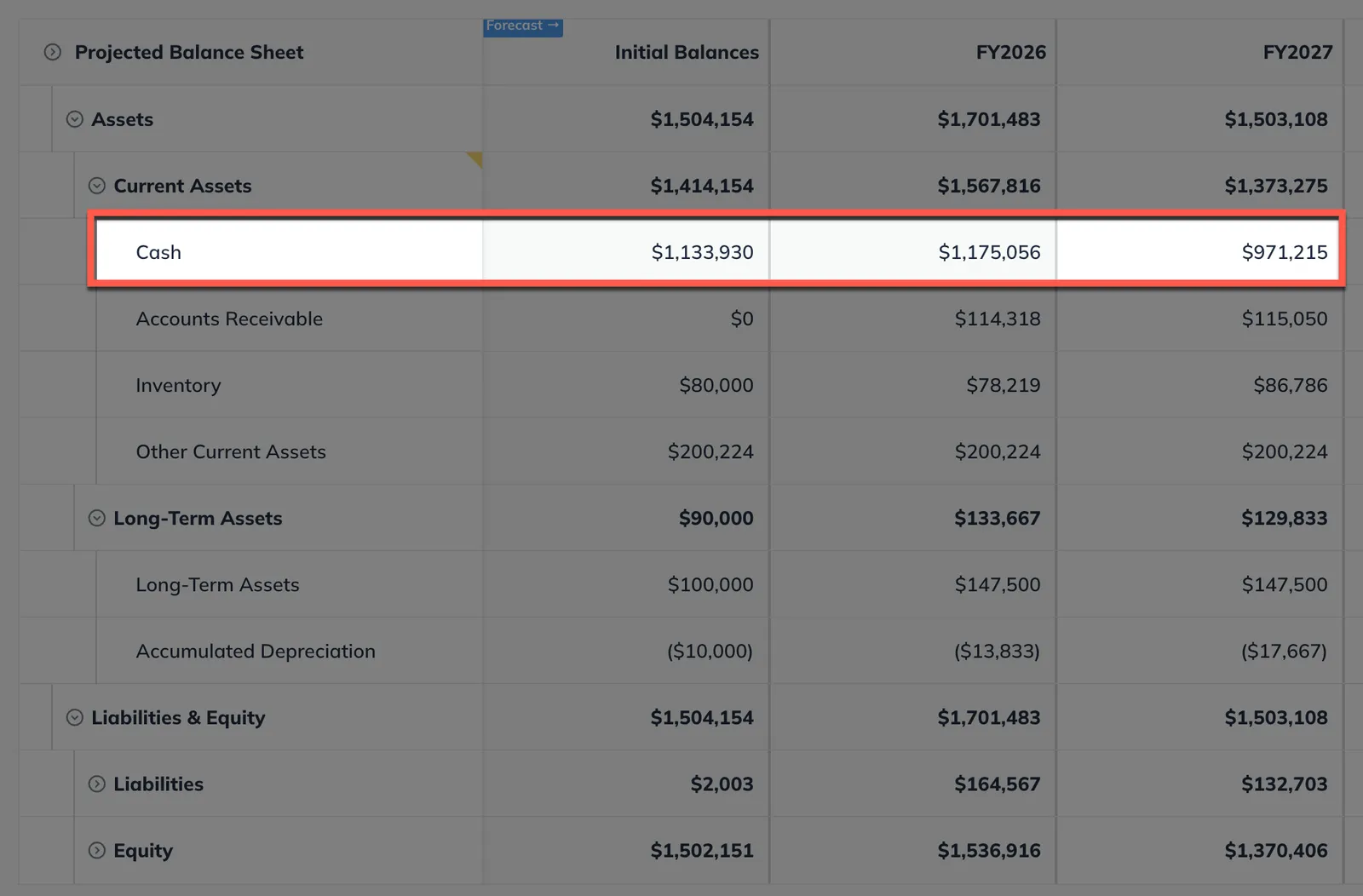
Your revenue streams will be used to calculate the highlighted lines in the Profit & Loss, Balance Sheet, and Cash Flow table shown below:
Profit & Loss:
Balance Sheet:
Cash Flow: