

Entering initial balances for an existing company
When you start a forecast in LivePlan, initial balances act as the starting point for an already-established business. These balances represent the assets, liabilities, and equity at the beginning of the forecast period.
Initial balances are only relevant for existing businesses. If your plan is for a new venture, you don't need to set initial balances in the forecast. However, if you already have an established business, it's important to provide your total asset, liability, and equity balances as of the start of your LivePlan forecast. We'll use these beginning balances in your forecast calculations to reflect your future performance.
There are two ways you can enter initial balances in LivePlan:
- If you're currently using QuickBooks Online or Xero for your day-to-day accounting, you can connect your accounting tool to the LivePlan Dashboard. This will automatically build a starting point for your forecast and enter your initial balances.
- If you're not using one of the above tools, you can enter your initial balances directly.
Setting initial balances automatically from your accounting actuals
The first step in this process is to sync LivePlan with either QuickBooks Online or Xero. For details, see Connecting LivePlan to your accounting solution.
When the sync is complete, you'll see that LivePlan has automatically used your accounting actuals data to add initial balances to your forecast. The software will insert a month at the start of your forecast for these starting amounts.
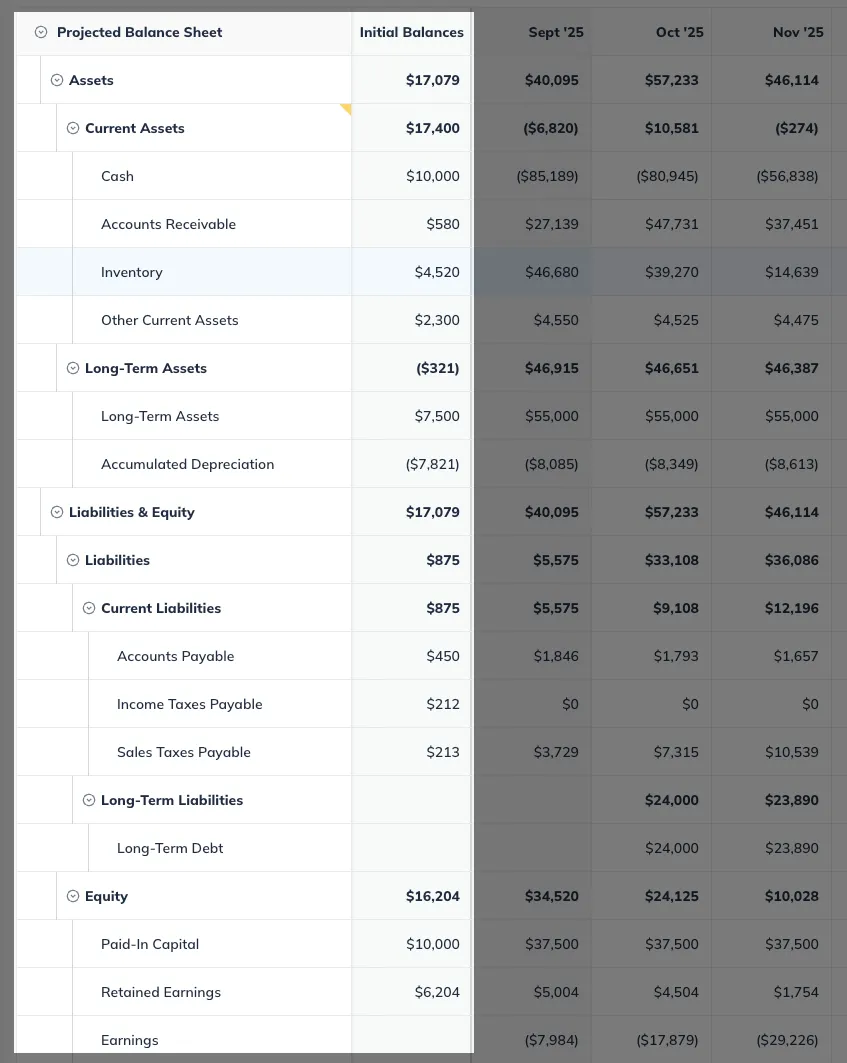
Please have a look at the Editing initial balances section further below if you'd like to make changes to the initial balances. If you would like to learn more about how to set the initial balances directly, we will cover that topic in the next section.
Setting initial balances directly
You can use this option in any existing company.
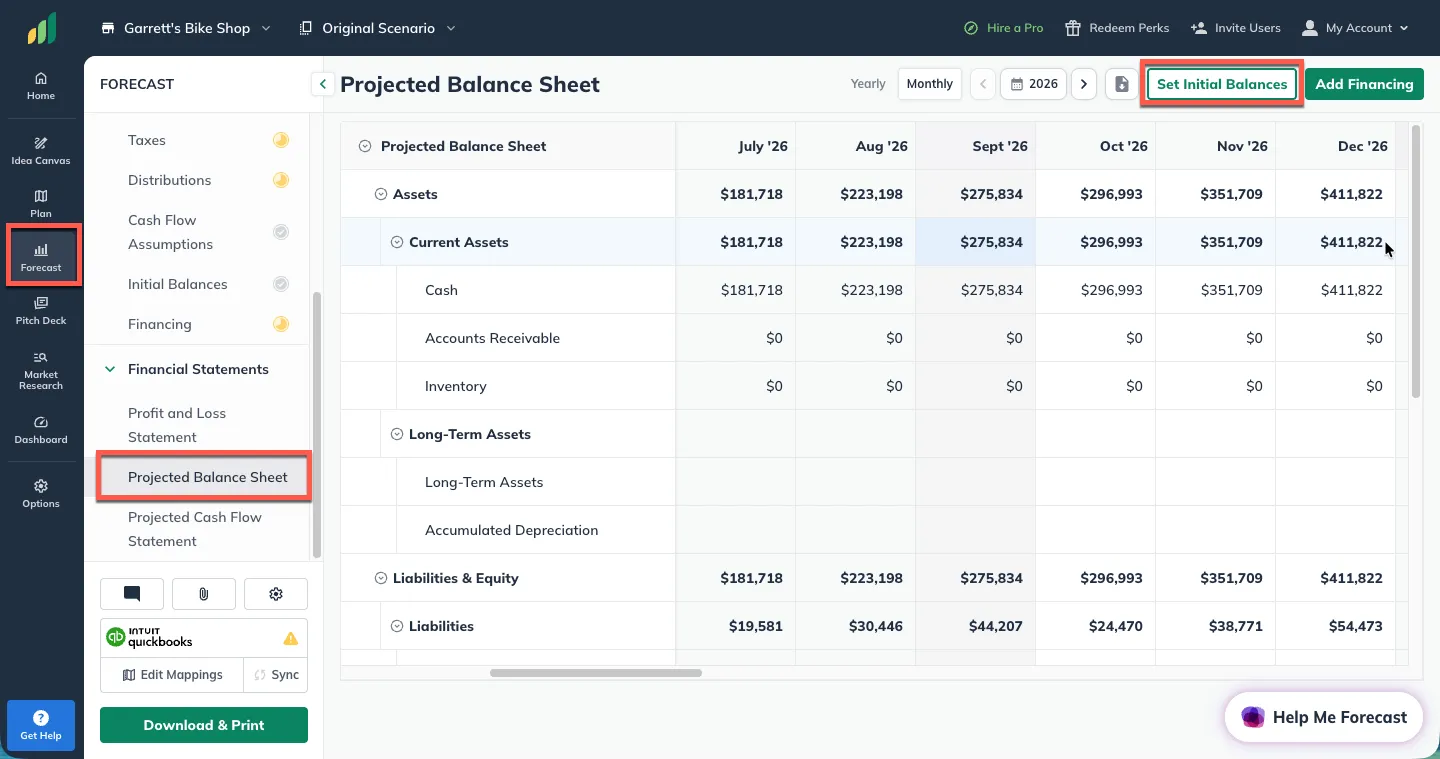
From the Forecast section, select Financial Tables, then select Balance Sheet, and then select Initial Balances:
At the top of the Initial Balances overlay, you'll see an equation expressing that the sum of your liabilities and equity must equal your assets. As you enter or edit initial balances in the overlay, this equation will update to show the current totals:

Step 1: Initial assets
In this section, you'll enter any cash on hand, accounts receivable, and both long-term and current assets your business owned before the start of the forecast.
Enter the amount of cash you have in the bank as of the start date of your forecast:

Enter the amount your customers owe you for past sales on credit:

Select from the list how long it will take to collect outstanding credit sales:

Indicate how much your unsold inventory is worth:

Enter the total value of your long-term assets:

Indicate how much depreciation you've claimed on these assets:

Select the number of years (between 1 - 50) over which you'd like to depreciate the remaining value of your fixed assets:

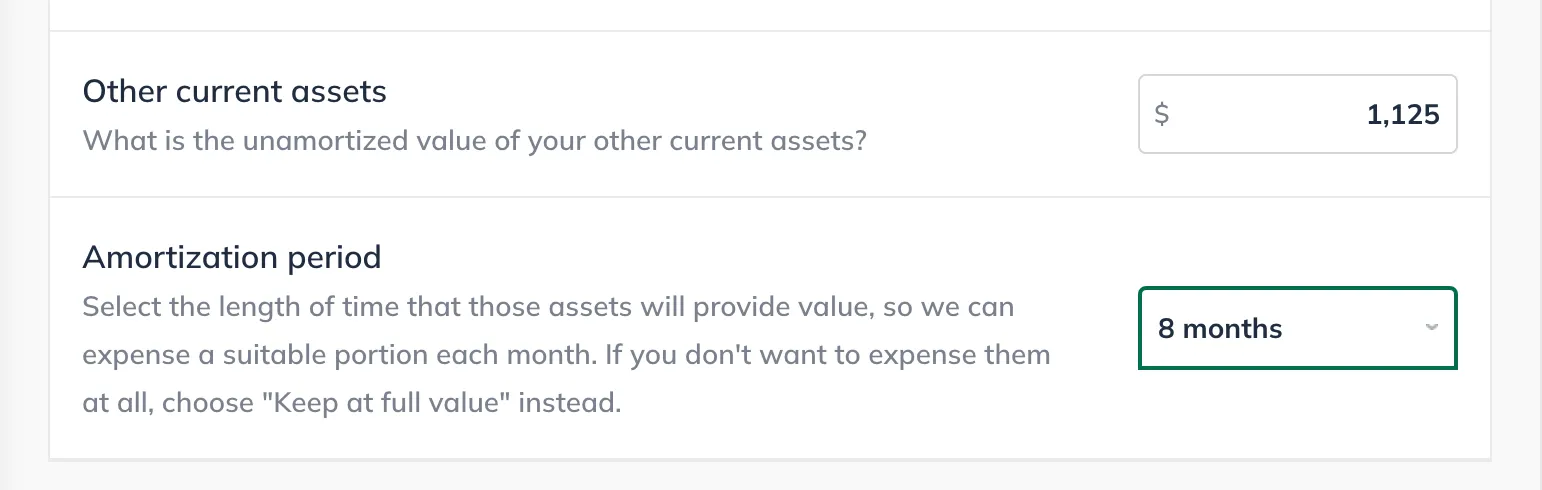
Enter the value (without amortization) of any other current assets you have at the start of the forecast. Then select the amortization period (between 1 - 12 months) for these assets:
Click Continue to liabilities to move on to the Initial Liabilities step:

Step 2: Initial liabilities
Liabilities are debts, money that must be paid back. Usually, a liability you pay back in less than 12 months is called a short-term debt, and a liability that will take longer than 12 months to pay back is a long-term debt.
Enter the amount you owe your vendors for past purchases on credit:

From the list, choose how long it will take you to pay off your past purchases on credit:

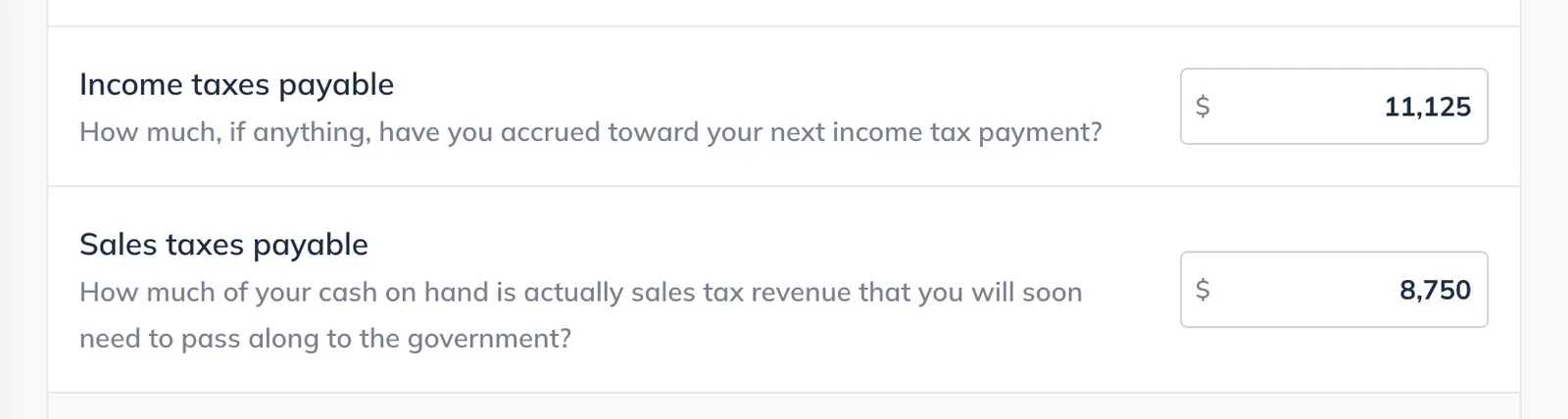
Enter the amount you currently owe for income and sales taxes:
If you have any recurring charges revenue streams that have existing subscribers, and charge those subscribers every 2-12 months, then LivePlan will automatically calculate the prepaid revenue from those subscriptions and enter it in initial balances:

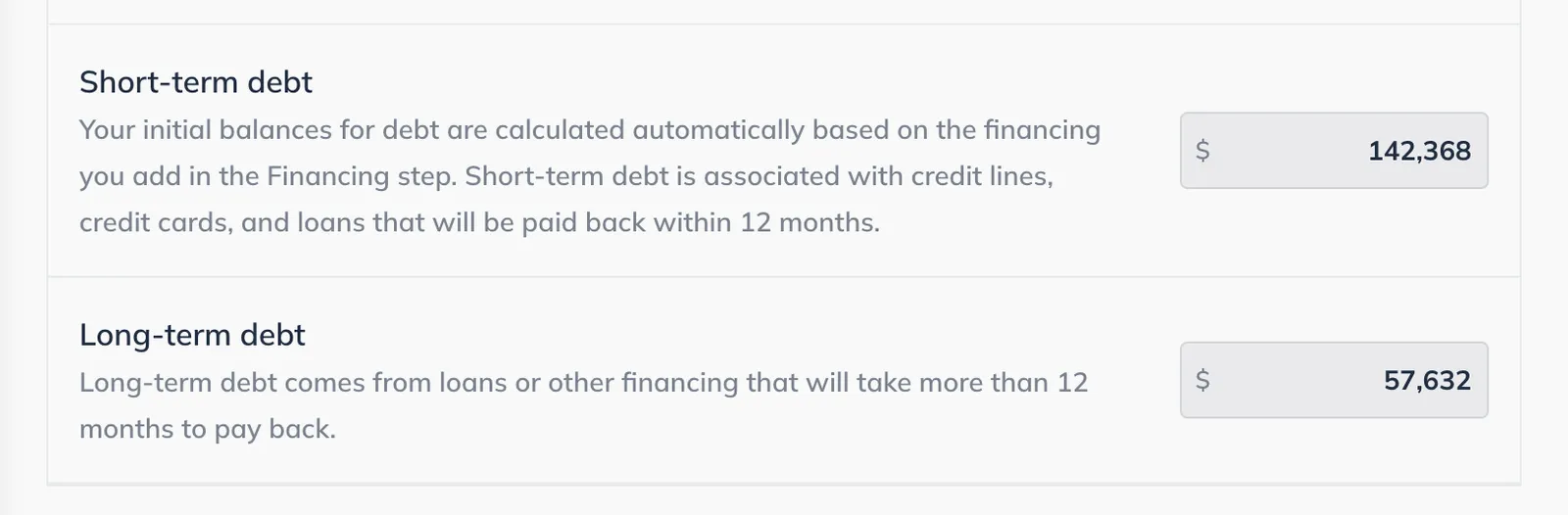
If you have any loans that exist before the start of your forecast, you'll enter those on the Financing page. With those entries in place, LivePlan will automatically calculate your short-term and long-term debt for initial balances:
Click Continue to equity to move on to the Total Equity step.

Step 3: Total equity
Enter the amount of money that you or others have invested in the business in exchange for equity:

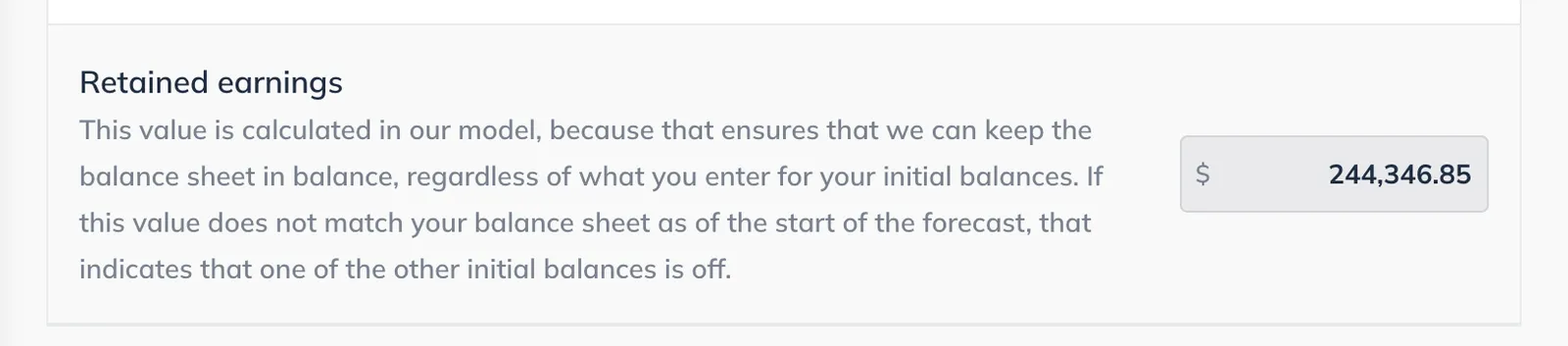
LivePlan calculates your retained earnings automatically, and they are displayed here:
Editing initial balances
From the Forecast section, select Balance Sheet and click Set Initial Balances to edit your initial balances:
Remember, you can go directly to any of the steps in the overlay by clicking on the equation at the top: