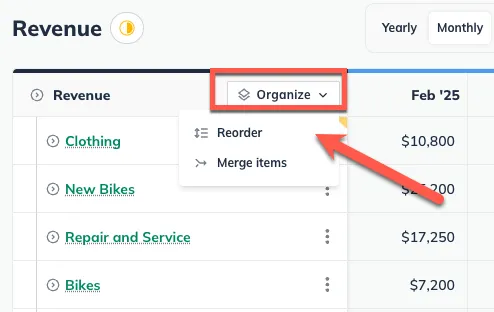
After you've added items to the forecast — revenue streams, direct costs, expenses, etc. — you can change the order in which they appear in the table. You can change the order of items on the individual pages, like Revenue, Direct Costs, Expenses, etc. You can also re-order items listed on the Profit and Loss statement.
To move a row, just click on the drag control to the left of its name and drag it to the new position:
A horizontal line between the rows will indicate the new position, and the name of the item you're moving will be shown in a tooltip.
Expanding and collapsing sections of forecast tables
In many of the tables that display in the Forecast section, you have the option to expand some lines in order to see more detail, or collapse these lines to simplify the display.
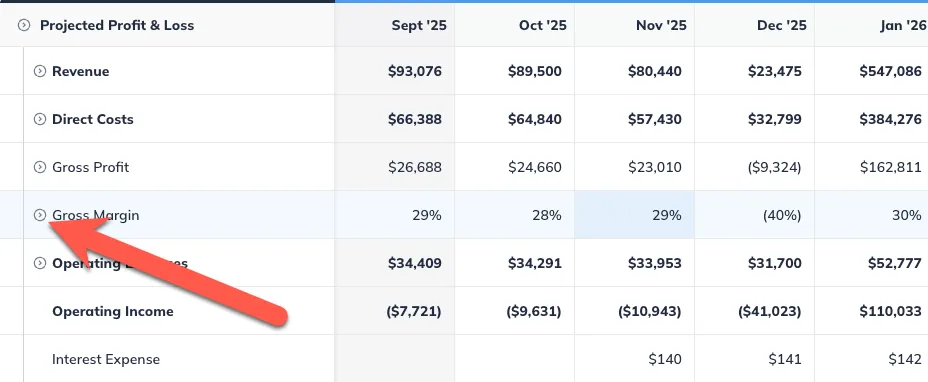
Any line in a table that has a small triangle icon to the left is an expandable line:
Clicking on that triangle icon will expand or collapse the line as shown below:
If you click the triangle at the top row of a table, you can expand and collapse all lines simultaneously:
You'll find expandable lines in the following forecast tables: