How do I change the theme of my downloaded plan?
If you download your plan, LivePlan offers a choice of 2 templates, 6 fonts, and 15 color schemes, which can be combined in up to 180 different ways.
LivePlan also includes the option to set your own custom color theme.
Applying a font & color scheme to a plan
Besides the selected font and color scheme being applied to the plan export, they are also applied to the Plan's in-app display.
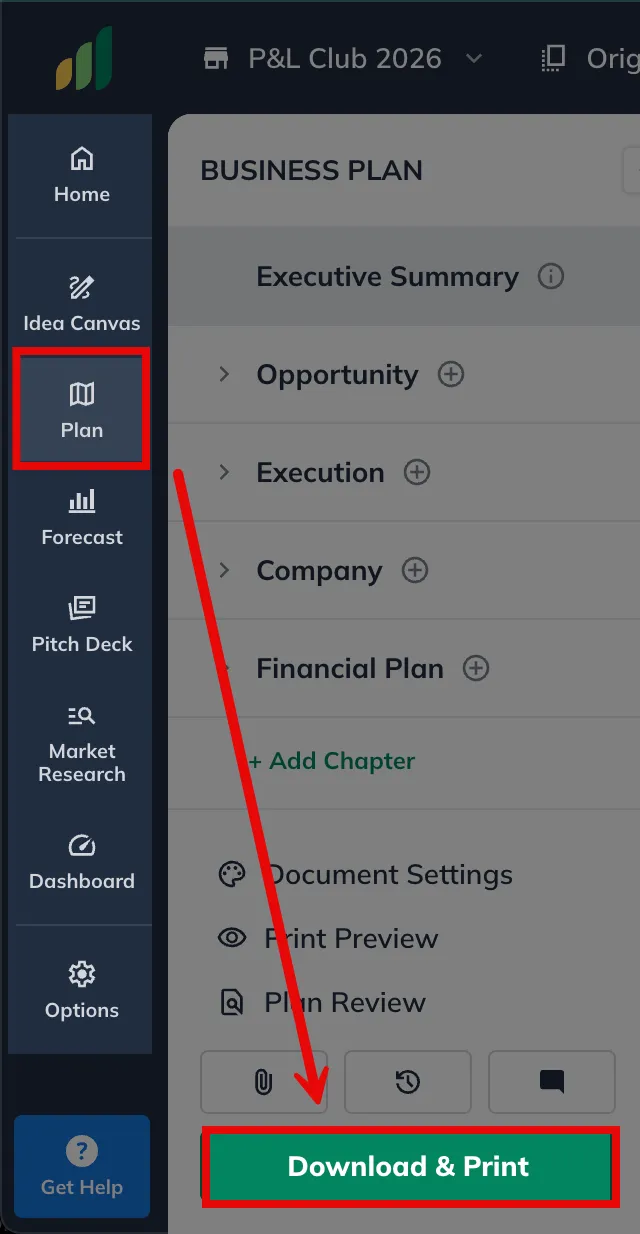
In the Plan section, click Download & Print:
After the Document Settings menu slides out, scroll down until you have located the Fonts and Colors area:
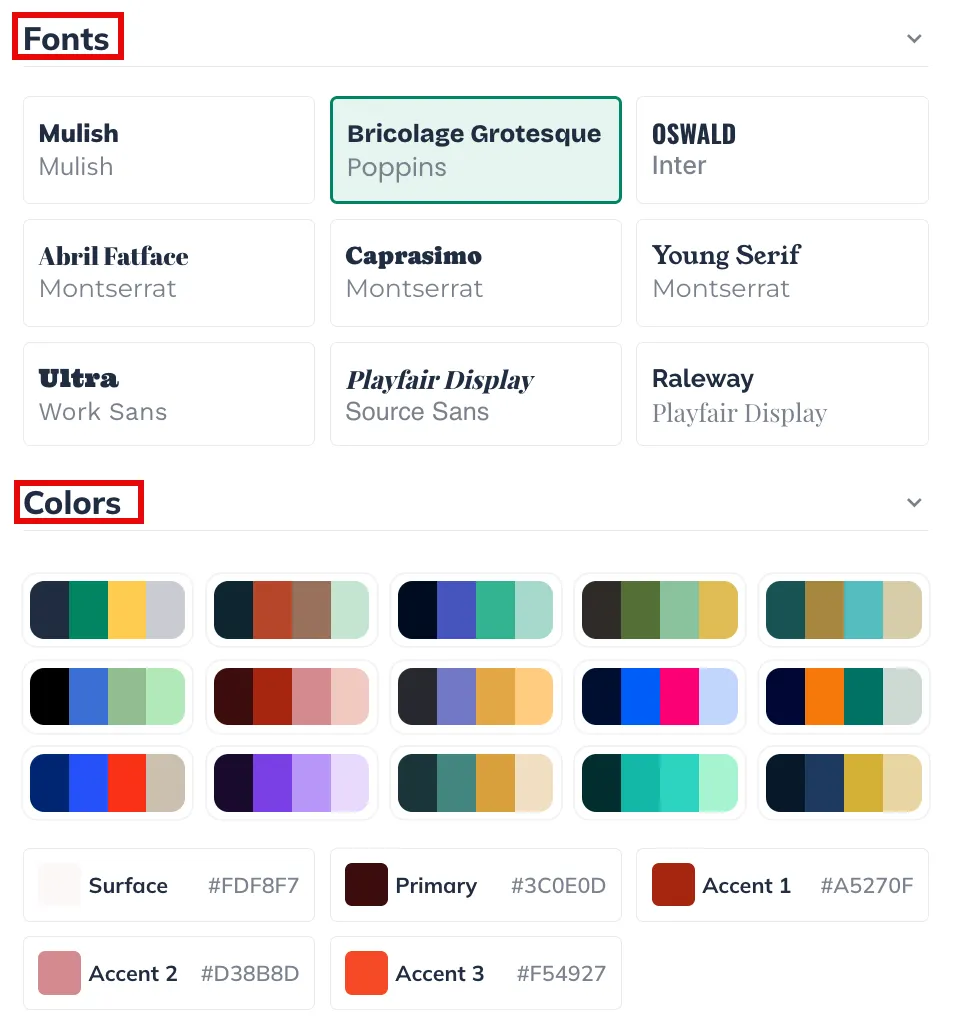
You'll see the default font (Mulish) and color scheme (Evergreen) displayed there. To switch to a different font, select any of the other listed fonts & colors:
Setting custom colors
You can set your own custom colors in the Plan by entering the Hex codes for said colors. If you're not sure what the Hex codes for your company's colors are, then you can use this website to get them: HTML Color Codes
In the Plan section, click Download & Print:
After the Document Settings menu slides out, scroll down until you have located the Fonts and Colors area:
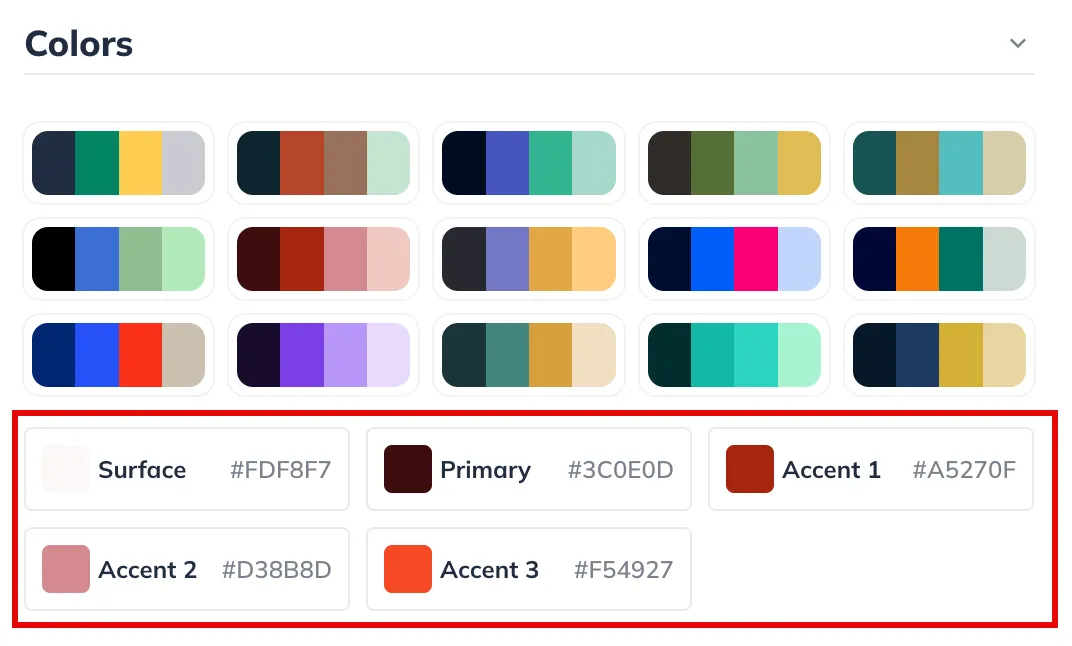
You'll either enter in the Hex code or use the color selector in LivePlan:
Which fonts & color schemes are used in the document themes?
If you're downloading a Word document from LivePlan and applying one of our themes to it, you may need to download and install the fonts onto your computer.
If you'd like to customize the font sizes and types in detail, we recommend downloading your plan as a Word document. You can open this file in Word, Google Docs, Pages, or other compatible page-layout applications and change the fonts as much as you like.
You can also apply your theme in Word using Word's theming tools, allowing you to add further styling to your plan. Just leave the default font of Mulish and color scheme of Evergreen applied to your document when you export it. The Word template for any export will have no additional design elements.
Fonts
There are 6 font sets that each include the bolded header text and text body. The 6 font sets are listed below with the bolded text representing the header text and non-bolded text representing the text body. A corresponding screenshot will follow how the font text displays in the Plan.
- Mulish
- Mulish
- Bricolage Grotesque
- Poppins
- Oswald
- Inter
- Abril Fatface
- Montserrat
- Caprasimo
- Montserrat
- Young Serif
- Montserrat
Color Schemes
LivePlan has 15 preset color schemes to select from for your plan export.
Each color scheme has 1 primary color, 3 accent colors and 1 surface color.
- Primary is the color of your plan's text body font.
- Accent 1 is for some plan UI elements and in the PDF templates.
- Accent 2 is used in the designs for all templates.
- Accent 3 is used in-app for highlighting the different areas of the Plan's left side navigation panel.
- Surface is used in-app for the Plan background
The color scheme named will be listed below along with a screenshot of it and how it is used in the 3 templates.
- Evergreen

- Bold-Contemporary
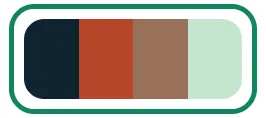
- Tech-Clinical

- Earth-Rugged

- Coastal-Mediterranean

- Museum-Bistro

- Soft-Airy
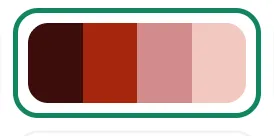
- Regal

- Plannery

- Earth-Tech

- BazPlan

- Lavender-Modern

- Candidate
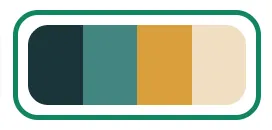
- Cool-Mint

- Navy-Gold

Selecting a template
LivePlan has 3 template options to select from when you're ready to export your plan.
There is 1 template that is for both Word and PDF while the other two are only for the PDF export.
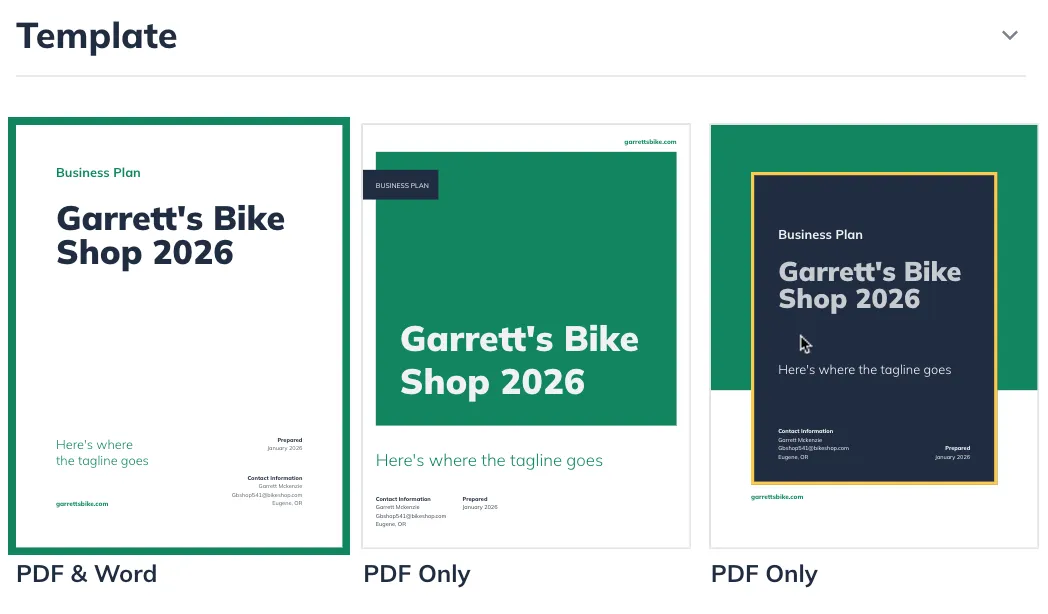
You can select Word Document type from the Export Type drop down menu. this will by default select the only template option for Word:
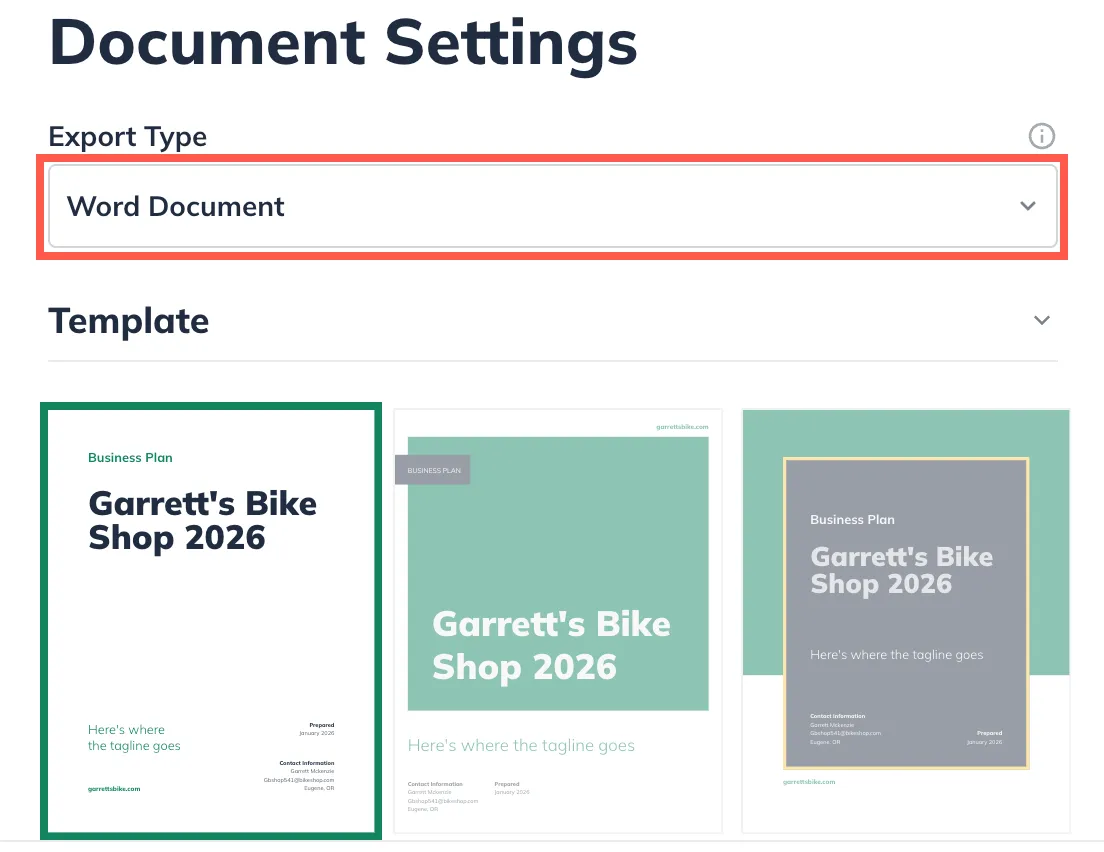
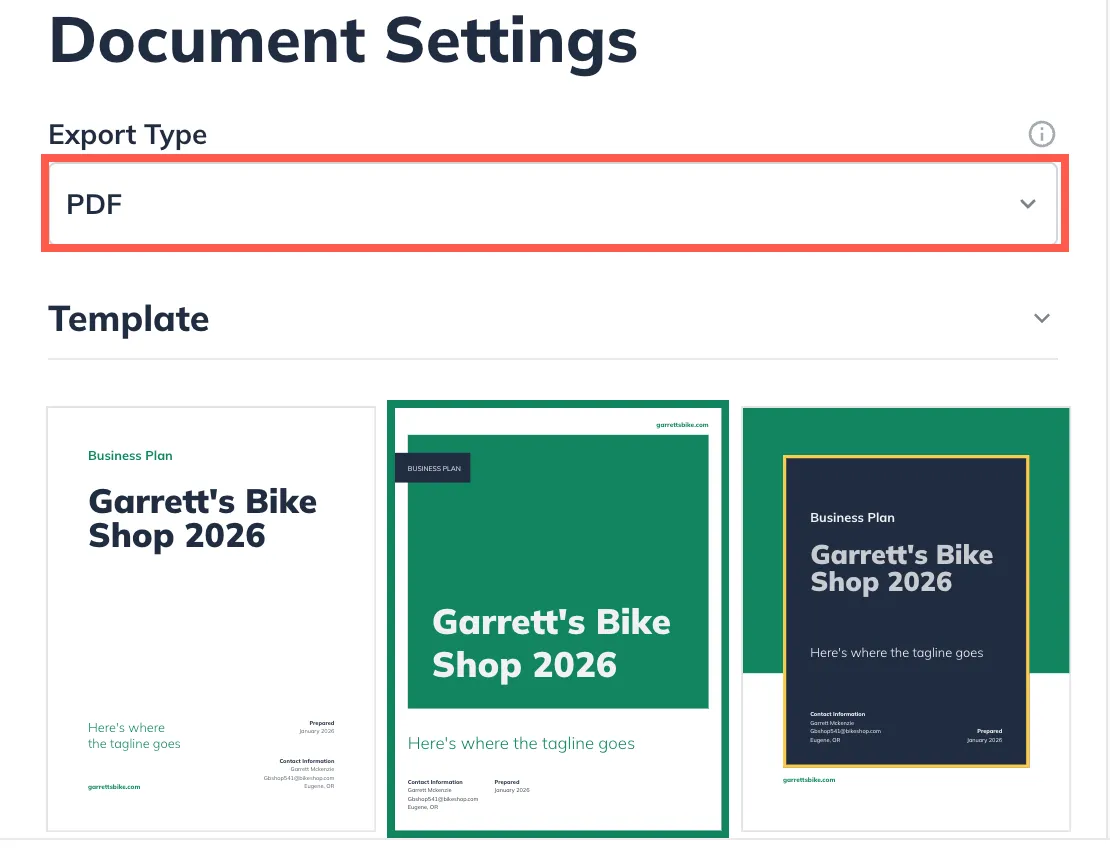
You can also select PDF from the Export Type drop down menu. You can then select any of the 3 templates for your plan export: