What additional content can I add to my plan?
In addition to the default plan outline, LivePlan provides a selection of pre-built sections, charts, and tables that may be useful for specific kinds of businesses.
This content is available in the Outline of the Plan. You can easily add these items to any chapter of your plan.
Below is a list of these available pre-built Plan items:
Available Sections
Available Sections
These blank, pre-built sections come with their own instructions to ensure that adding them in is as seamless as possible in your workflow.
- Barriers to Entry
- Company History
- Exit Strategy
- Expected Return
- Future markets
- Intellectual Property
- Key Assumptions
- Key Customers
- Key Planned Hires
- Market Growth
- Market Trends
- Milestones
- Partners & Resources
- Pricing
- Regulatory Requirements
- Risks & Mitigation
- Roadmap
- SWOT Analysis
- Validation of problem
- Validation of solution
Available Charts
Available Charts
These charts are linked to your Forecast section in LivePlan and will automatically populate based on the data found there.
- Cash Flow by Month
- Cash Flow by Year
- Expenses by Month - The total of your direct costs and expenses, broken down monthly.
- Expenses by Year - The total of your direct costs and expenses, broken down annually.
- Financial Highlights by Month
- Financial Highlights by Year
- Gross Margin by Month
- Gross Margin by Year
- Net Profit (or Loss) by Year
- Net Profit (or Loss) by Month
- Revenue by Month
- Revenue by Year
Available Tables
Available Tables
These tables are linked to your Forecast section in LivePlan and will automatically populate based on the data found there.
- Projected Balance Sheet
- Projected Cash Flow Statement
- Projected Profit & Loss
- Personnel Statement
- Startup Costs Summary
- Debt Service Coverage Table
Adding a SWOT analysis to your plan
A SWOT analysis is a strategic planning tool that can help organizations and individuals evaluate their current state and identify areas for improvement or growth. SWOT is an acronym for "Strengths, Weaknesses, Opportunities, and Threats." Sometimes, it goes by the name "SWOC" instead, as in "Strengths, Weaknesses, Opportunities, and Challenges."
A SWOT analysis involves looking closely at the factors that help your business succeed and the factors that can get in the way so that you can build a more effective business plan. It's a time-honored tool for both for-profit and nonprofit companies.
The SWOT analysis is an optional text section you can add to your plan.
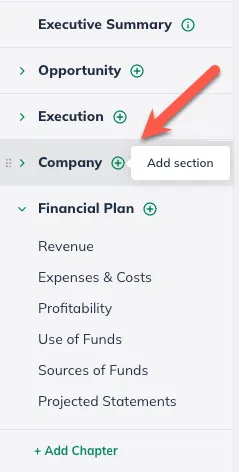
In the Plan section, select the Add Section button in the applicable chapter:
In the Available Content menu, find the SWOT Analysis section.
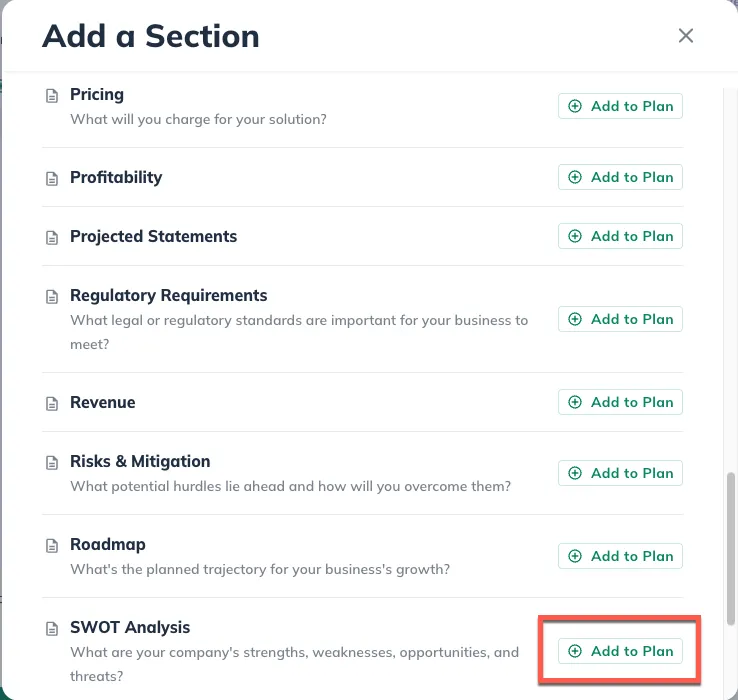
Click on SWOT Analysis and it will automatically add it to your outline and navigate you to that section. The change will save automatically:
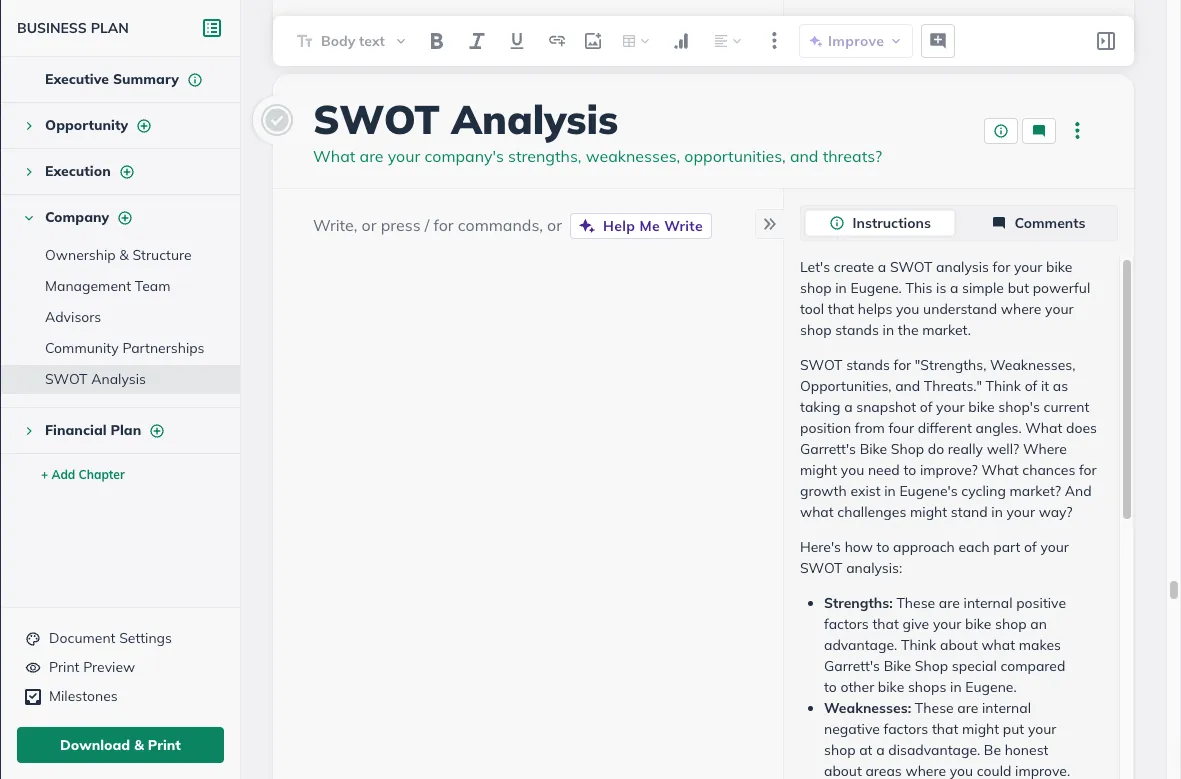
Add text and images to the editing field. Any changes will be saved automatically.
Adding a mission statement to your plan
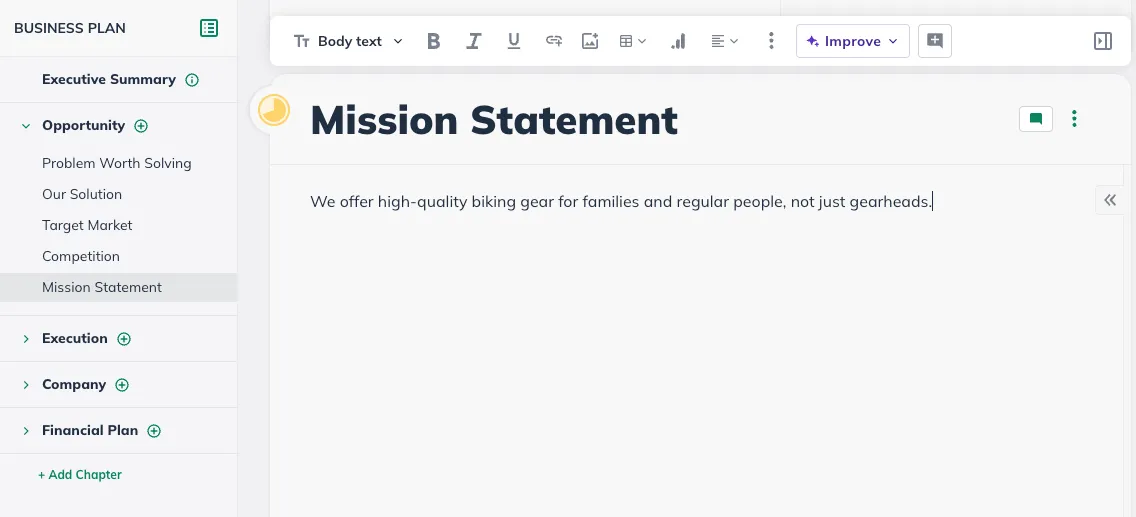
If you're creating a detailed business plan in the Plan section, you can add a custom section to any chapter of that plan, title it "Mission Statement," and add the text of your mission statement. A sample is shown below:
Adding a marketing plan
The Plan offers text sections in the default outline, where you can describe your sales and marketing intentions in more detail, as shown below:
For many businesses, these descriptions may be all you need. To help you decide on the scope of your marketing plan, you may find these articles helpful:
- Marketing Plan Details to Include in Your Funding Pitch Explained
- How to Create a Strategic Marketing Process for Your Business
If you require more in-depth sales and marketing details in your business plan, you can easily customize your LivePlan outline to include a custom chapter with custom sections for all the details you like. You can even import images of charts you've created if you like.
Adding Market Research to your plan
You can now add Demographic, Target Audience, Customer Personas, and Competition from the Marketing Research feature to your Plan directly.
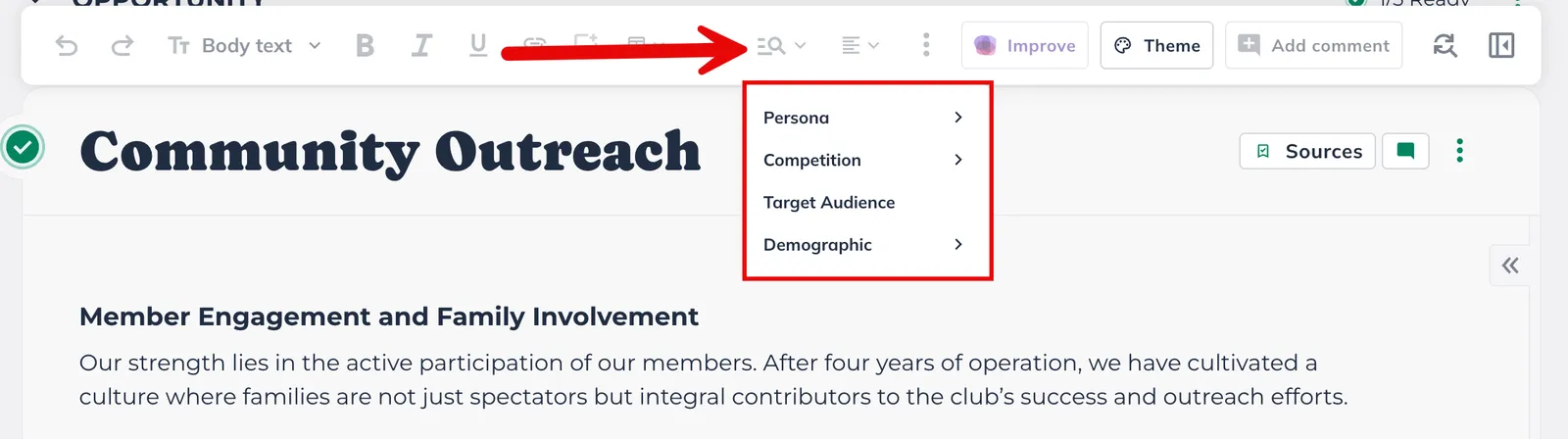
To add a Market Research widget, select the section you want to add it to:
In the top menu bar, select Market Research widget you would like to add to that section:
You can then click on the gear icon in the Demographic, Customer Personas, and Competition widgets to change to another one:
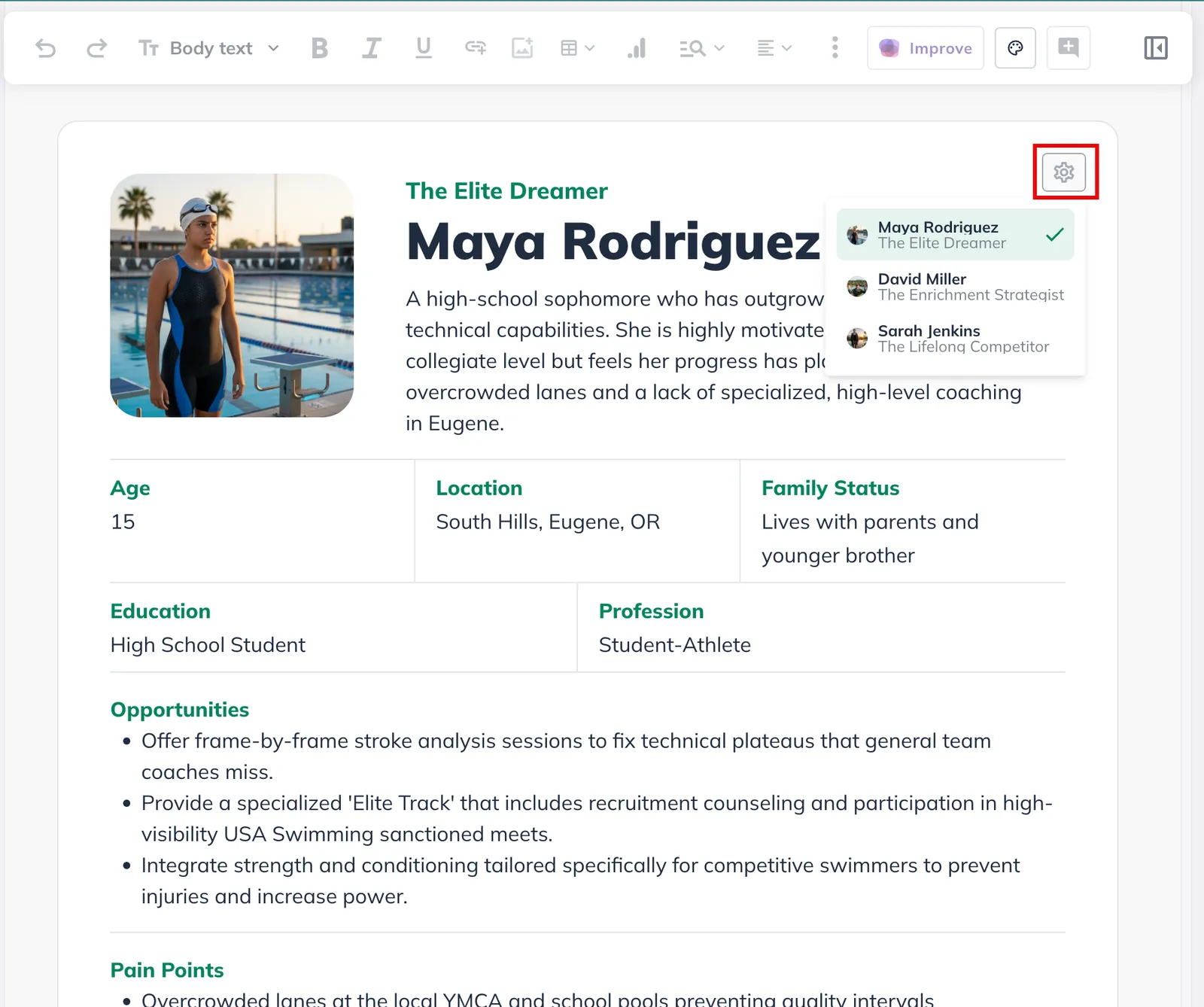
The only widgets available to add from the Market Research feature are Personas and the Target Market at this time. Please contact us for feedback about what other information from the Market Research you would want to add to your plan!
How to delete Market Research from the plan
You need to click onto the widget to highlight it and then hit the "delete" button on your keyboard: