

Changing the company name
You can change your company name in two places in LivePlan: the Options section and the cover page you add to your plan.
When you first create your company, the name will appear the same way in both places. But because LivePlan has several options for building your plan, it offers a few ways to change the company name. Each of these will change the name in different locations, as described below.
Find & Replace in the Plan
Find and replace is a great first step if you're changing the name of your company.
Find and Replace is located on the righthand side the toolbar above your text fields.
- Open Find and Replace in the Plan and search for the name of your company.
- You can then cycle through and replace all instances of your company name in your Plan.
In the Options menu
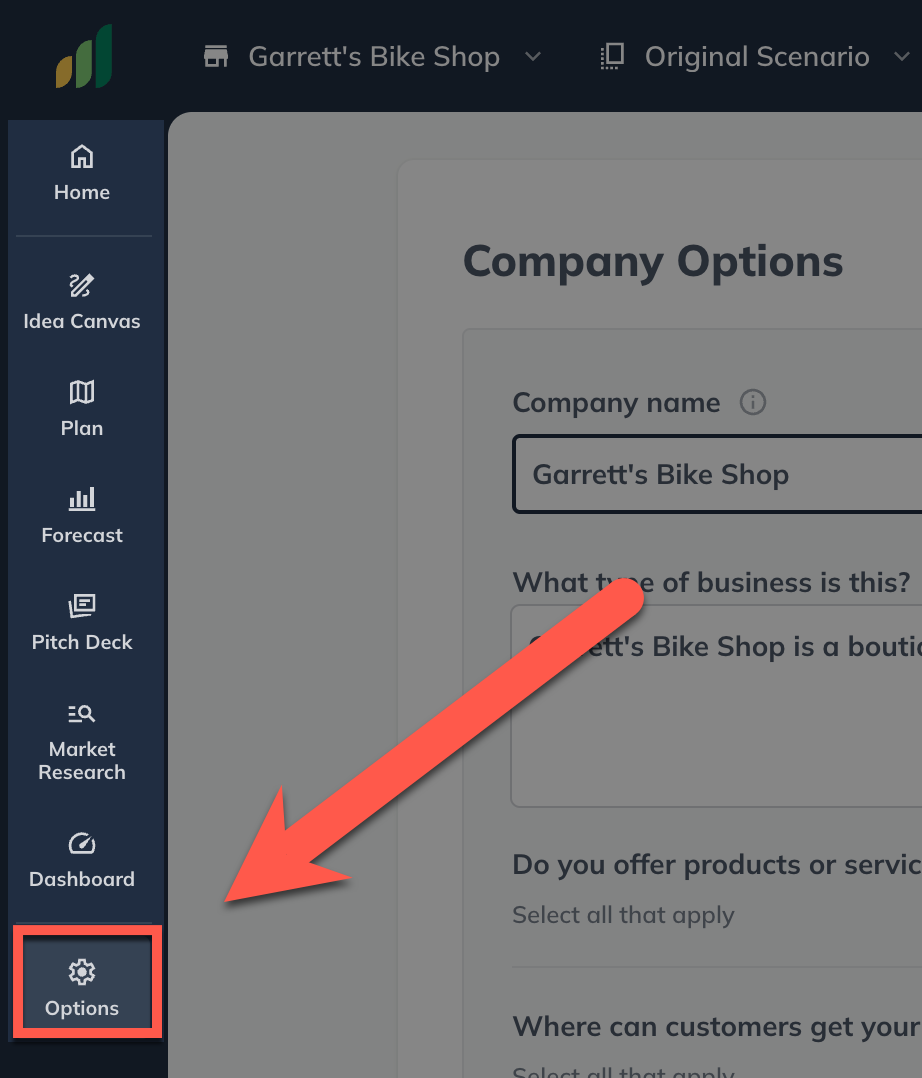
Click Options in the left sidebar:
In the Company name field, enter a new name:
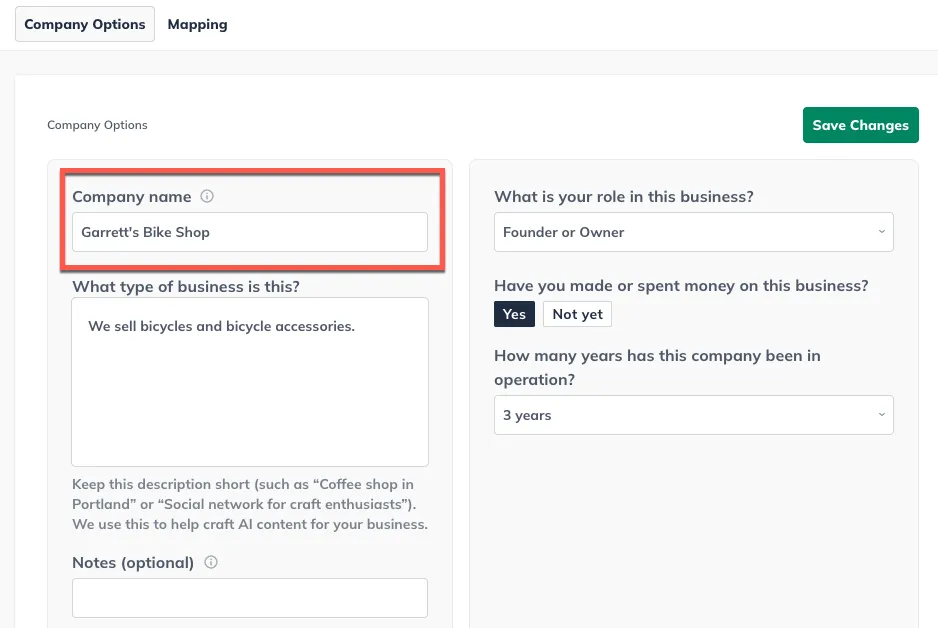
LivePlan will automatically save your changes.

From the Plan's Document Settings
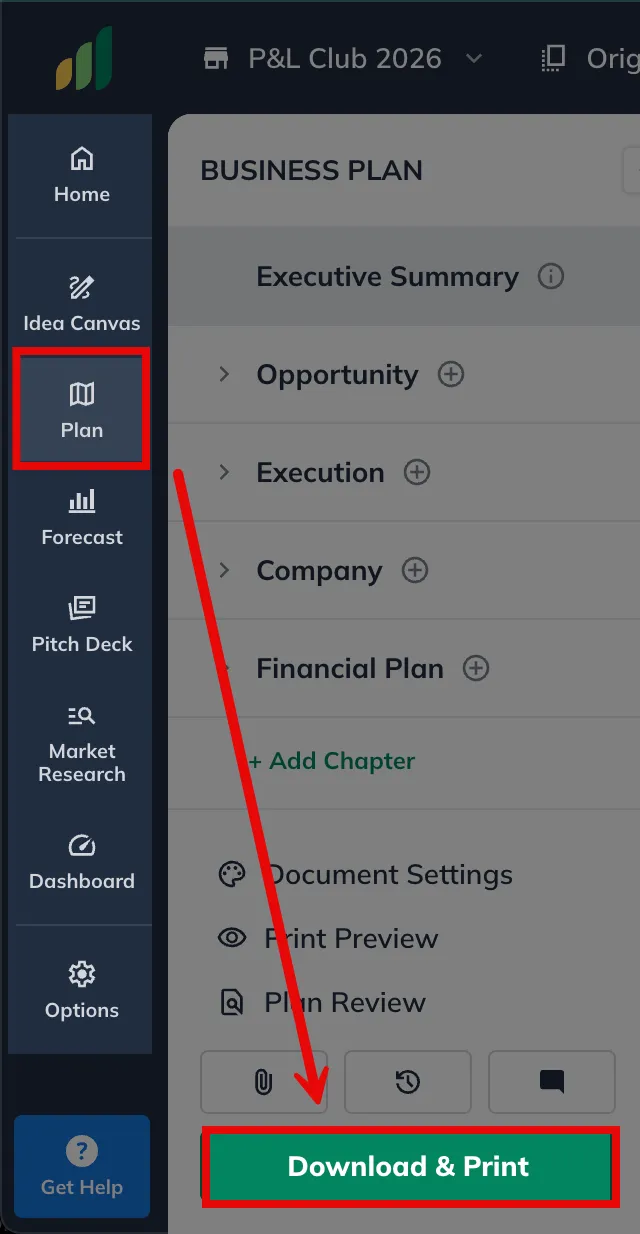
Click the Plan section, and then click Download & Print:
From the Document Settings slide out, scroll down to the Company Info section.
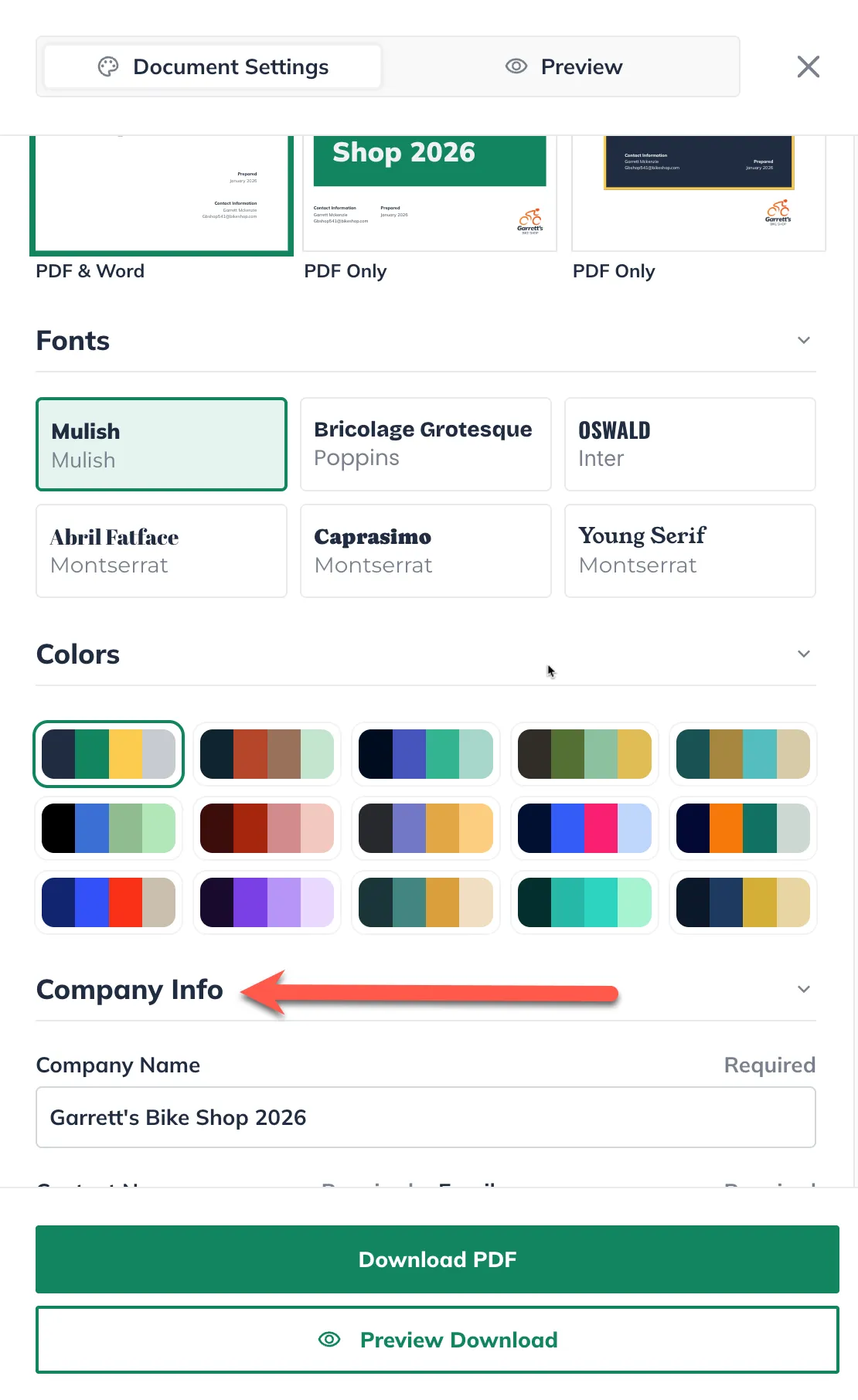
In the company name field, enter your company name or edit the existing one:
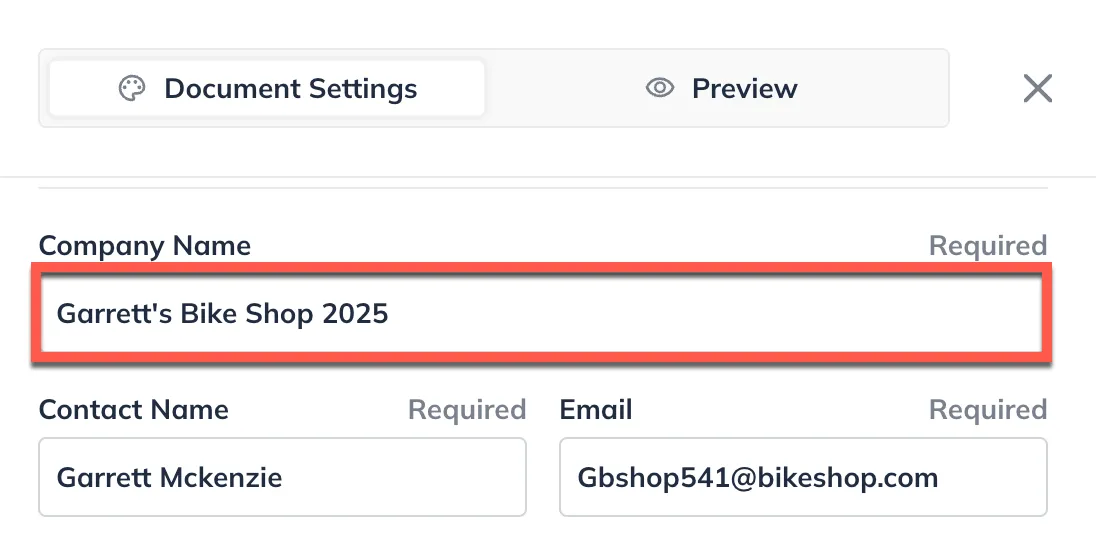
LivePlan will auto save the company name change.