

Reactivating your LivePlan account
You can reactivate your LivePlan account if it is scheduled for cancellation, already canceled, scheduled to pause, or already paused.
Reactivating an account scheduled for cancellation or pause
If you have cancelled your LivePlan account, or have put it paused, you have access to it for the rest of the current paid period. During this time, you can still log in to your account and choose to reactivate.
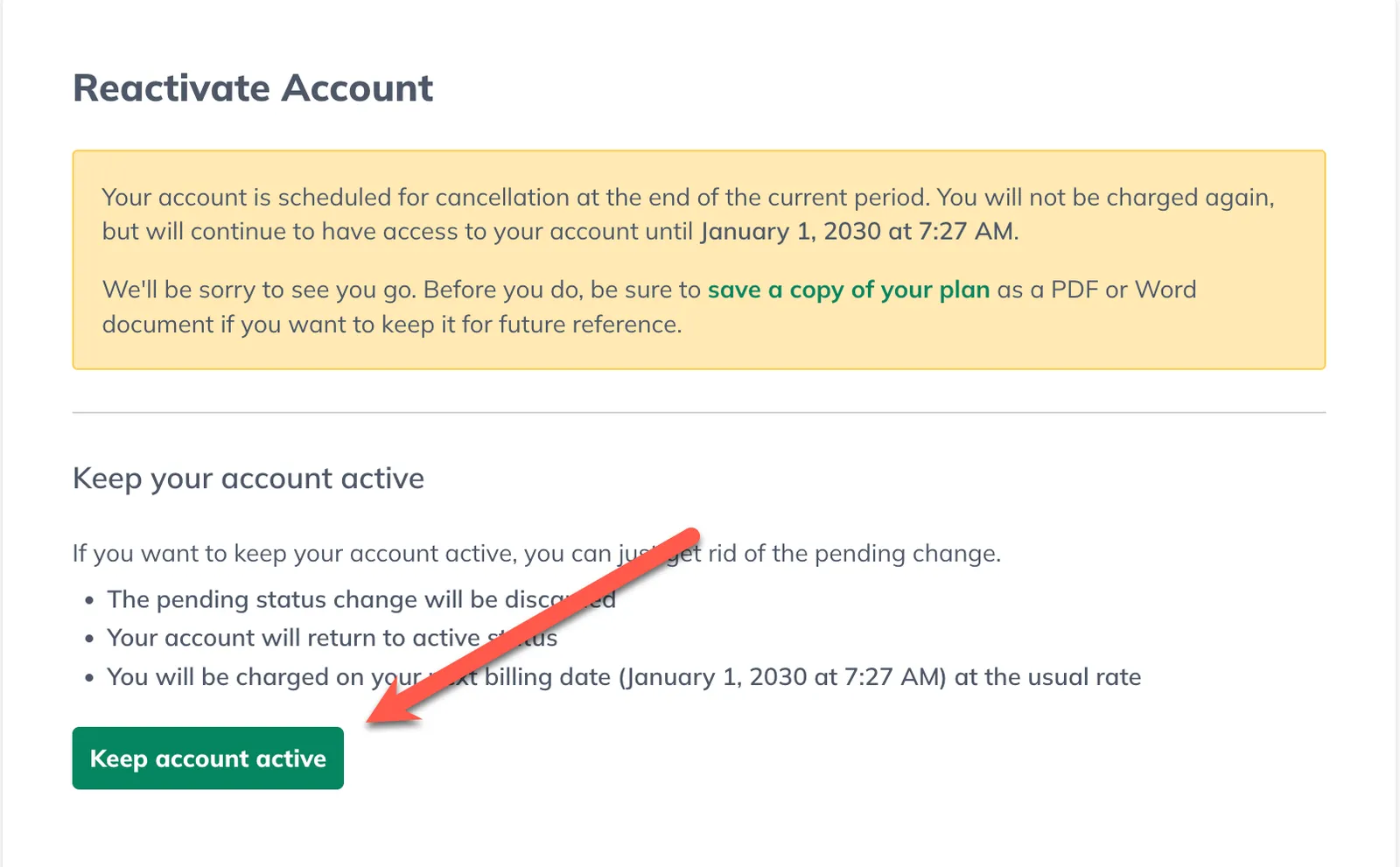
When you reactivate, your account will return to active status, and you will be charged on your next billing date at the usual rate.
Sign in to your LivePlan account.
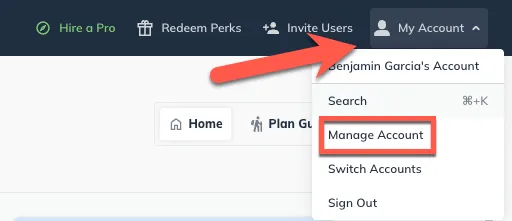
Click on the Account menu, and choose Manage Account:
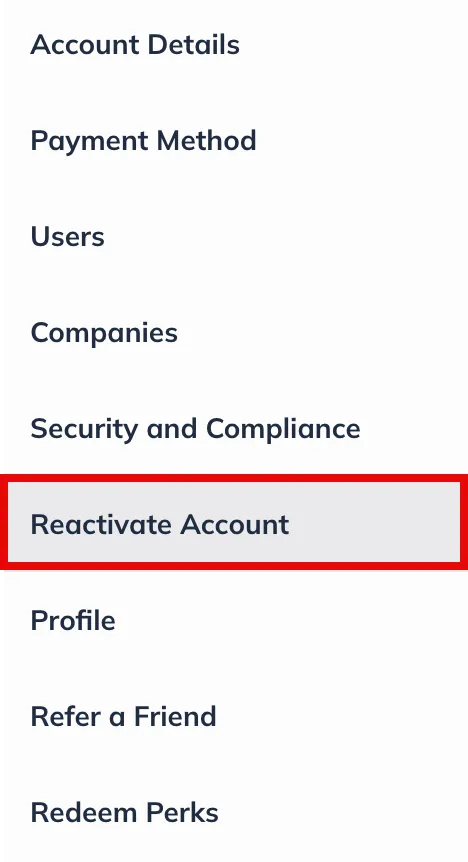
In the sidebar of the account management page, click Reactivate Account:
Click the Keep account active button:
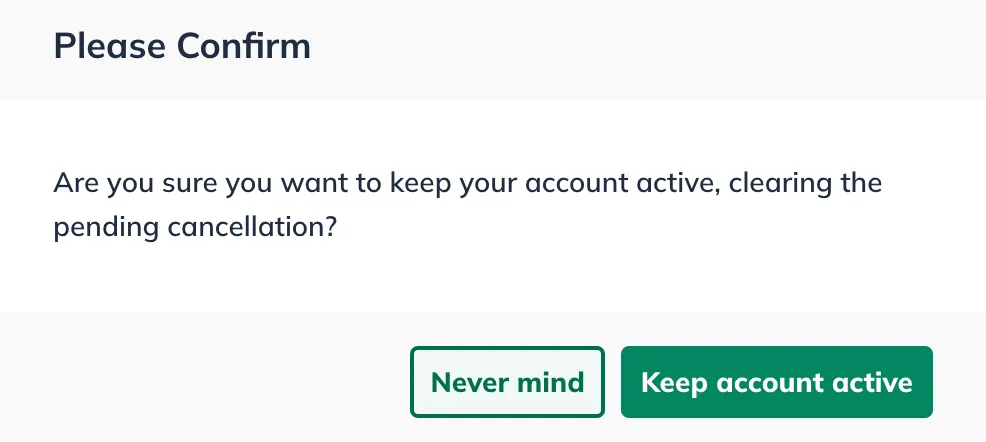
In the overlay that appears, click Keep account active:
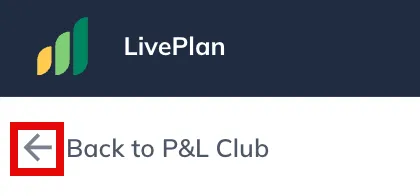
To exit the account management page, on the back arrow in the upper-left corner:
Reactivating a canceled or paused account
Once your account has completed its last billing period and cancelled, you can reactivate it at anytime. Please contact us if you have any questions about your account reactivation.
Log in to your LivePlan account at app.liveplan.com.
If you're not immediately presented with the option to choose a new payment method, click Update payment method.

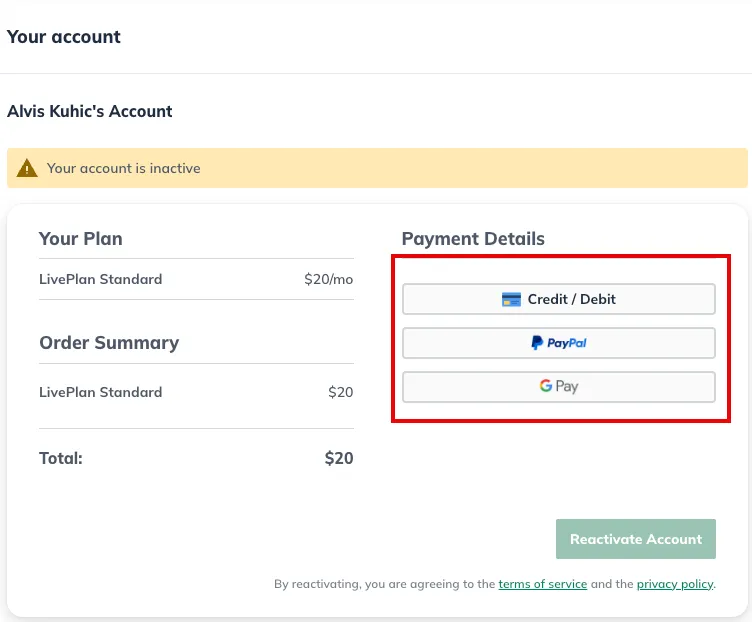
Select Credit Card, PayPal, or Apple Pay and fill in your current payment details. Please note that Apple Pay is exclusively available as a payment option when accessing LivePlan via Safari on an Apple device:
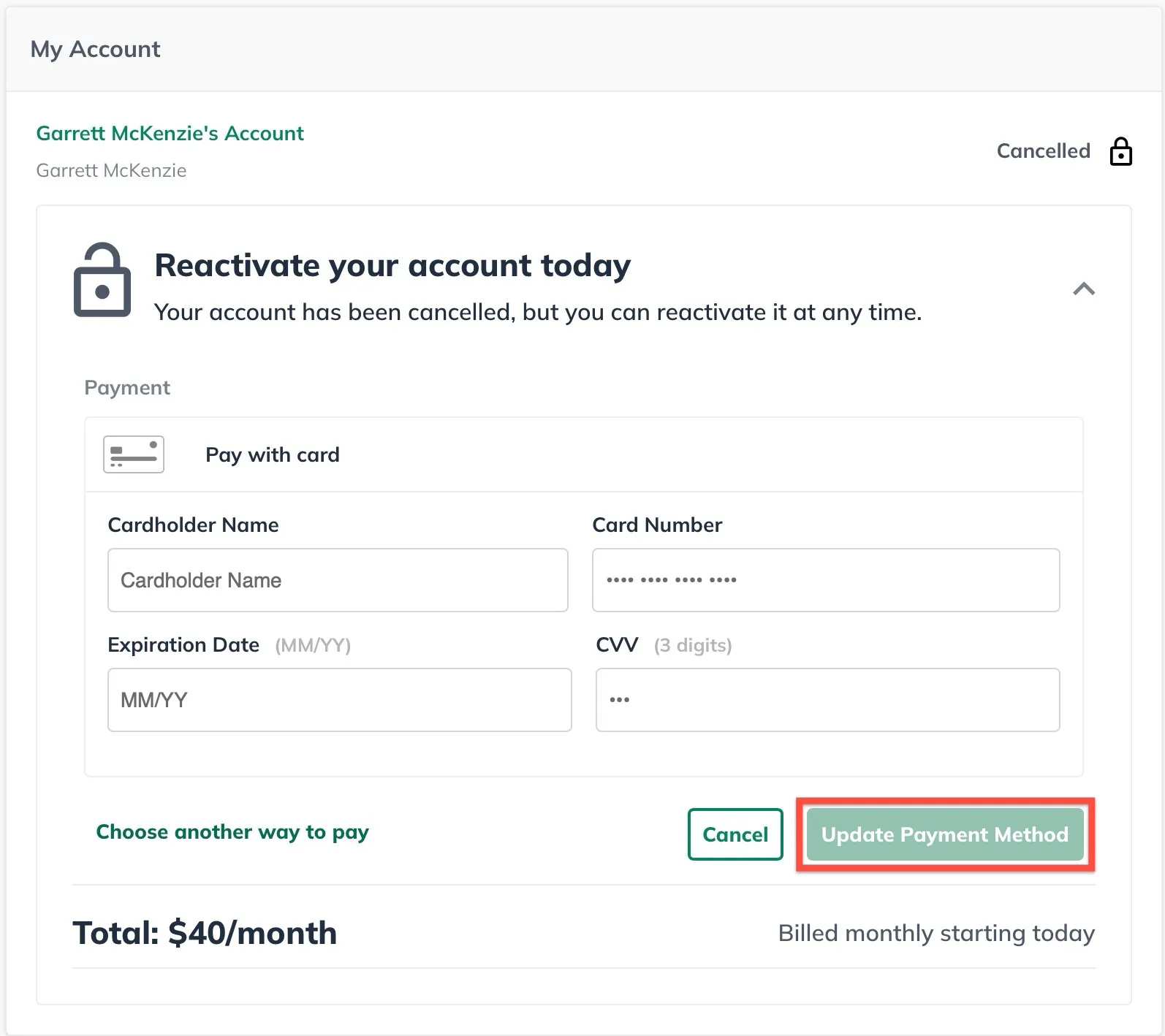
Once the payment information is entered click Update Payment Method:
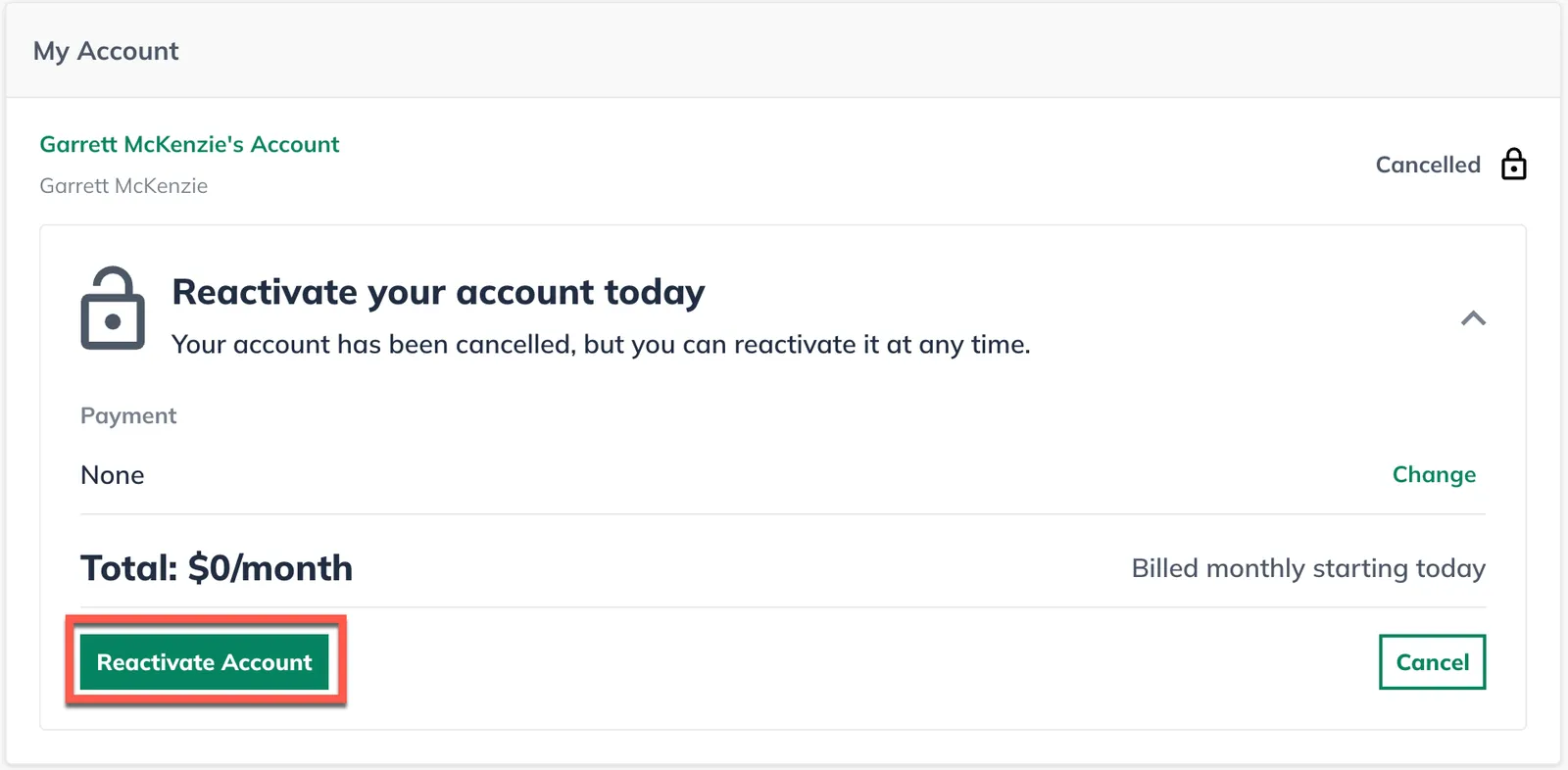
Once your payment information is entered, click Reactivate account to complete your account reactivation. Please note that you will be charged upon reactivation:
Reactivating a suspended account
If your LivePlan account has been suspended due to payment issues, you can reactivate it at any time by updating your payment details. You will be charged the monthly or annual rate as soon as you reactivate, and you will have immediate access to your account and stored plans.
Log in to your LivePlan account at app.liveplan.com.
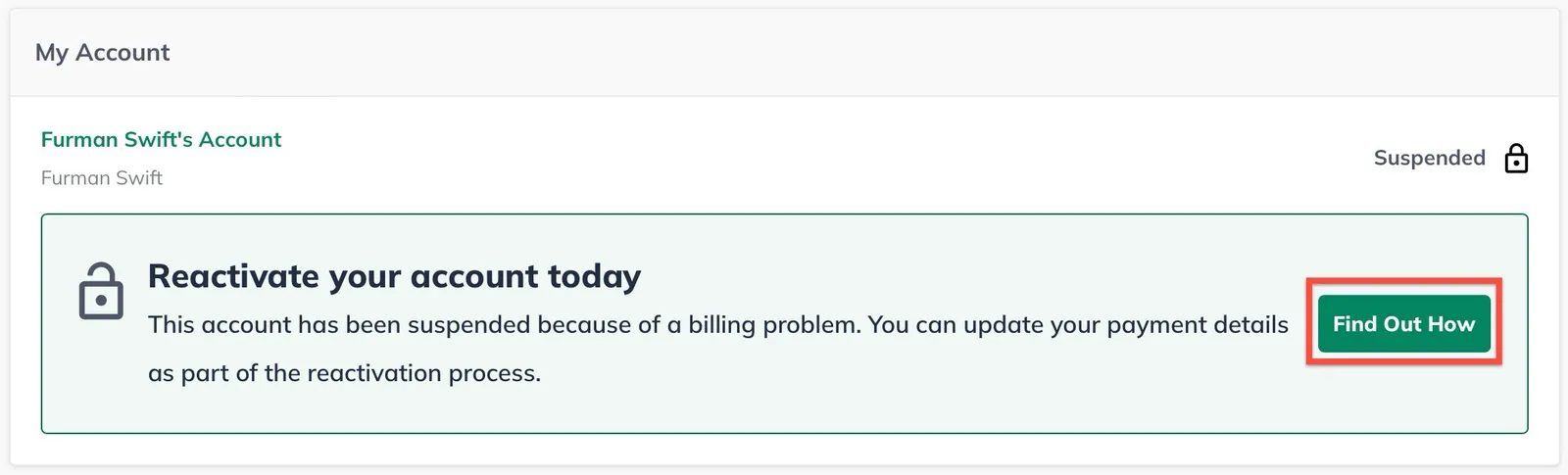
You'll be taken to the Launch Pad. Click Find Out How:
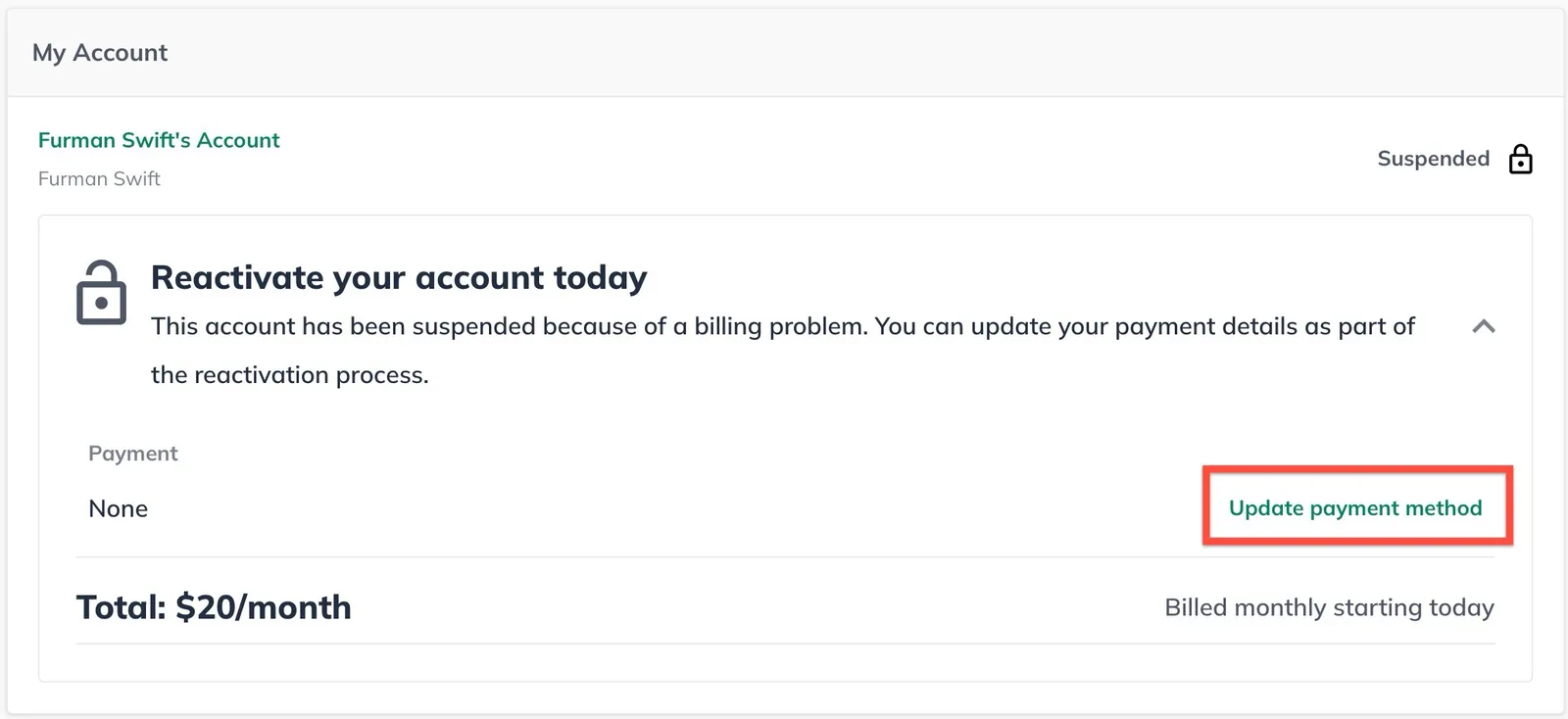
If you're not immediately presented with the option to update your payment method, Click Update payment method:
Once you've chosen your preferred payment method, simply input your updated payment details and follow the on-screen instructions to reactivate your account.