For Accountants: Connect LivePlan to QuickBooks Online

As an accountant or strategic advisor, you may have access to QuickBooks Online companies for multiple clients. When you use LivePlan to build a client's forecast, you can easily choose their QuickBooks company to connect to.
Connecting LivePlan to QuickBooks Online
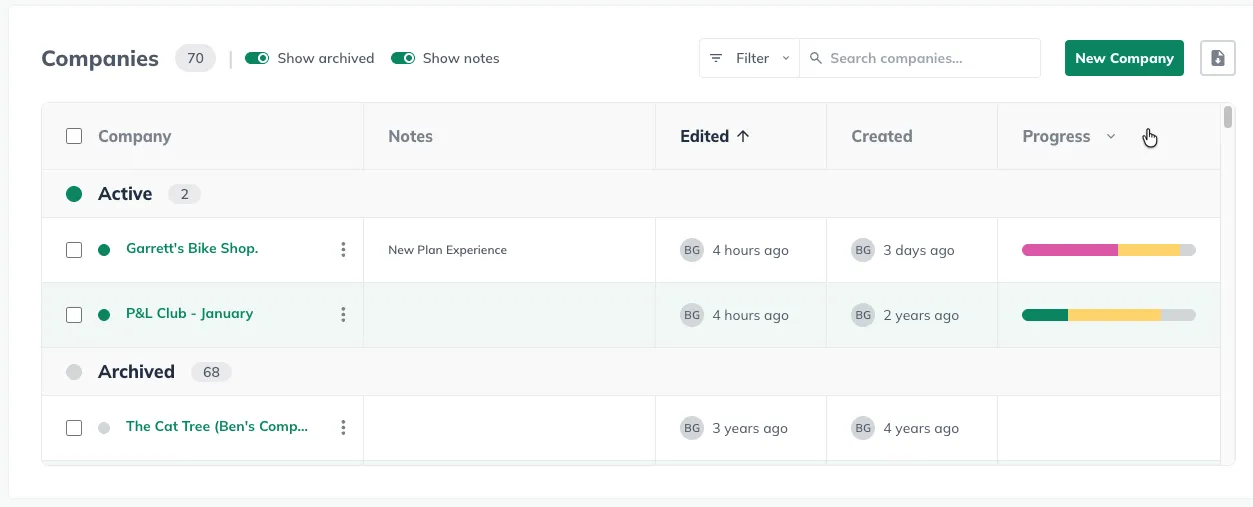
Log in to your LivePlan account.
Make sure the company you've built for your client is currently active.
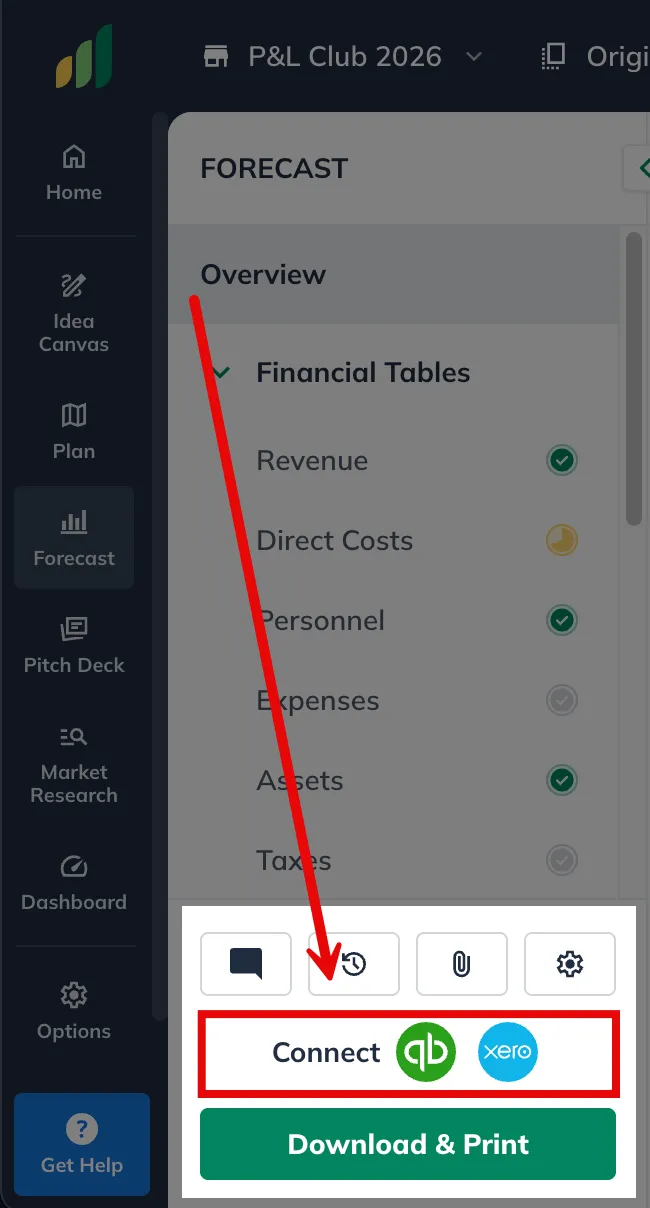
In the client's company, click Connect Accounting:
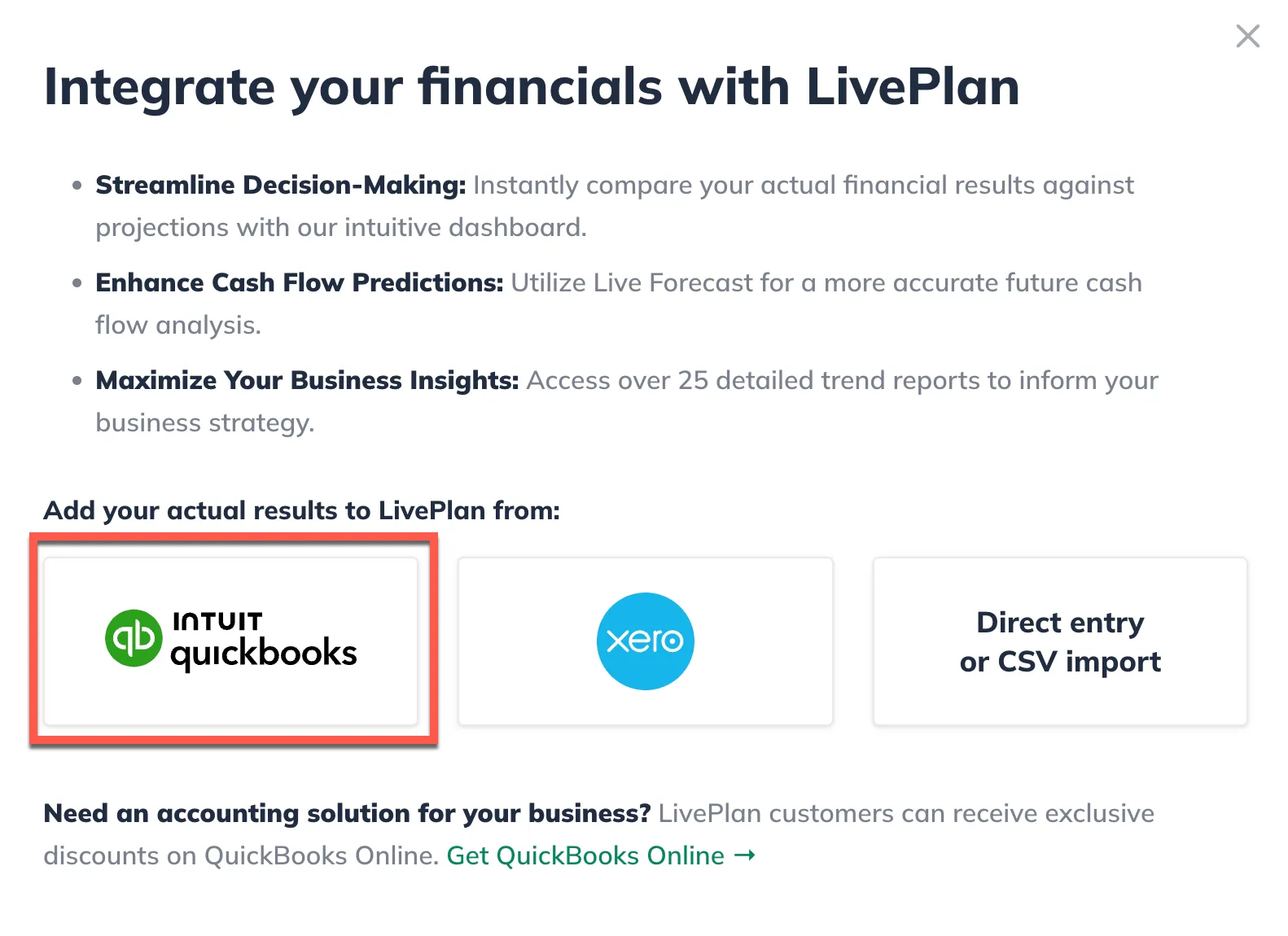
Select QuickBooks.
Choose what to do with the accounting data:
- Create a new forecast from my data: Build a new forecast from the accounting data.
- Compare my data to my existing forecast: Connect the data to the forecast you built.
Then click Connect to QuickBooks:
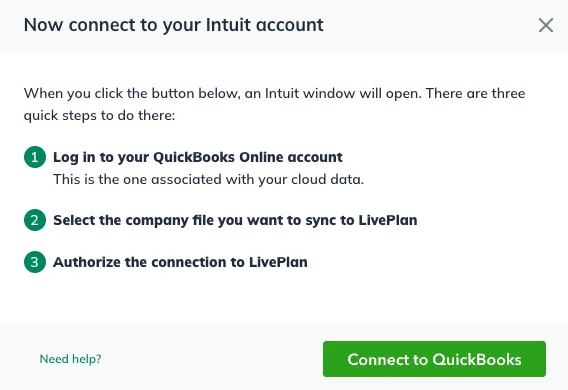
Sign in your Intuit account:
Now, select the client's QuickBooks company to connect to this LivePlan company:
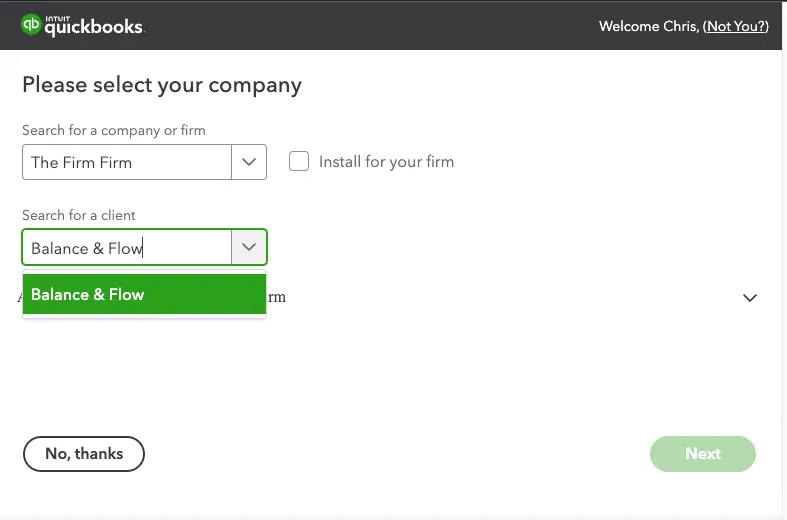
Click Connect to allow LivePlan to access your QuickBooks Online company data:
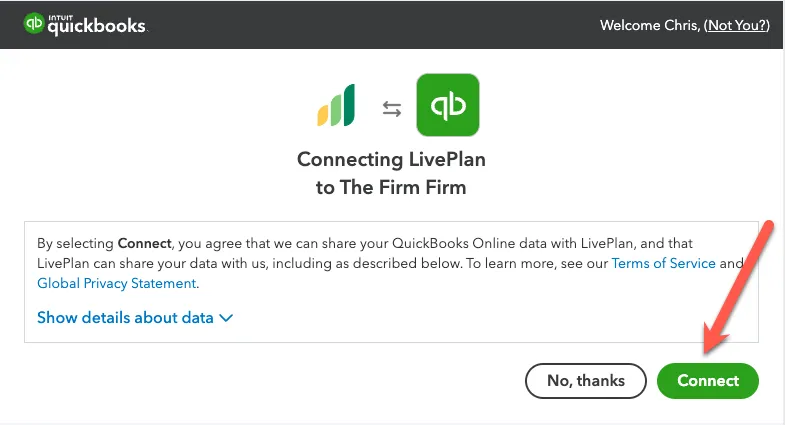
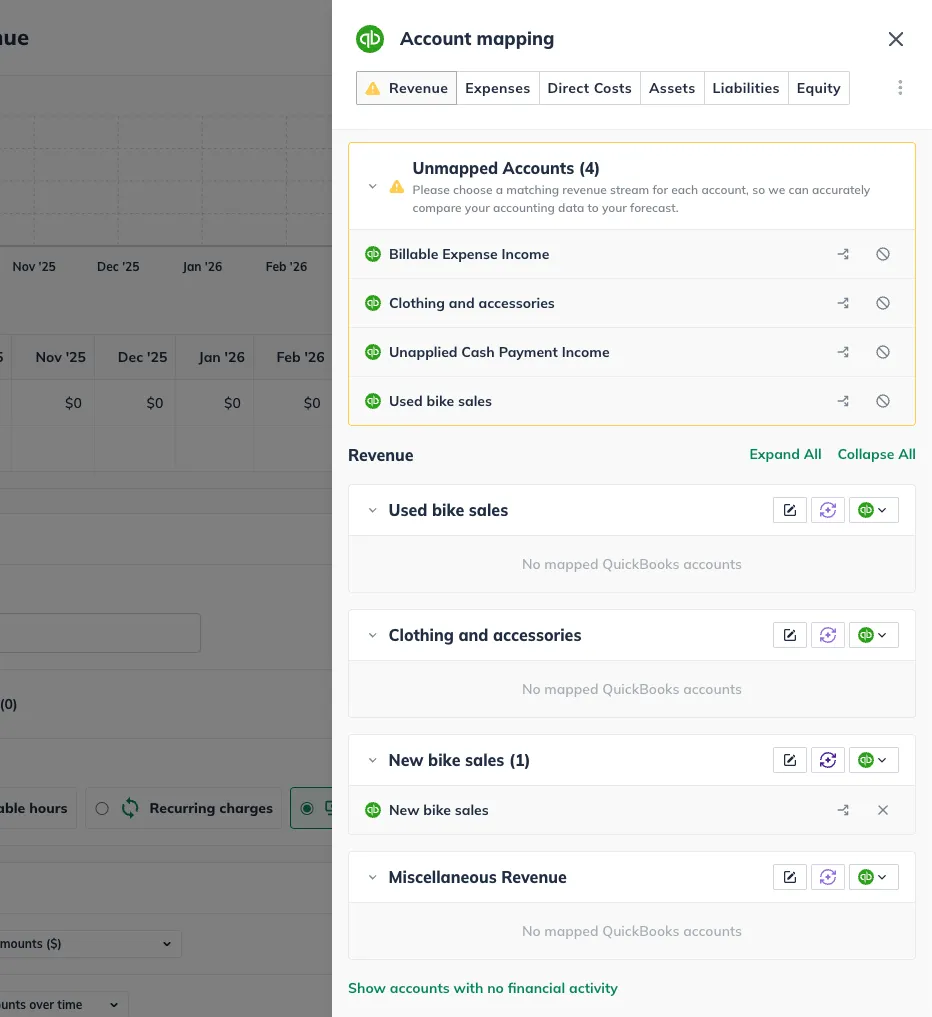
LivePlan will pull in your QuickBooks Online data for the current year and up to two past fiscal years. You can see this data in the Dashboard once you complete the Mapping process. Once LivePlan and QuickBooks Online are connected, the Account mapping sidebar will appear:
Disconnecting from QuickBooks Online
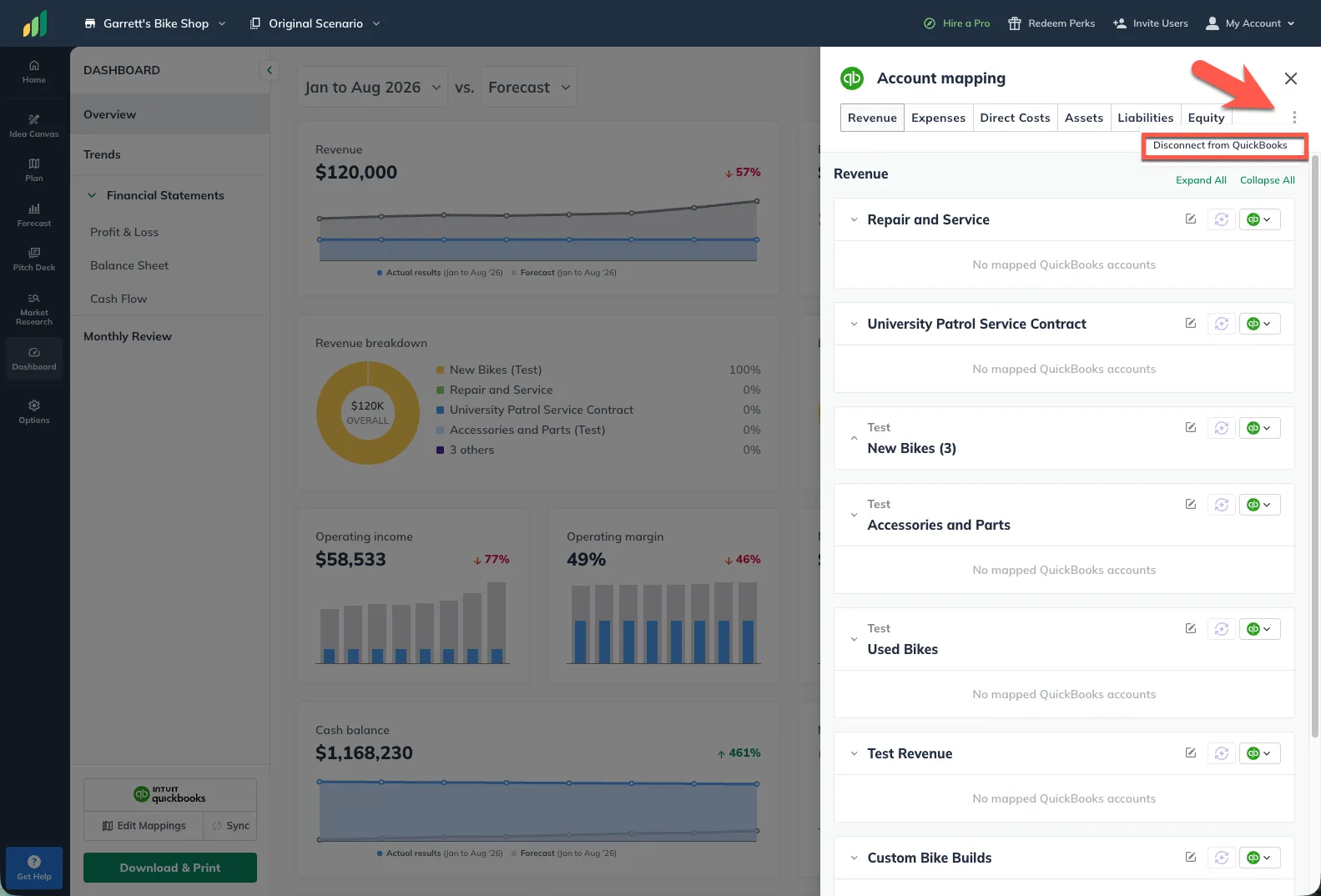
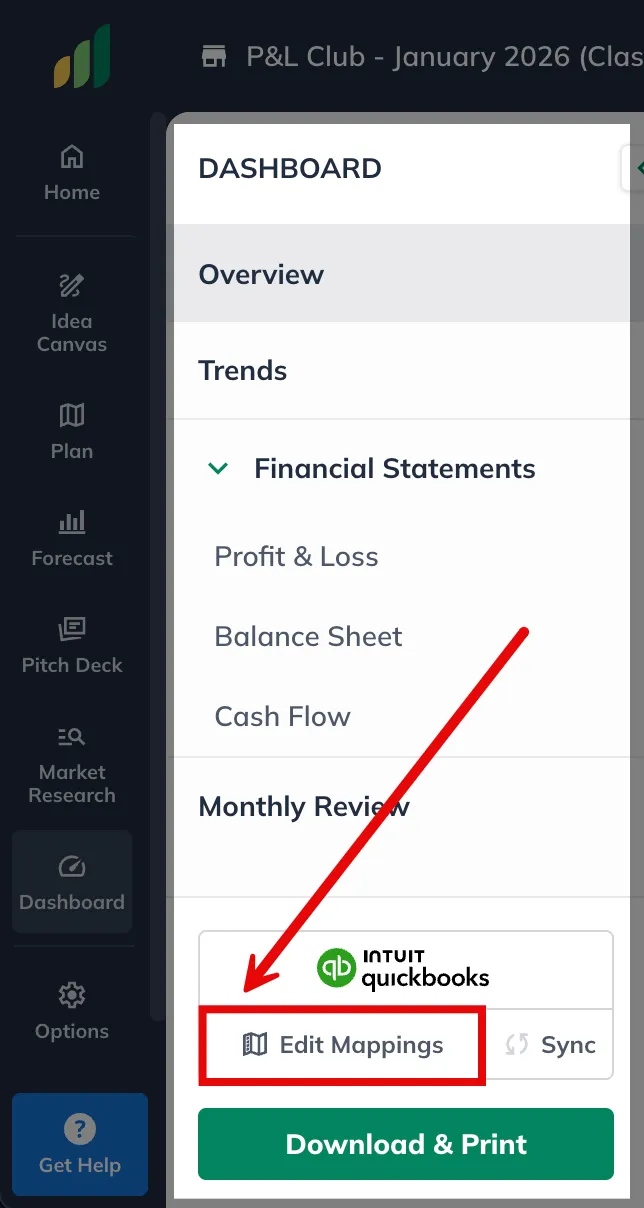
Near the lower-left of your LivePlan window click Edit Mappings:
Near the top-right of the mapping interface, click the Disconnect from QuickBooks link: