Viewing your QuickBooks classes in LivePlan
If you organize the transactions in your QuickBooks account by classes, you'll be able to see that same structure in the LivePlan Dashboard once you've imported your data.
How the Dashboard differs from the forecast
In LivePlan, you can enter two sets of data about your business:
- You can enter your past accounting actuals into the Dashboard. This accounting data is specific and detailed.
- You can also enter your future projections into the Forecast. The forecast data is broad and conceptual.
This is why the LivePlan Dashboard supports a structure of classes, but the LivePlan forecast doesn't. Classes can be very useful for analyzing your accounting actuals, that amount of detail can quickly become unwieldy when building your forecast.
Mapping your QuickBooks data to the LivePlan forecast
After you sync your QuickBooks Online account with LivePlan, you'll begin the mapping process. Here's where you'll connect your QuickBooks actuals to your LivePlan forecast. Once the two are mapped together, you can view your class metrics in the Dashboard.
Use this method if you have already created your forecast.
Accessing your classes in the Dashboard
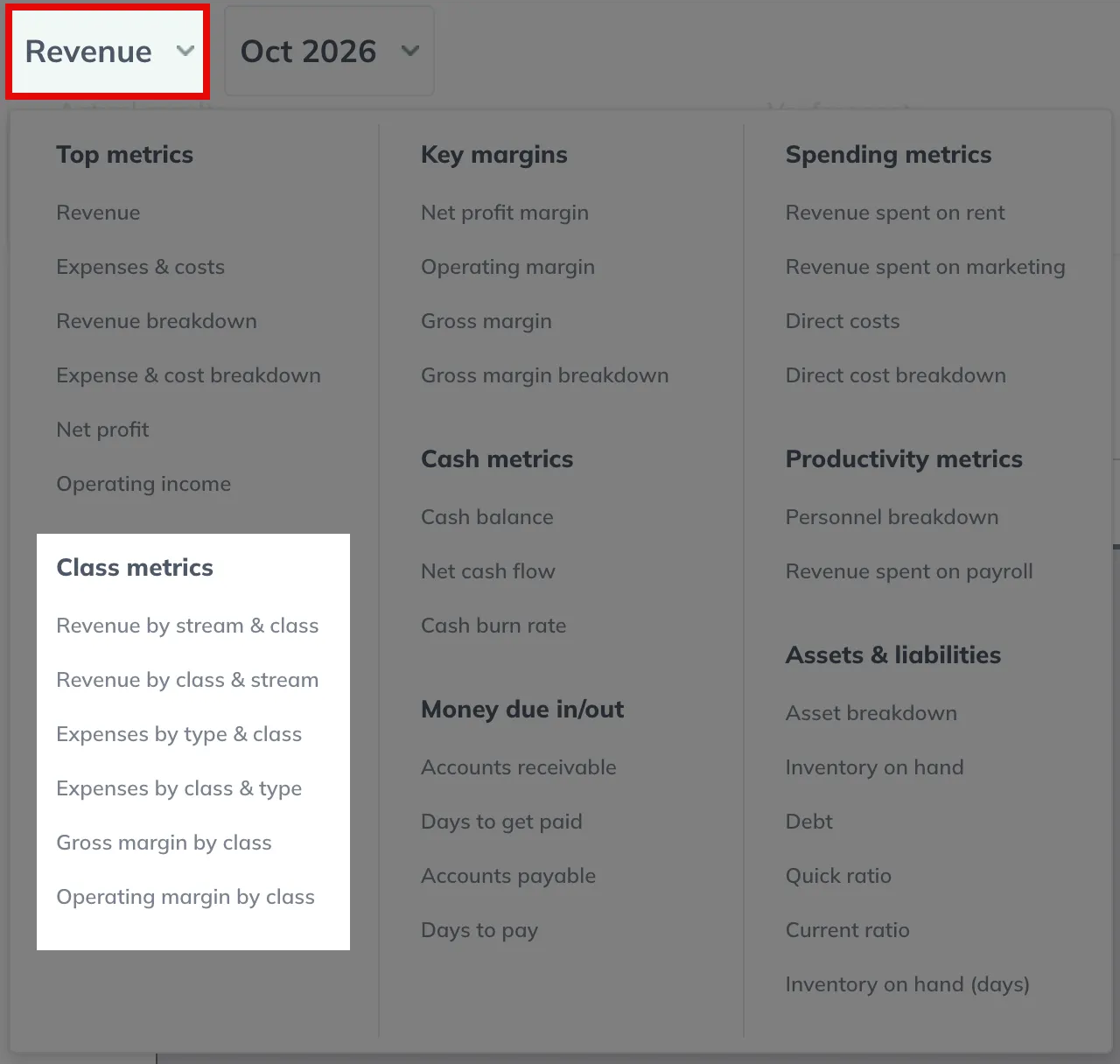
With the mapping process completed, you'll now see a new category of options in the menu of your Dashboard Trends screen:
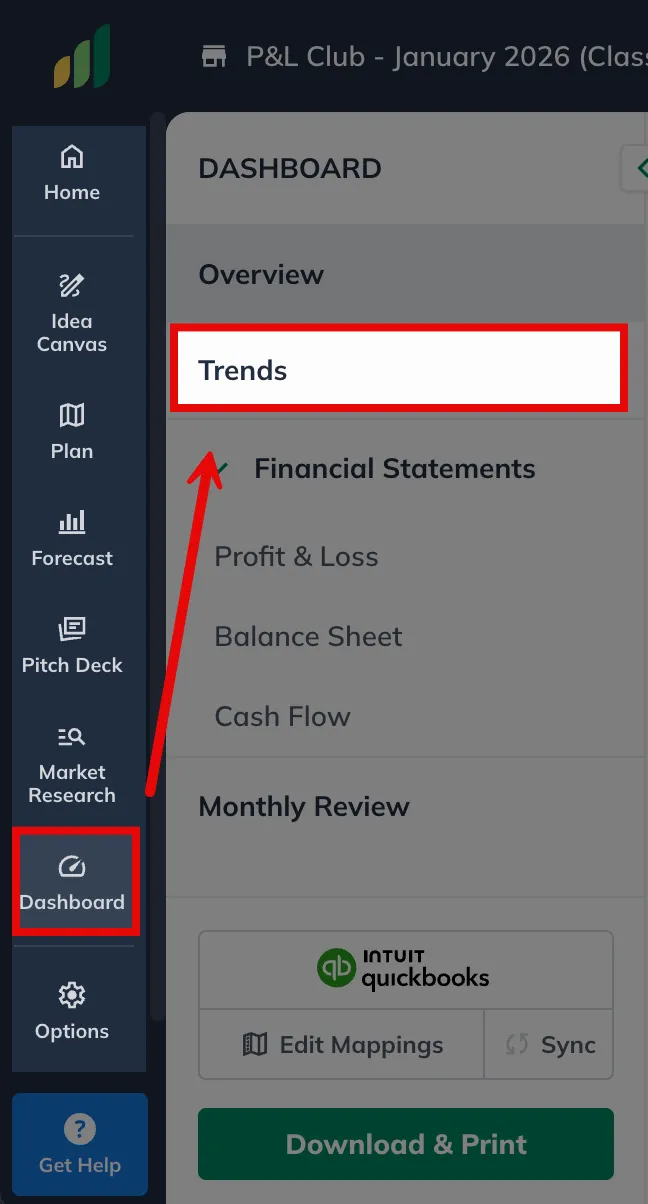
LivePlan will default to the Revenue trend so click on it to display all of the other Trends including Classes: