

Printing reports from the Dashboard
If you'd like to share the forecast-to-actuals comparisons from your Dashboard, you have two options:
- Grant a colleague access to view the data and update its parameters in LivePlan using a guest invitation
- Download a PDF report from your Dashboard
Downloading a Dashboard report
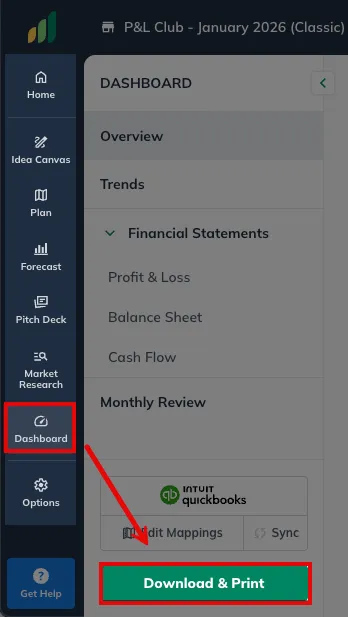
In the Dashboard section, click Download & Print:
On the Download & Print page, you'll see three settings areas to help you customize your report:
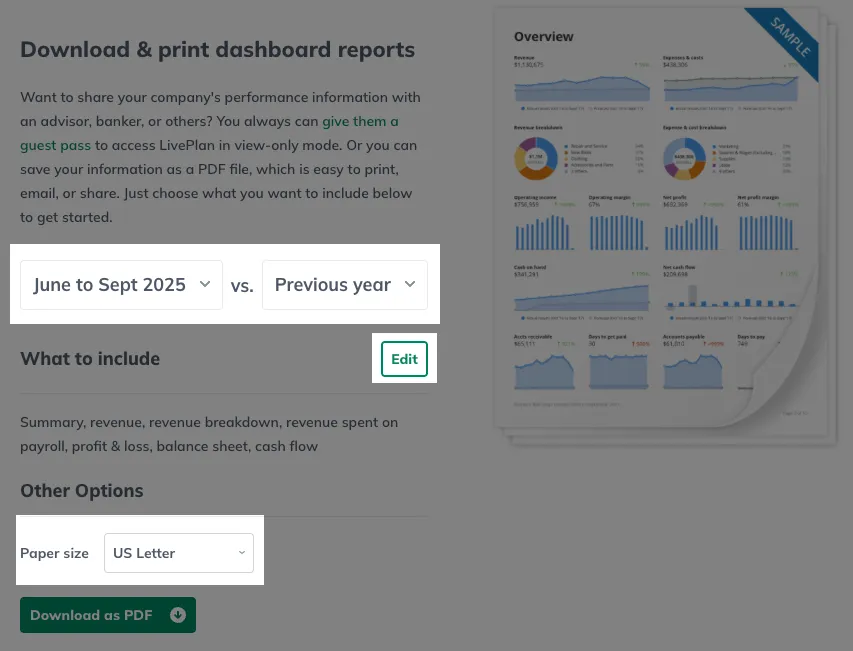
In the Date Range section, choose the data sets you'd like to compare in your downloaded report using the two pull-down menus as shown:
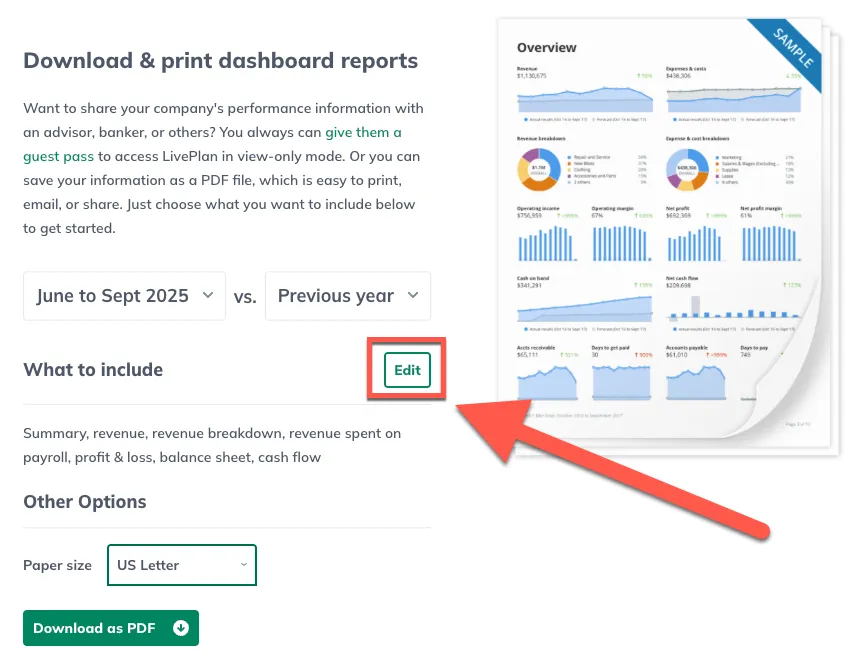
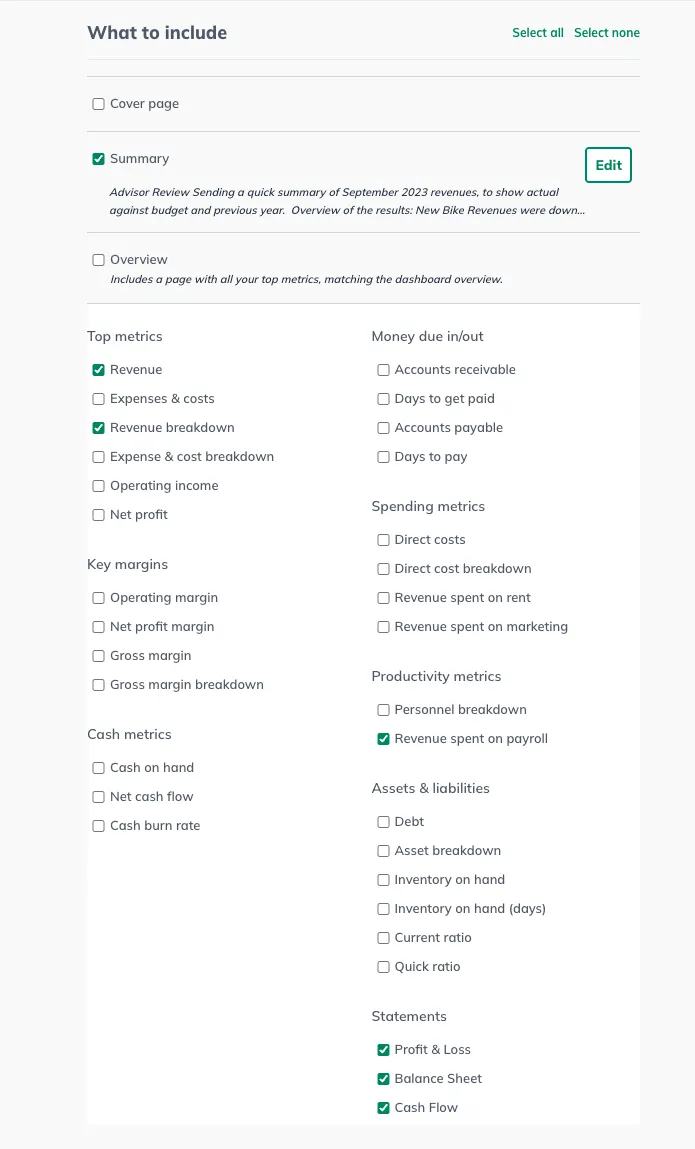
In the What to include section, click the Edit button to access the options:
Use the checkboxes to choose which charts to include in the downloaded report. As a faster option, you can also use the Select all and Select none links at the top of the section. You can also select the Edit button to add a summary page:
In the Options section, select the page size for the downloaded report:
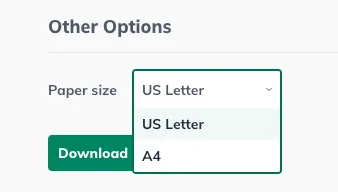
Click Download as PDF:\

Saving the report to your computer
When you download as a PDF, your browser will first display the report. To save it to your computer, you'll still need to click your browser's Download button.
For Chrome users:
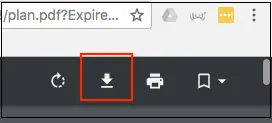
Near the upper right corner of the display, click the Download icon:
The file will save to your computer's Downloads folder.
For Firefox users:
Near the upper right corner of the display, click the Download icon:
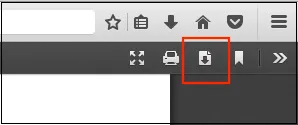
The file will save to your computer's Downloads folder.
For Safari users:
In the File menu, click Export as PDF:
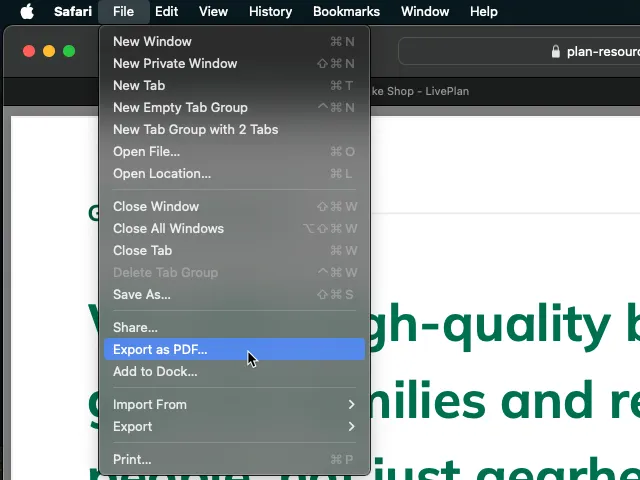
The file will be saved to your computer's Downloads folder.
For Microsoft Edge users:
Click the save icon in the topbar to save your plan to your computer:

Options for including a Dashboard report with your business plan
Want to share your company's performance information with an advisor, banker, or others? You can save your Dashboard information as a PDF file, which is easy to print, email, or share.