

How do I download or print my forecast or financial statements?
LivePlan offers two ways to download your forecast data:
- You can print reports from the Forecast section so that you can share your forecast data
- You can print a more formatted section from your business plan that contains only the financial statements.
Printing from the Forecast section
You can print customized reports directly from the Forecast section if you need to share your detailed forecast with a colleague or advisor.
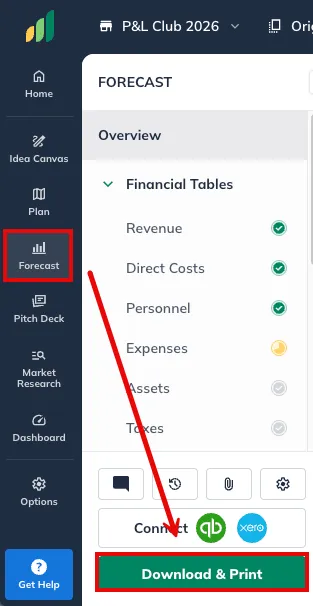
In the Forecast section, click Download & Print:
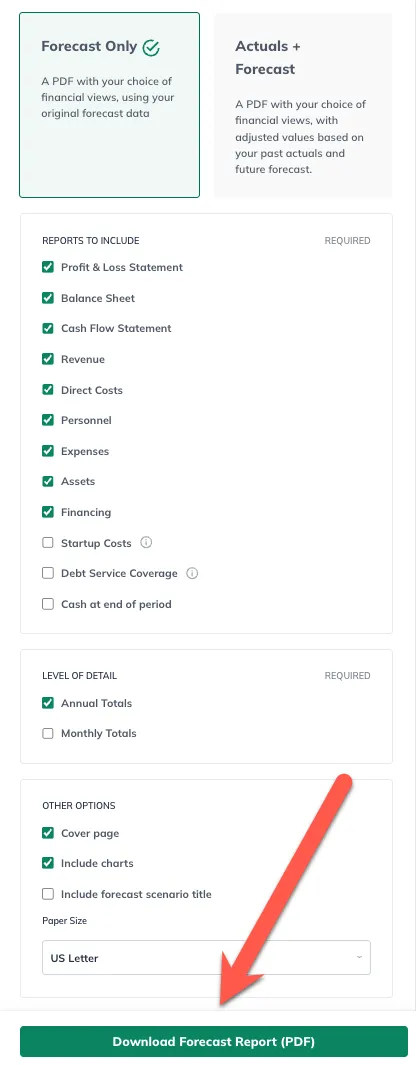
Select which reports and the level of detail you'd like to include in your export, then click Download Forecast Report (PDF).
Click View PDF to open the report in a new browser section. Reports can be downloaded to your computer using your browser's download button:
Creating a financials-only download with condensed statements
With this option, your downloaded financial statements will contain annual totals.
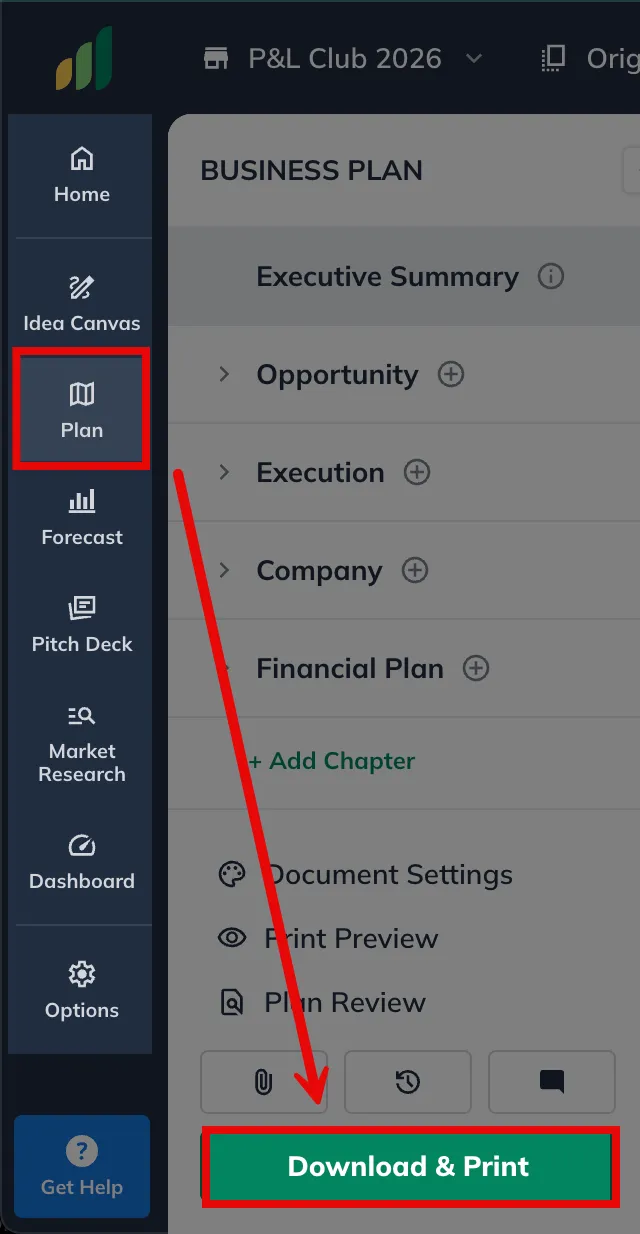
In the Plan section, click Download & Print:
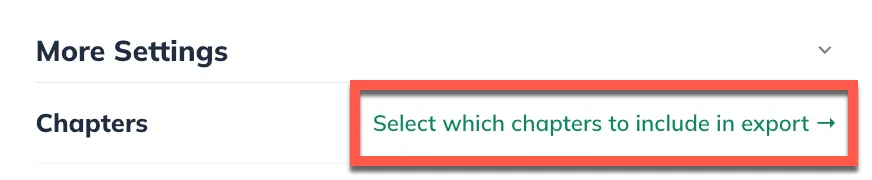
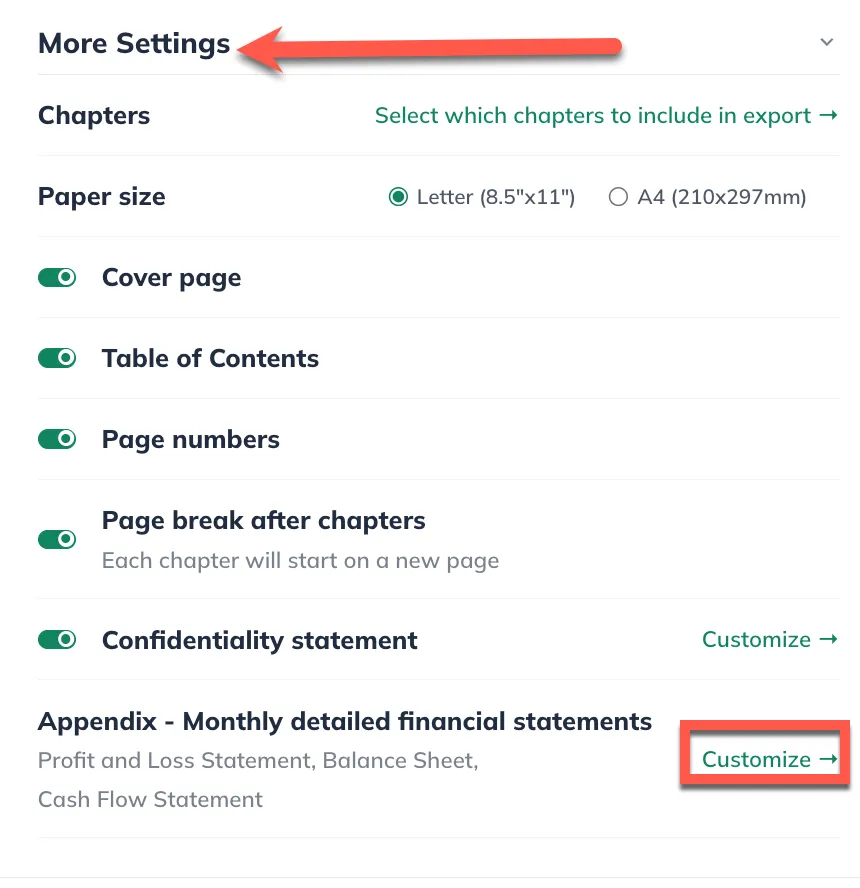
After the Document Settings menu slides out, scroll down to More Settings. Click Select which chapters to include in the export next to the Chapters option:
In the overlay that appears, un-toggle all the chapter boxes except for Financial Plan. Click Save & Close:
Now, when you download your plan as a PDF or export it as a Word document, it will contain only your financial statements. If you'd like those statements to be more detailed, please continue reading.
Creating a financials-only download with detailed statements
With this option, your downloaded document will contain two sets of financial statements: one with annual totals and one with monthly details. You can also include several extra details to suit your needs.
In the Plan section, click Download & Print:
After the Document Settings menu slides out, scroll down to More Settings. Click Select which chapters to include in the export next to the Chapters option:
In the overlay that appears, un-toggle all the chapter boxes except for Financial Plan. Click Save & Close:
Now, in the More Settings area, click the Customize button next to Appendix:
In the overlay that appears, toggle on the buttons to green for the statements you'd like to include in your Appendix and the extra details you'd like to have in your Profit and Loss statement. Click Save & Close:
Now, when you download your plan as a PDF or export it as a Word document, it will contain your financial statements in both condensed and detailed forms.