How many users can I have on my LivePlan account?
LivePlan User Roles
Account Owner
The account owner counts as one user in your LivePlan account. While contributors can edit company data, manage companies, and users, only the account owner has access to account settings, profile data, or billing information.
Contributor
Contributors can access and edit anything in the Pitch, Plan, Forecast, and Schedule sections. They can also download a copy of the plan. If you grant them the option, contributors can create new companies, add new users, and view and edit the Benchmarks and Dashboard.
- LivePlan Standard and Premium accounts come with 5 Contributors (one of whom is the account owner).
If you'd like more Contributors on your account, you can change the number for an added fee.
Guest
Guests can view the Pitch, Forecast, and Schedule sections, but can't make changes. They can view and post comments in the Plan section. They can also download a copy of the plan. Guests can view the Benchmarks and Dashboard sections as well if you grant them the option. Guests can’t edit any content or access any account management details.
To change the number of users in your account
If you need more people to have editing access to your companies, you can change the contributor limit on your account at any time for an added subscription fee.
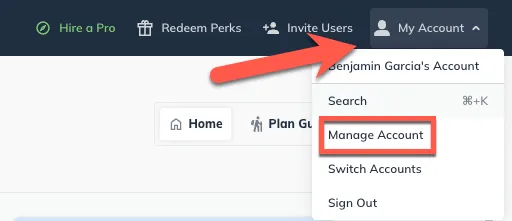
From the Account menu, choose Manage Account:
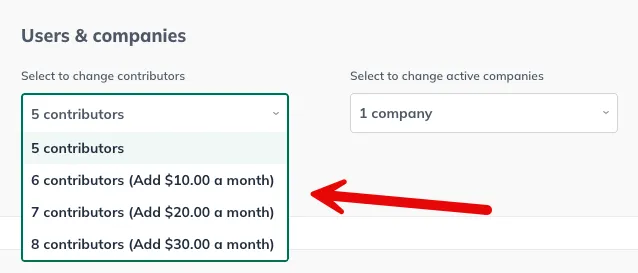
At the top of the Account Details page, you'll see your current account pricing and contributor limit:

- In the Select to change contributors pull-down menu, select the number of contributors you'd like. The additional pricing will appear next to the number of contributors.
- Once you make a selection, you'll see your new total billing renewal charge and next billing date, along with the prorated cost of the upgrade:
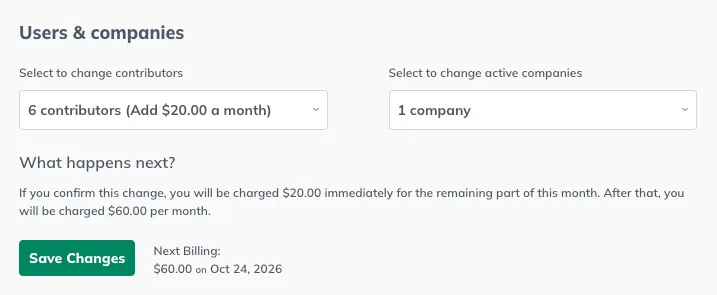
- When you are satisfied with your selection, click Save Changes.
To exit the account management page, click the back arrow in the upper-left corner of the LivePlan window: