

Entering a pre-existing loan with customized payments
In some cases, you may have a loan that exists before the start date of your forecast, and you need to represent a specific payment schedule for that loan, such as interest-only payments or a balloon payment.
- One entry to represent the pre-existing balance
- One entry to represent the payment schedule
In the example below, we're representing a pre-existing loan with a balance of $50,000, which has 10% interest. As of the start date of the forecast, we'll make interest-only payments on this loan for 12 months and then begin making payments against the principal.
Entry #1: pre-existing loan balance
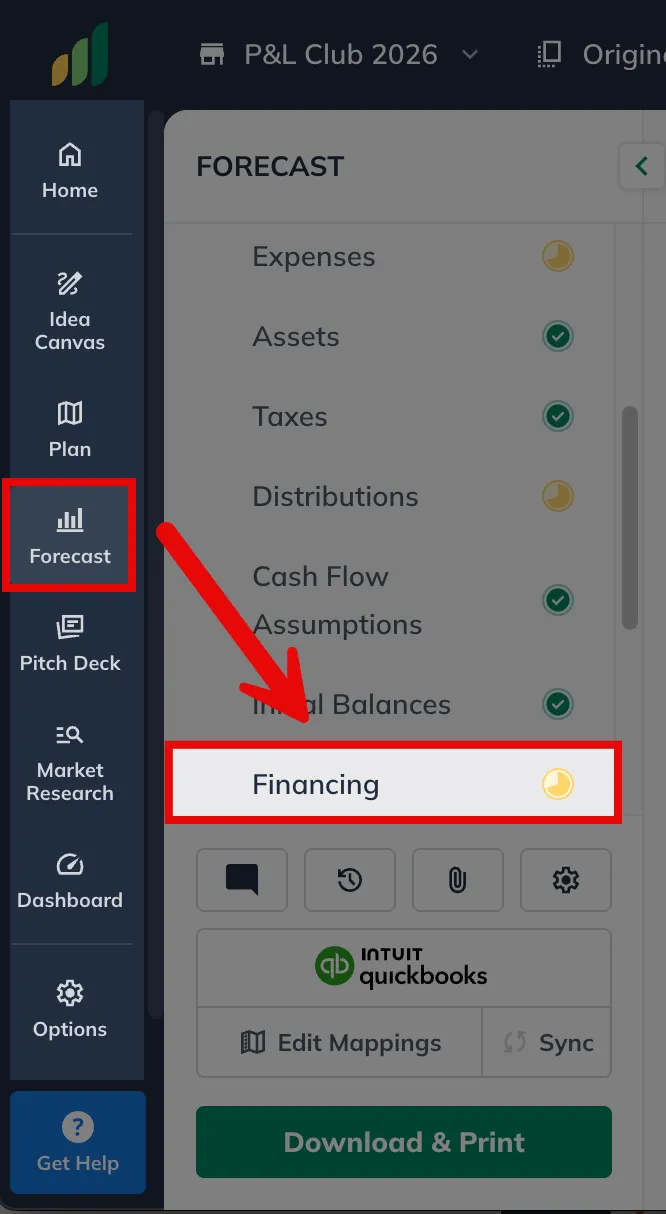
In the Forecast section, click Financing:
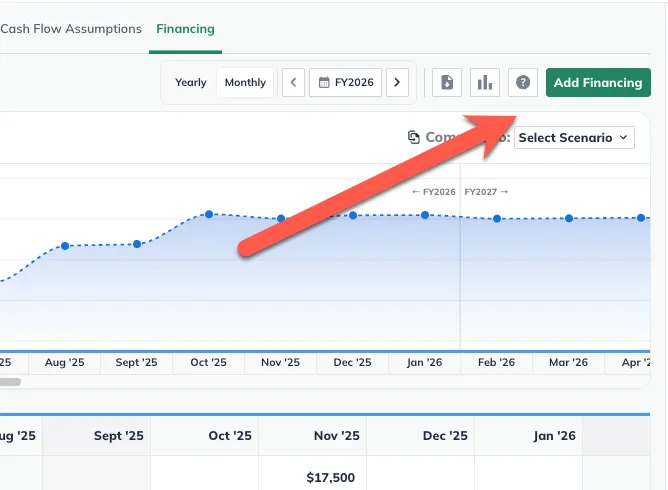
On the Financing page, click the Add Loan button:
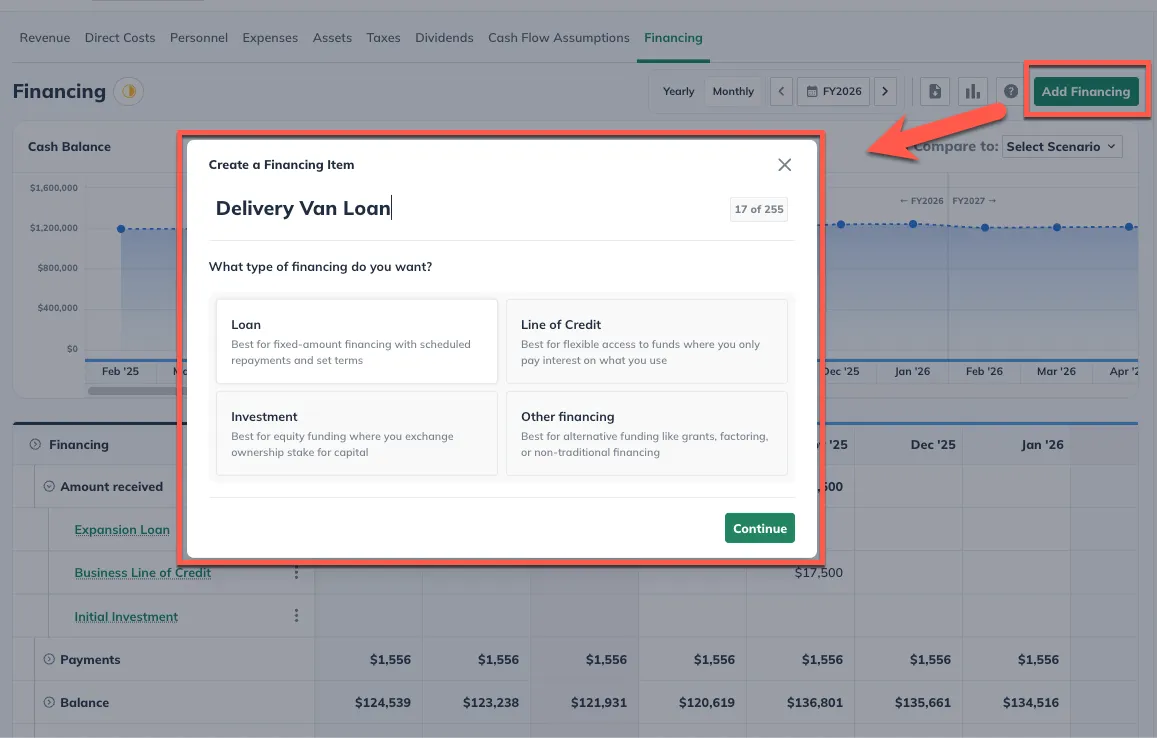
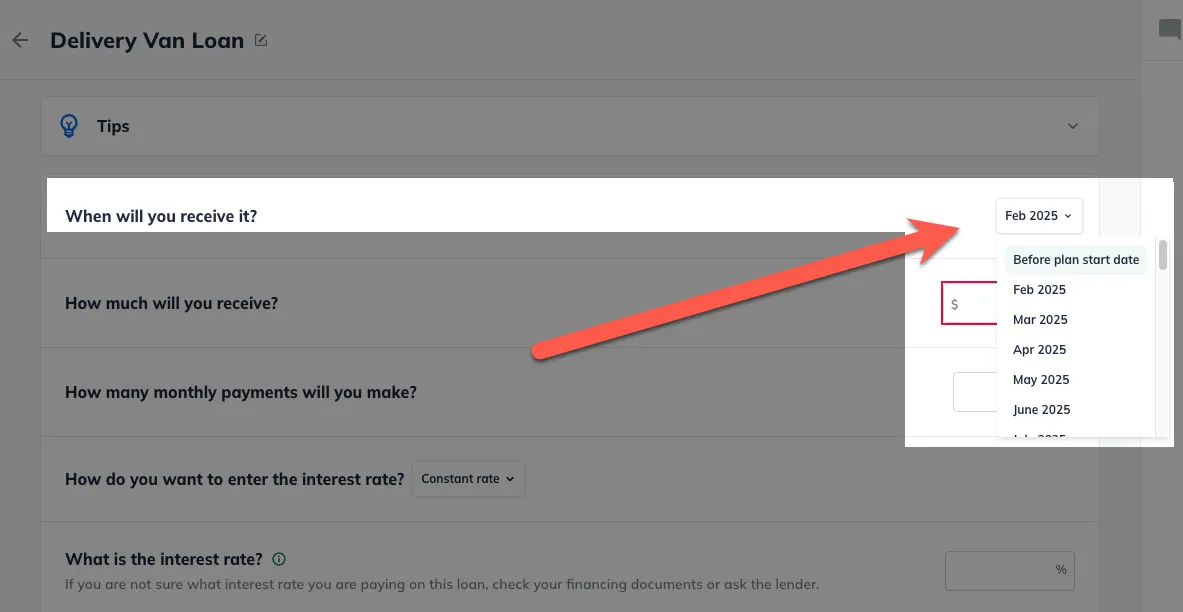
Give the loan a name in the top field, then choose Before the plan start date from the pull-down menu:
Enter the amount you owe. Then under How many payments remain as of your start date, enter 1. Enter a 0% interest rate:
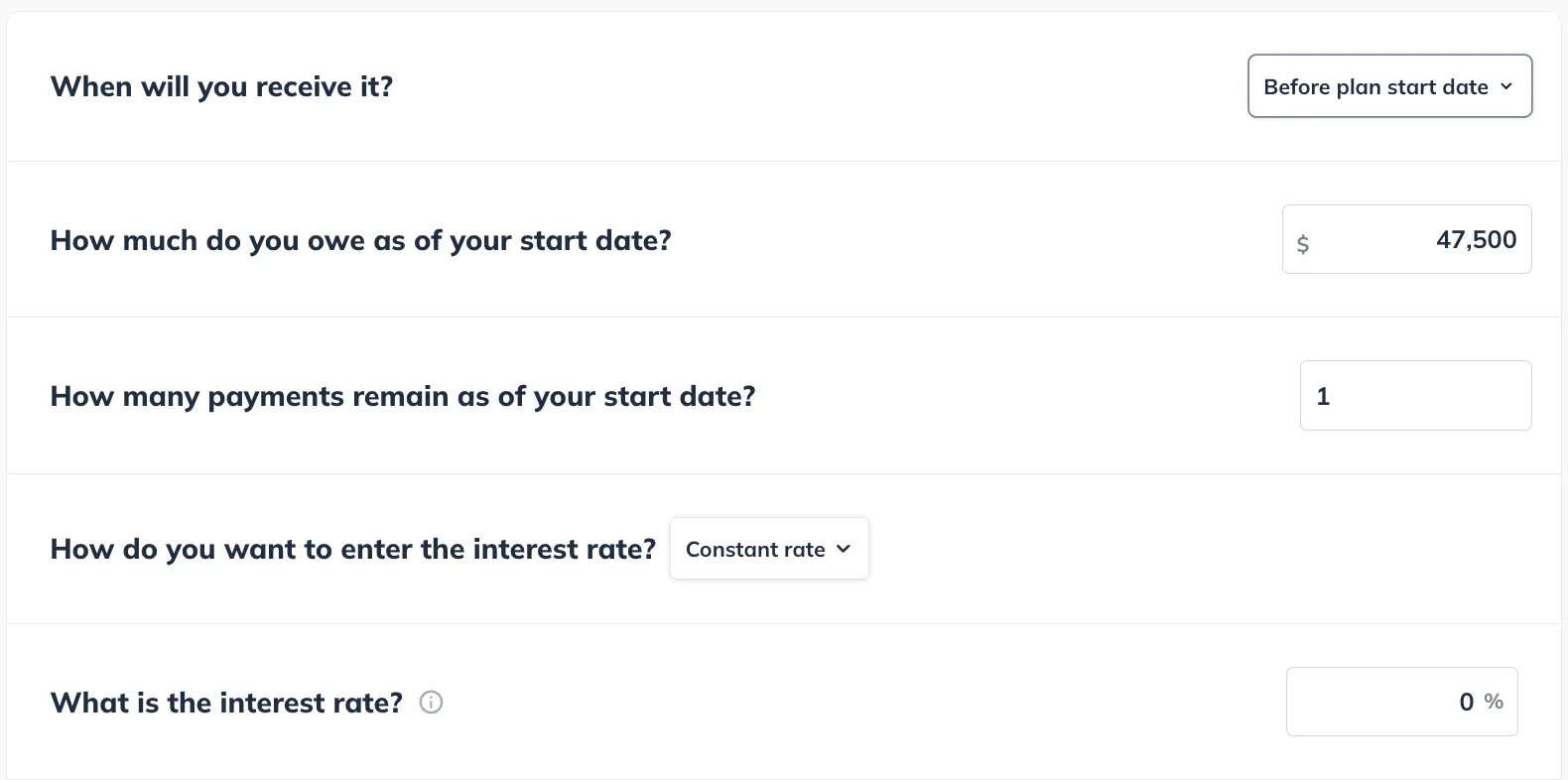
Click Create & Exit to return to the financing page:

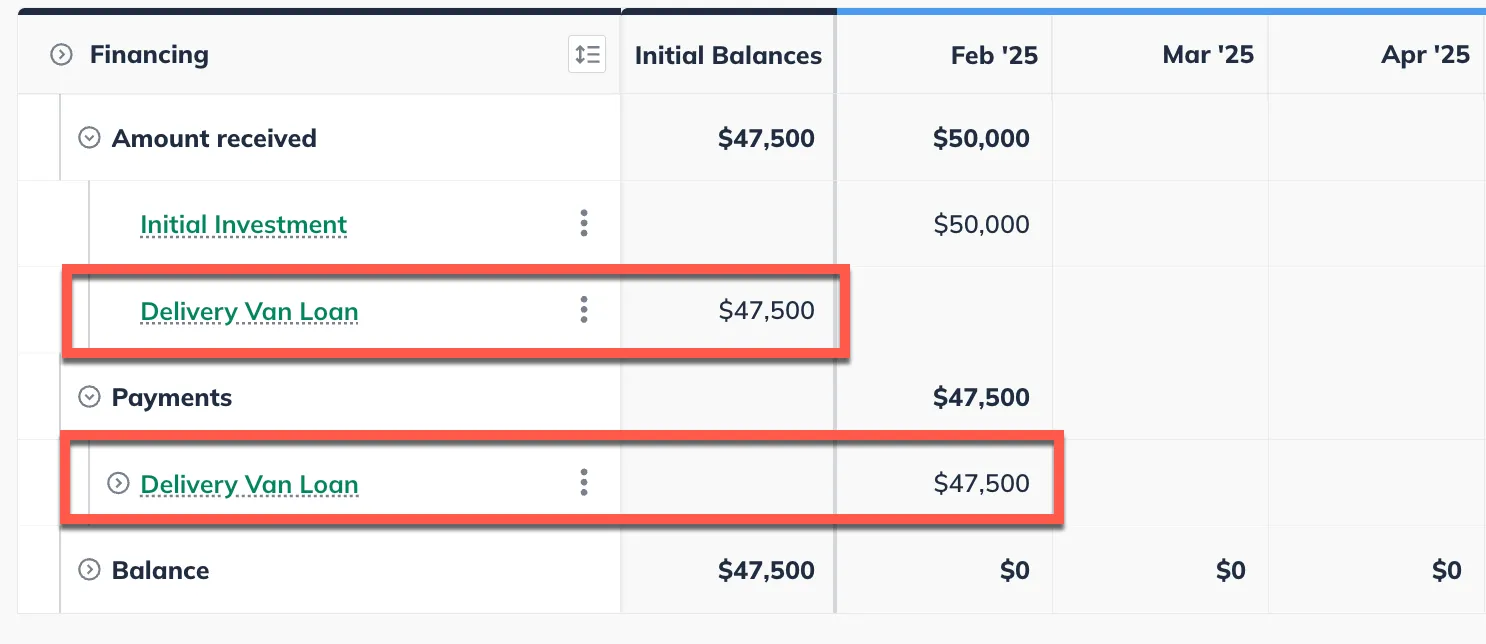
As you can see in the table below, the pre-existing balance is now represented, and in the following month there's a payment of the loan in full. We'll represent the rest of this scenario in the second loan entry.
Entry #2: payment schedule
To enter this payment schedule into the forecast, we'll need to know two things ahead of time:
- The amount of the interest-only payments
- The amount of the interest-plus-principal payments
If you aren't sure of these amounts, you may want to consult your lender or do an online search for a loan payment calculator.
In the Forecast section, click Financing:
On the Financing page, click the Add Other button:
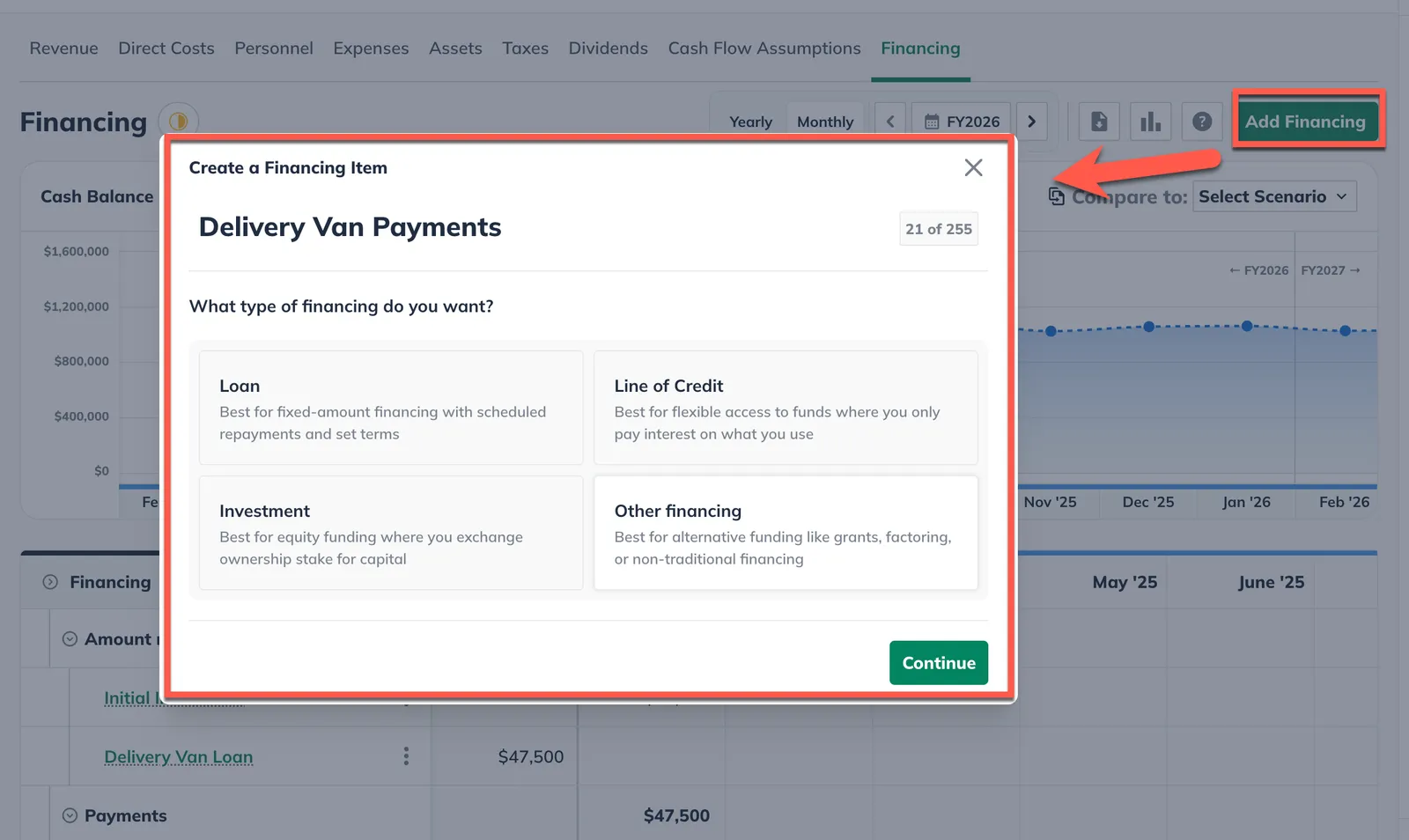
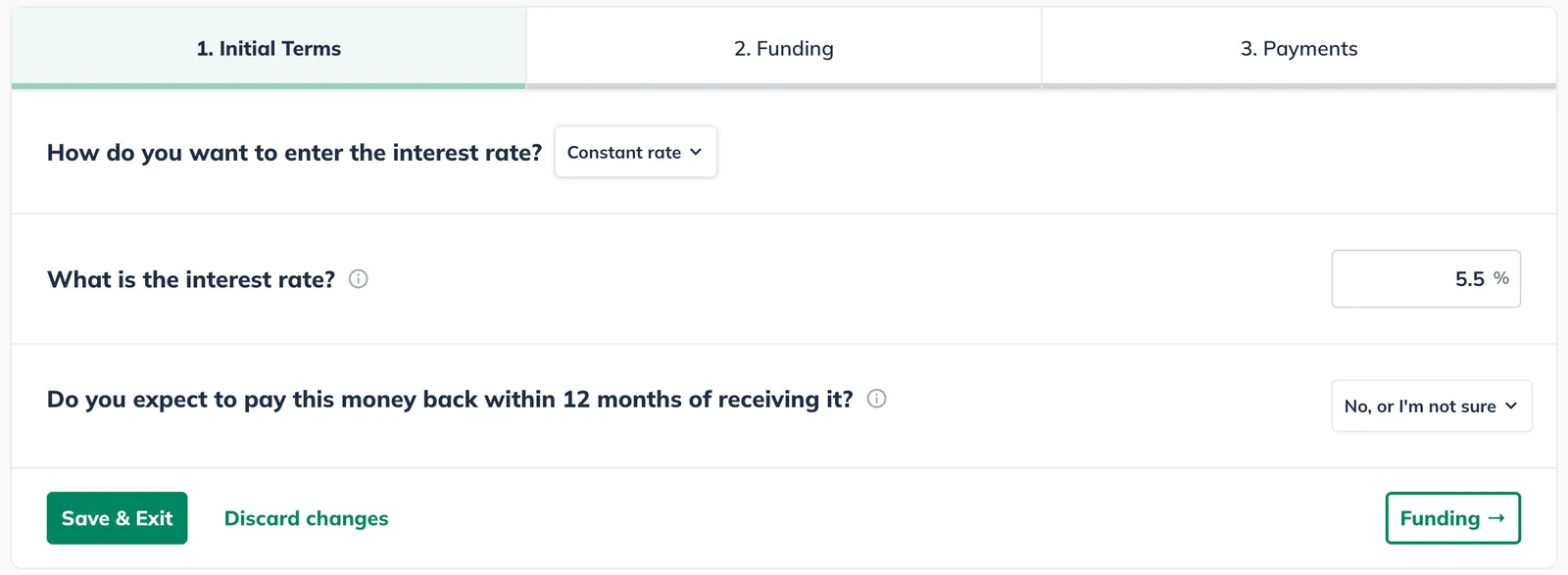
Give this segment of the loan a name and enter the annual interest rate: Under Do you expect to pay this money back within 12 months of receiving it? select No, or I'm not sure, then click Next
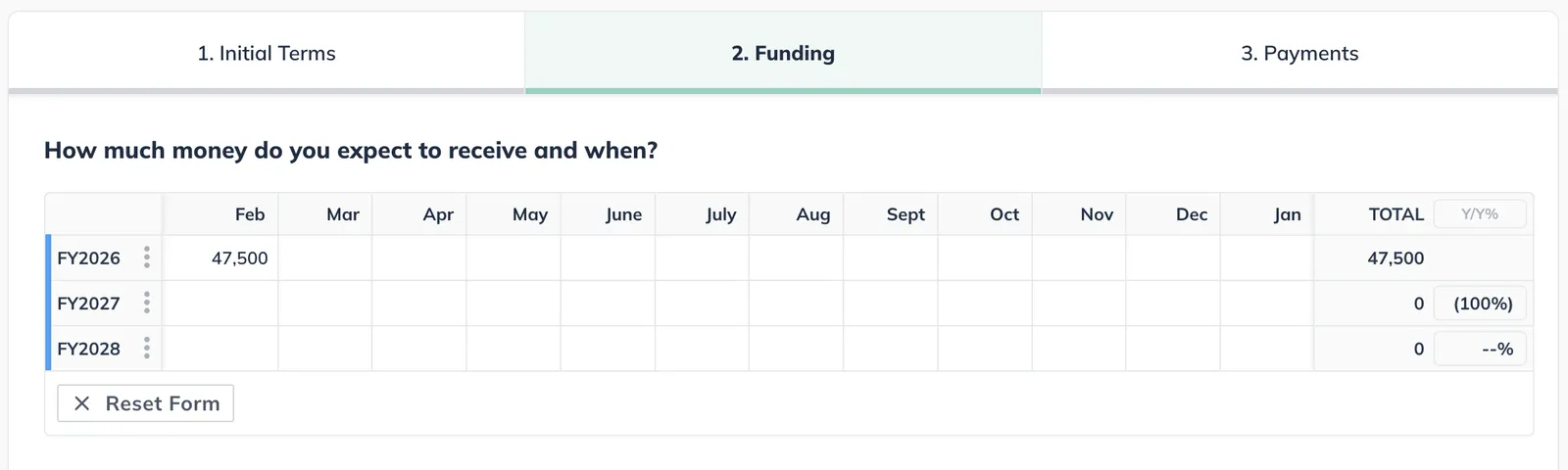
In the Funding overlay, enter the full amount of the loan balance (from Step 1) in the first month. Click Next:
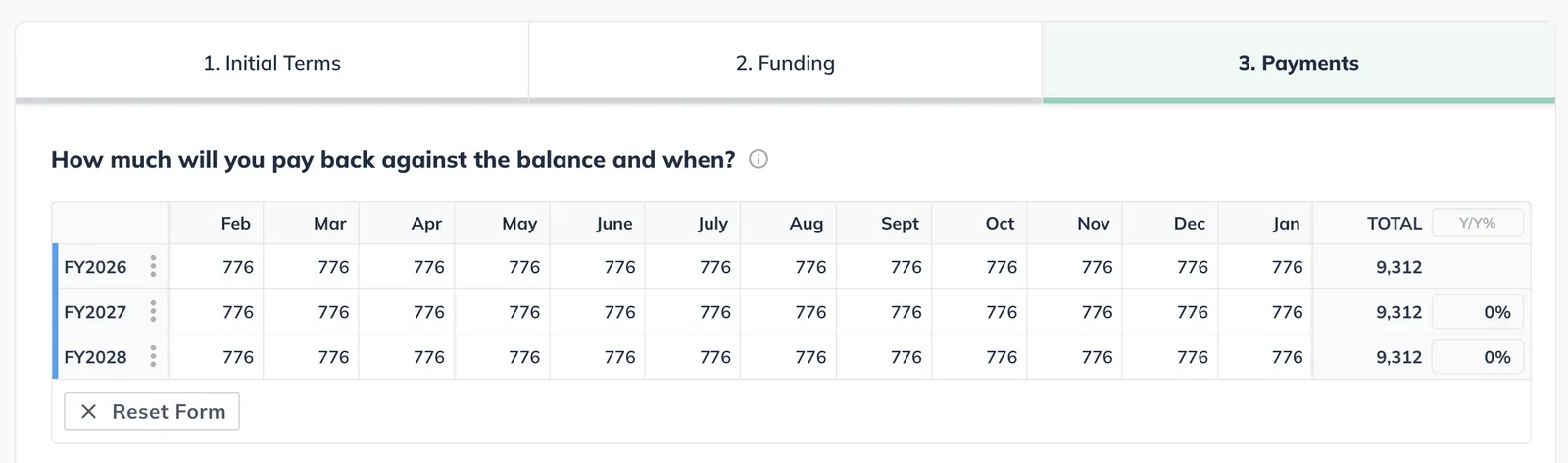
In the Payments overlay, enter your payment schedule. This should be your full monthly payment, as LivePlan will calculate principal and interest based on the terms that you entered earlier.
Click Create & Exit: