Entering loans with custom terms
LivePlan can automatically calculate payments for many loans with non-standard introductory terms. Use Advanced loan settings when your loan begins with deferred payments, an interest-free grace period, or interest-only payments.
If your loan has multiple disbursements, irregular payment amounts, a balloon payment, or another fully customized repayment schedule, use an Other financing entry instead.
Entering a loan with interest-only payments
An interest-only loan requires you to pay the interest that accrues during an initial period without reducing the principal. Once that period ends, regular principal-and-interest payments begin.
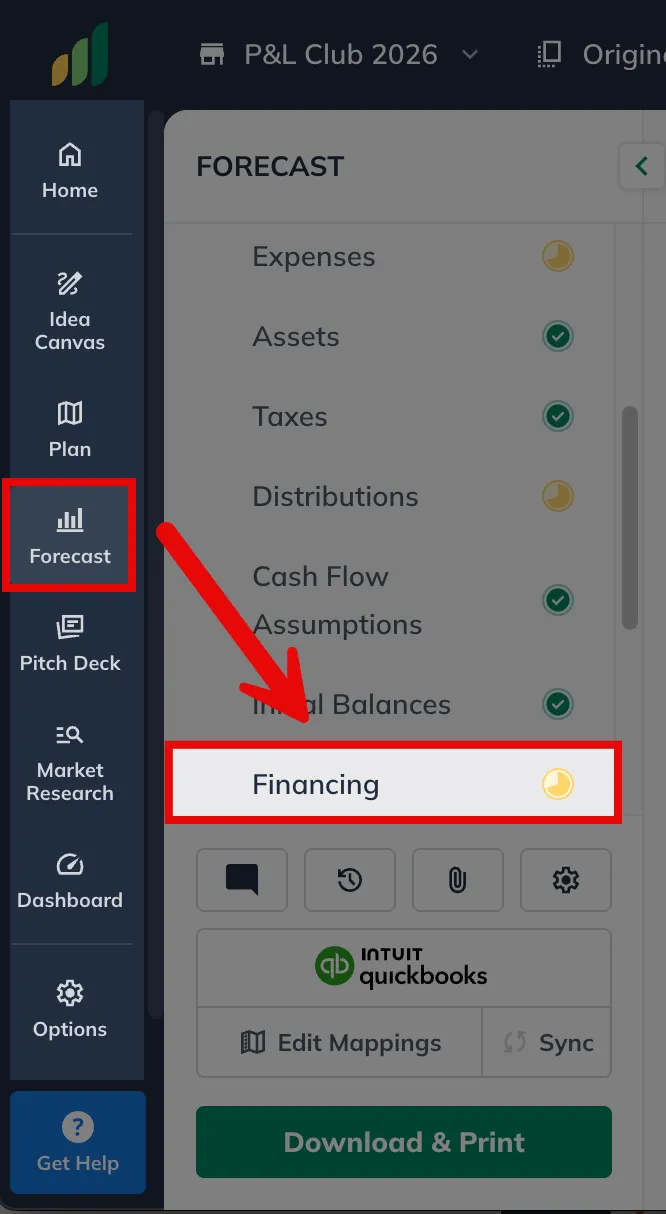
In the Forecast section, click Financing:
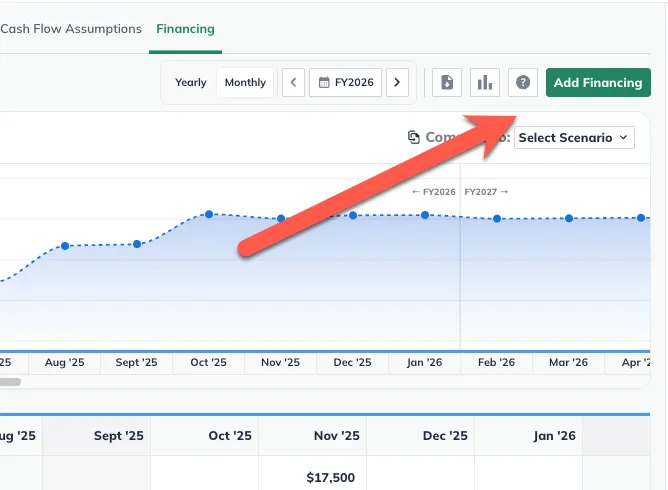
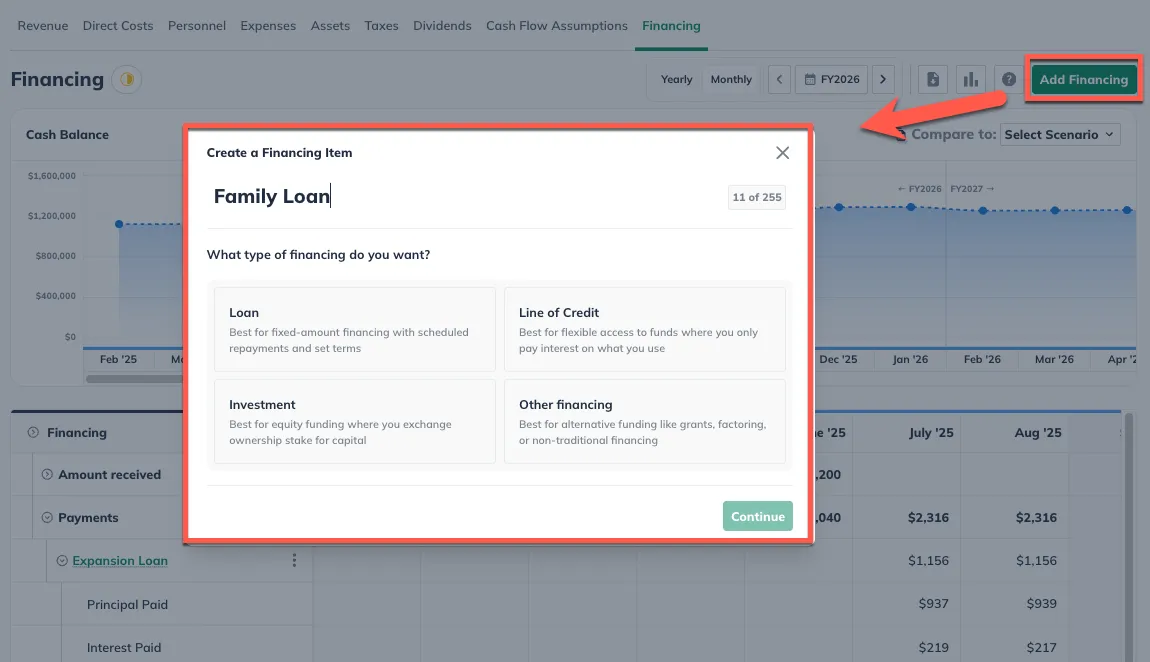
On the Financing page, click the Add Financing.
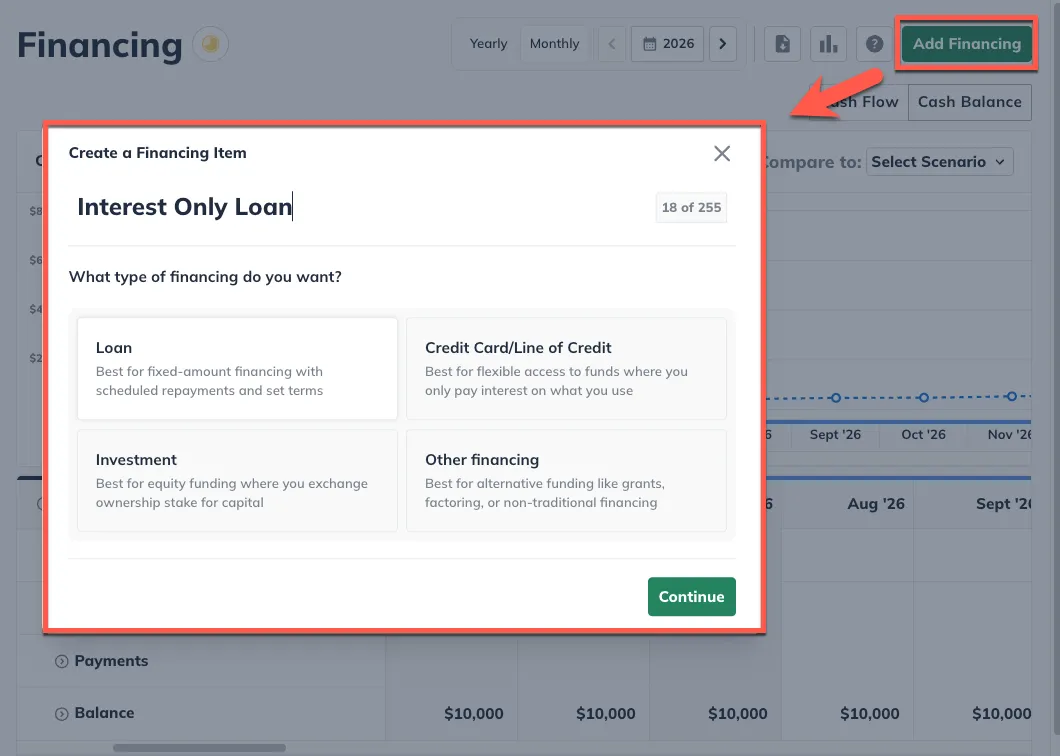
Enter a name for the loan and select Loan
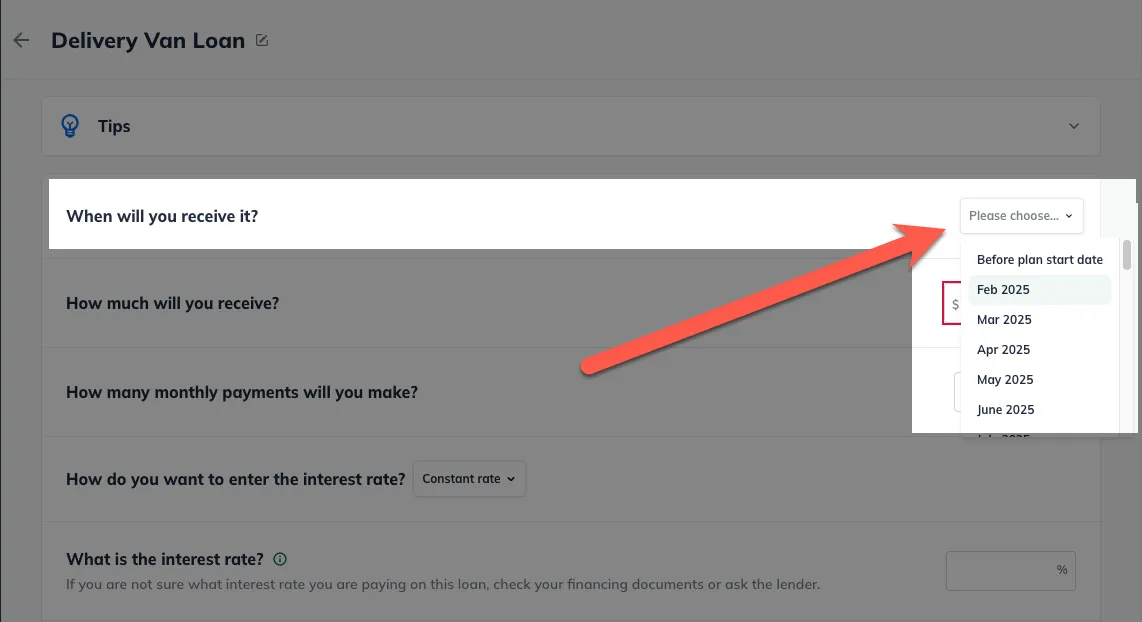
Select the month when you'll receive the loan.
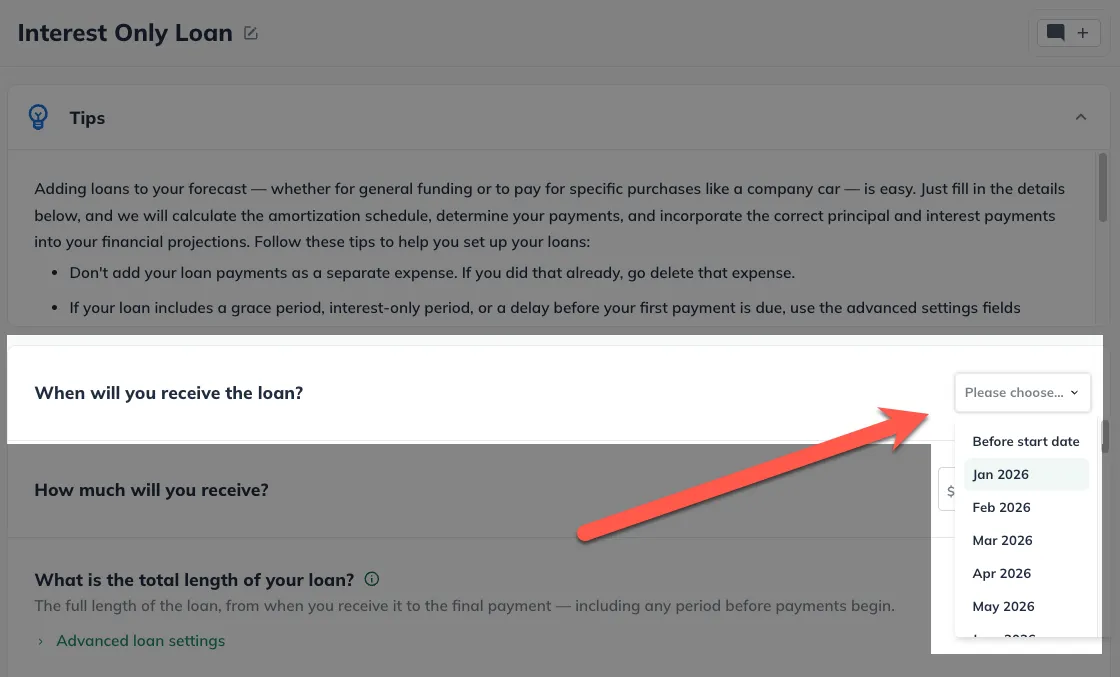
Enter the amount you will receive and the total length of the loan.
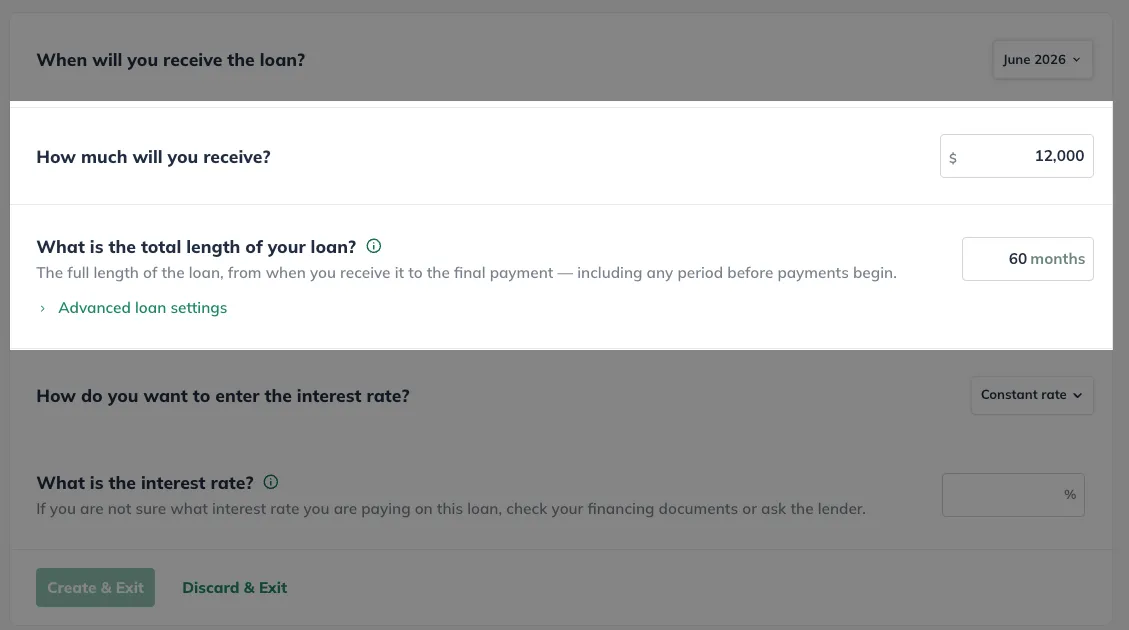
Expand Advanced loan settings.
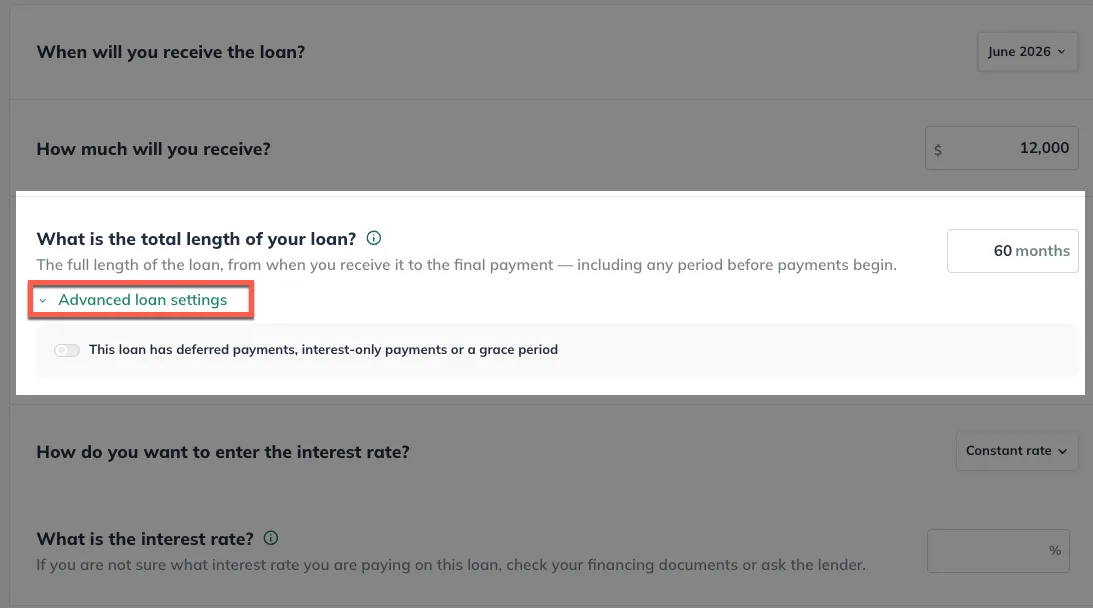
Enable This loan has deferred payments, interest-only payments or a grace period.
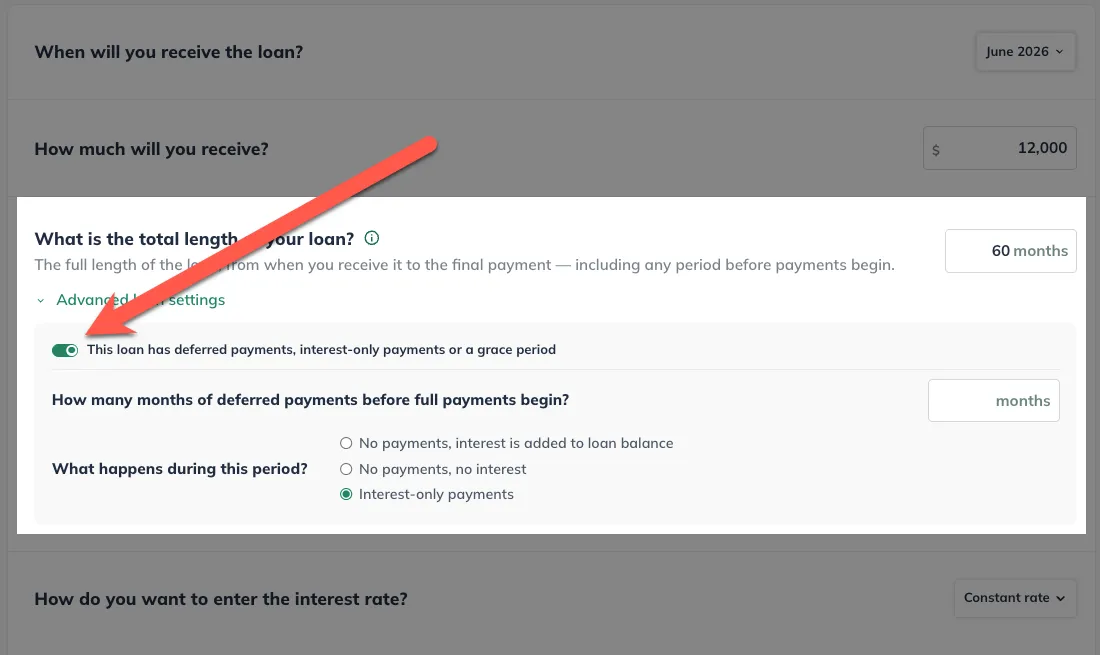
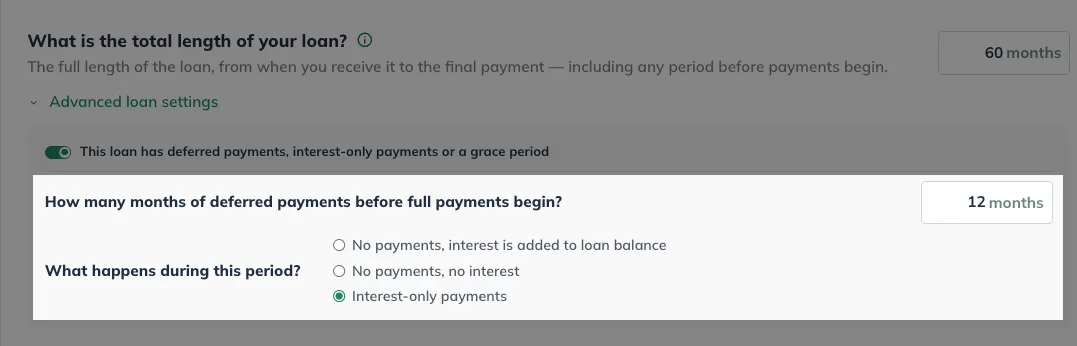
Under What happens during this period?, select Interest-only payments. Then enter the number of months during which you will make interest-only payments.
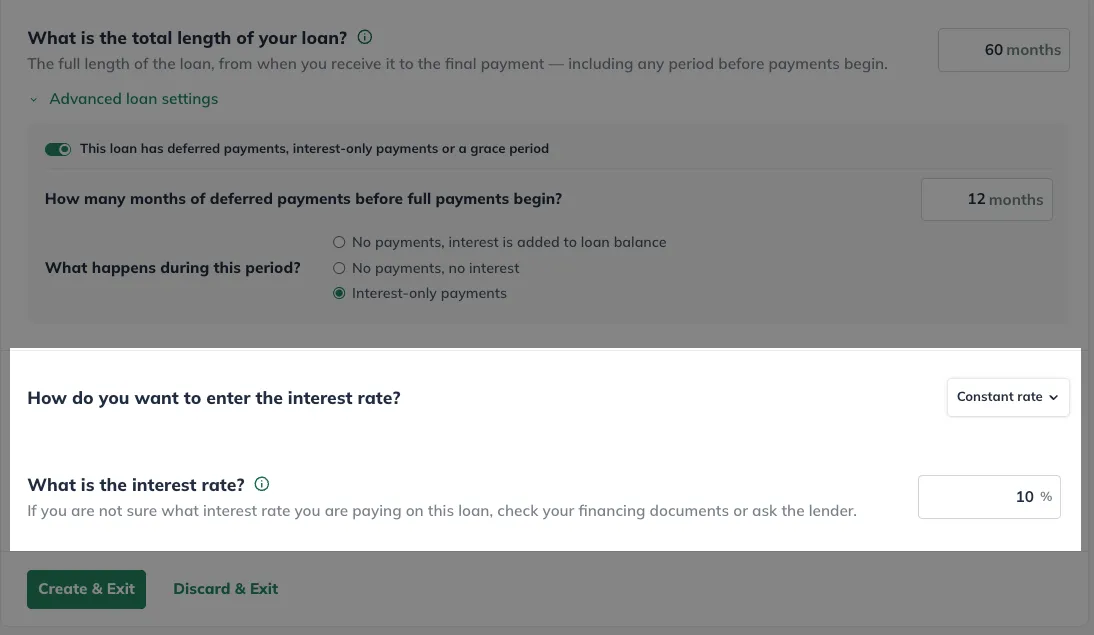
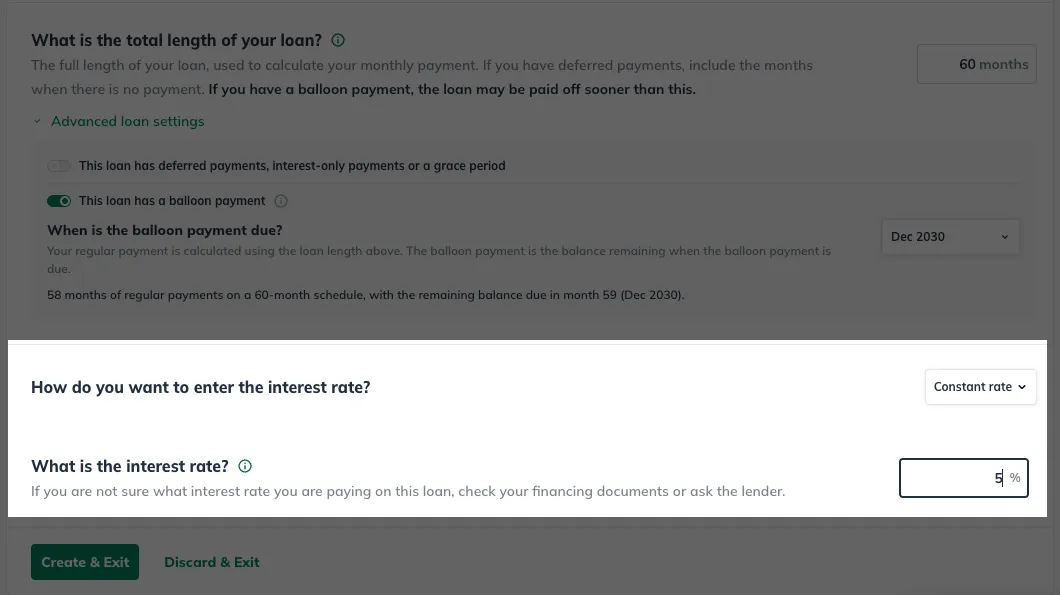
Select whether the loan has a Constant rate or Variable rate, then enter the applicable interest rate.
Click Create & Exit:\

LivePlan will calculate the interest-only payments during the introductory period. After that period ends, the forecast will automatically begin applying the loan’s full principal-and-interest payments.
Checking your work
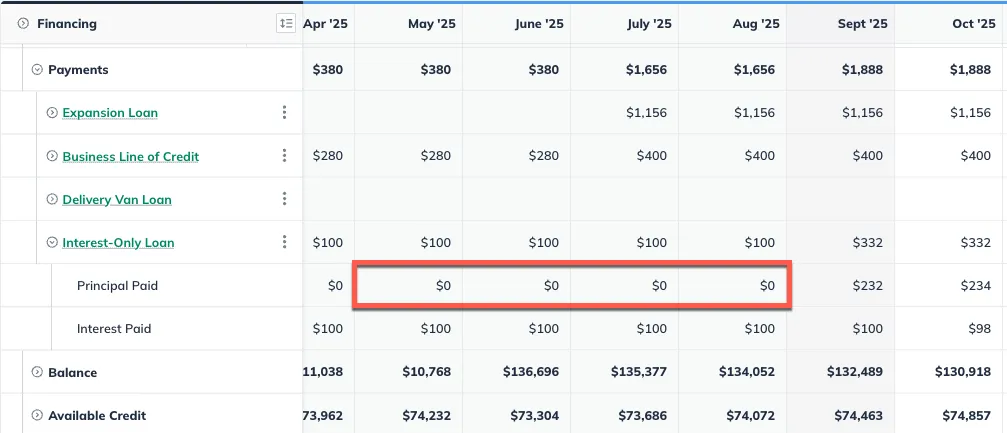
After creating the loan, expand the Financing table to review its principal and interest payments.
During the interest-only period, the forecast should show interest payments while the outstanding principal remains unchanged. Once full payments begin, the principal balance will start decreasing.
Entering a loan with a custom disbursement or payment schedule
In the Forecast Overview, click Financing:
Click the Add New button and select Other:
Enter a name for the loan and set the interest terms:
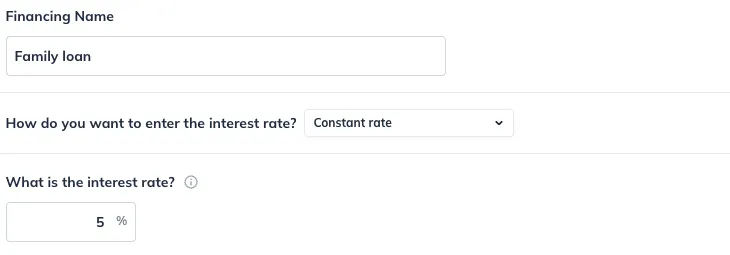
Select whether you'll pay this financing back within 12 months:

Enter the amount of money you'll receive and when you'll receive it. You can enter a single amount in a single month or amounts in multiple months, depending on how your loan is structured:
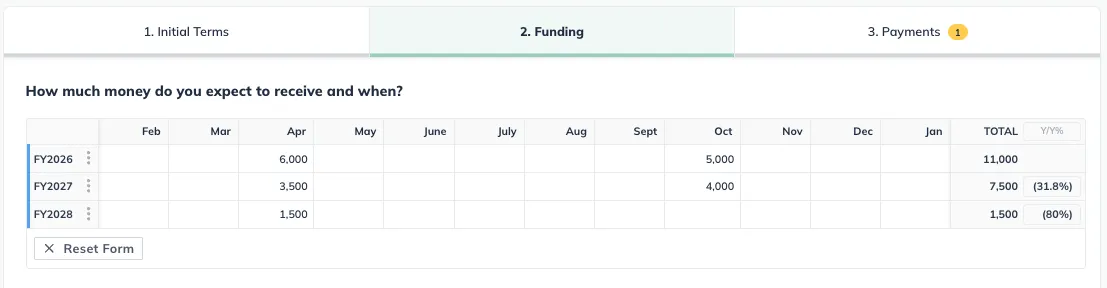
Next, enter the amount you plan to pay back each month or year against the balance:
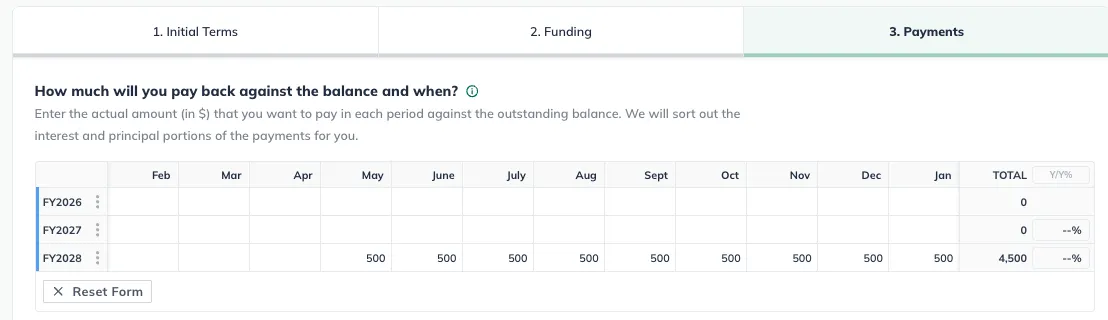
Click Create & Exit. This loan and its payments will be displayed in the Financing table.\
Entering a deferred payment loan
A deferred payment loan includes an initial period before full principal-and-interest payments begin. Depending on the loan terms, interest may continue accruing, no interest may accrue, or you may make interest-only payments during this period.
In the Forecast section, click Financing:
On the Financing page, click Add Financing
Enter a name for the loan and select Loan
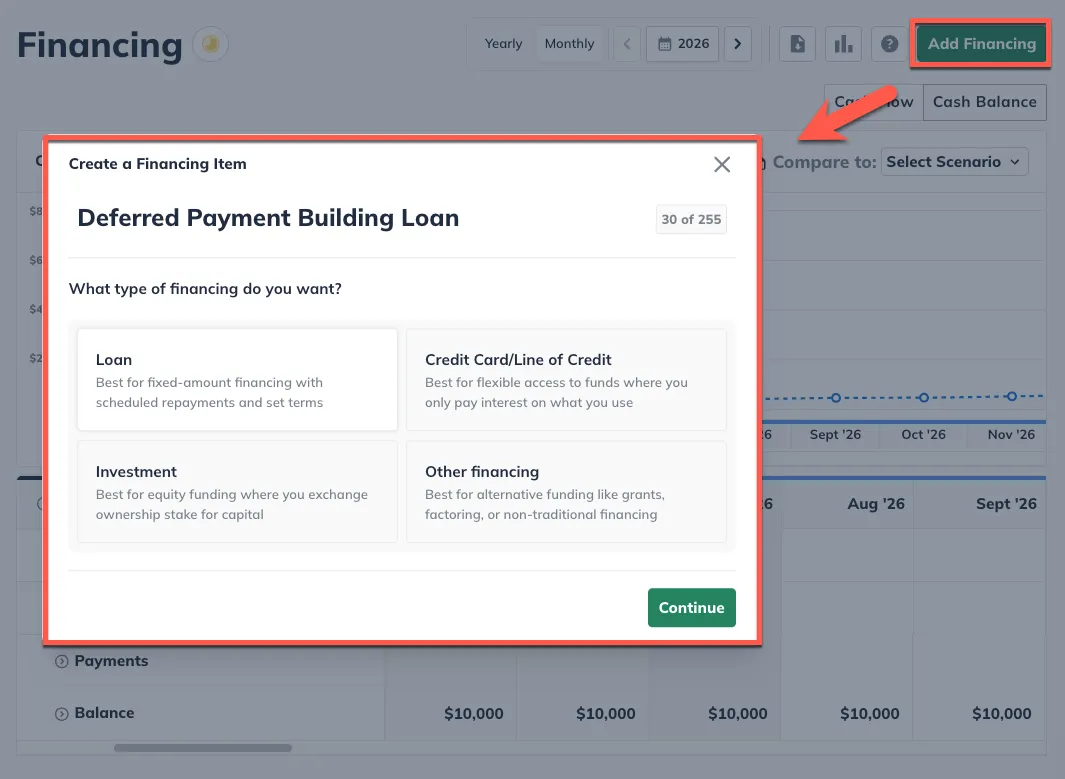
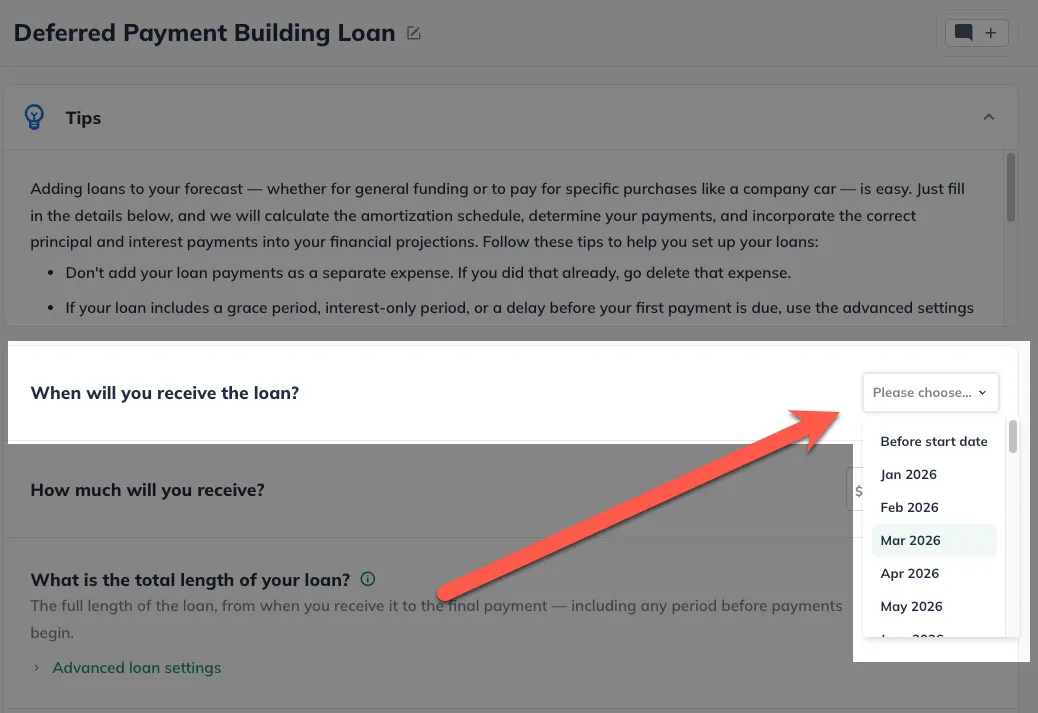
Select the month that you will receive the loan.
Enter the amount and total length of the loan.
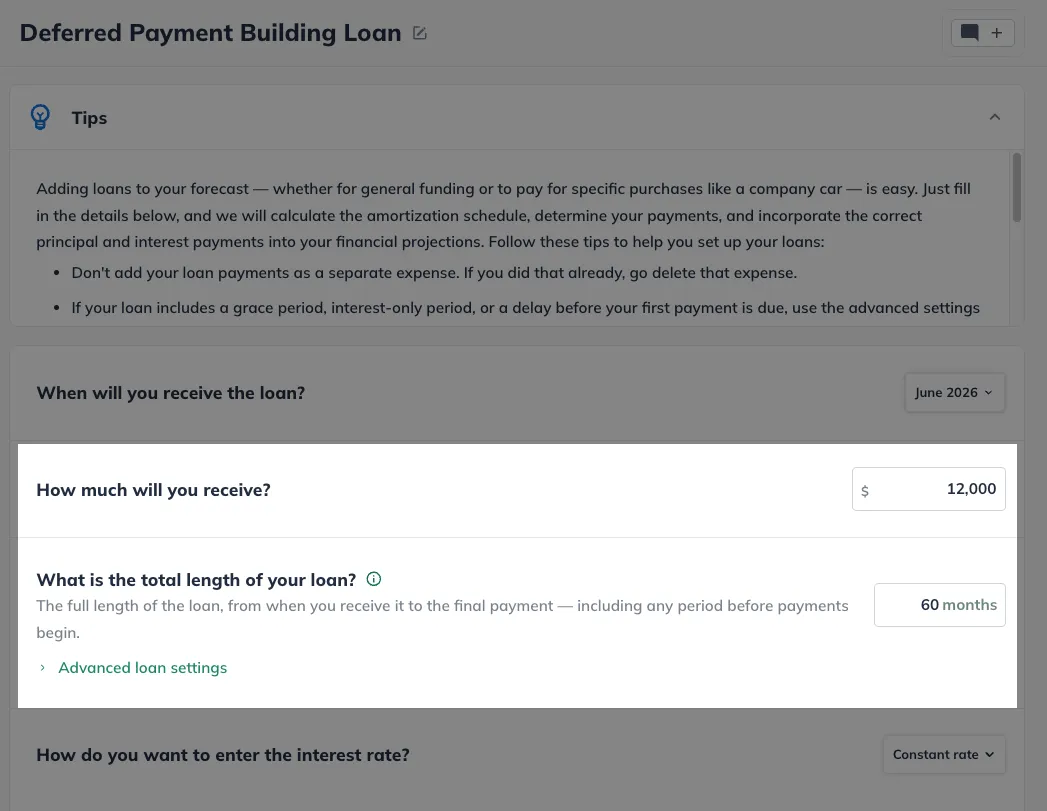
Expand Advanced loan settings.
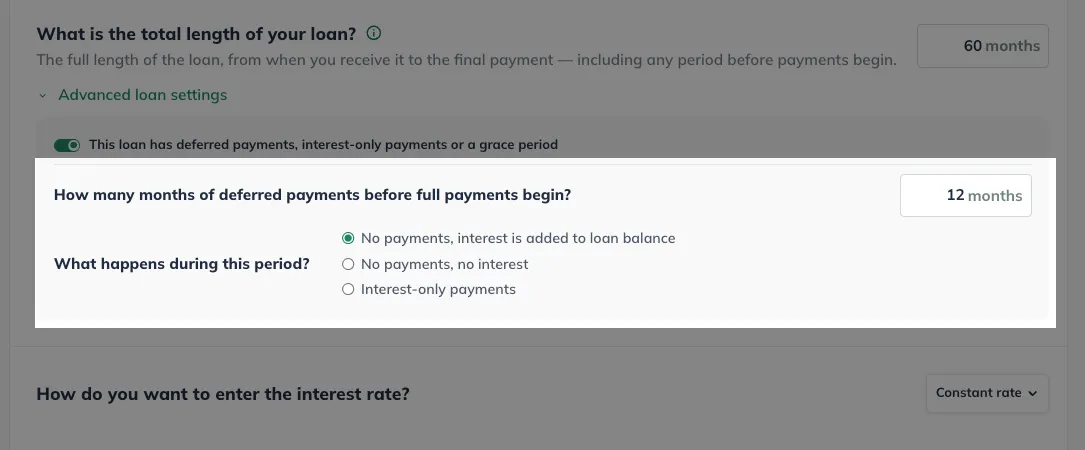
Enable This loan has deferred payments, interest-only payments or a grace period.
Select No payments, interest is added to loan balance. Then select the number of months before full payments begin.
Select whether the loan has a Constant rate or Variable rate, then enter the applicable interest rate.
Click Create & Exit:\
LivePlan will apply the selected treatment during the introductory period and begin calculating full payments when that period ends.
Entering a balloon payment loan
A balloon payment loan is a loan with regular payments during the loan term and one larger final payment due at the end.
In LivePlan, use this option when your loan is structured so that the remaining balance is paid off in a lump sum instead of being fully repaid through equal monthly payments.
In the Forecast section, click Financing:
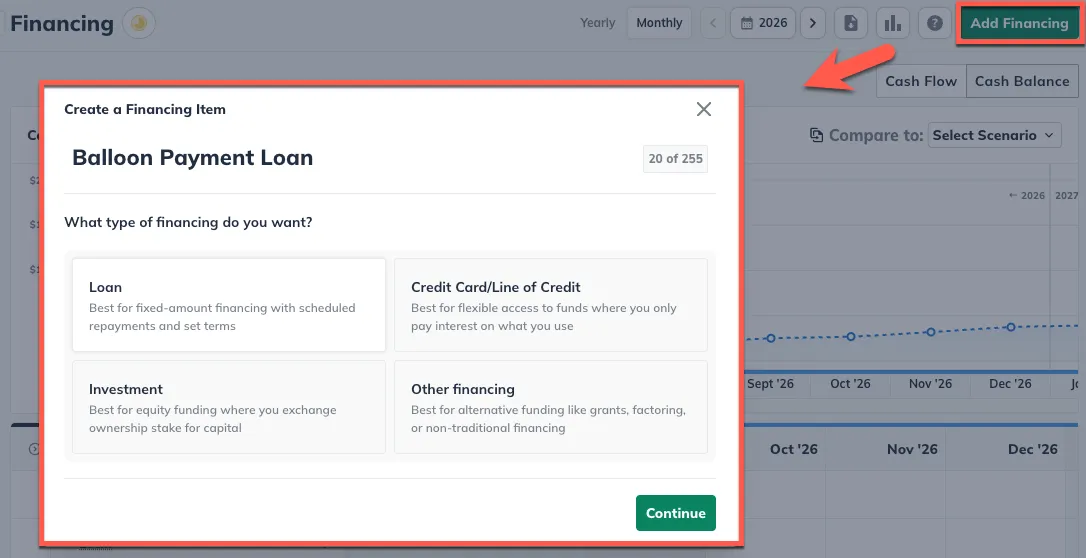
On the Financing page, click Add Financing
Enter a name for the loan and select Loan
Select the month that you will receive the loan.
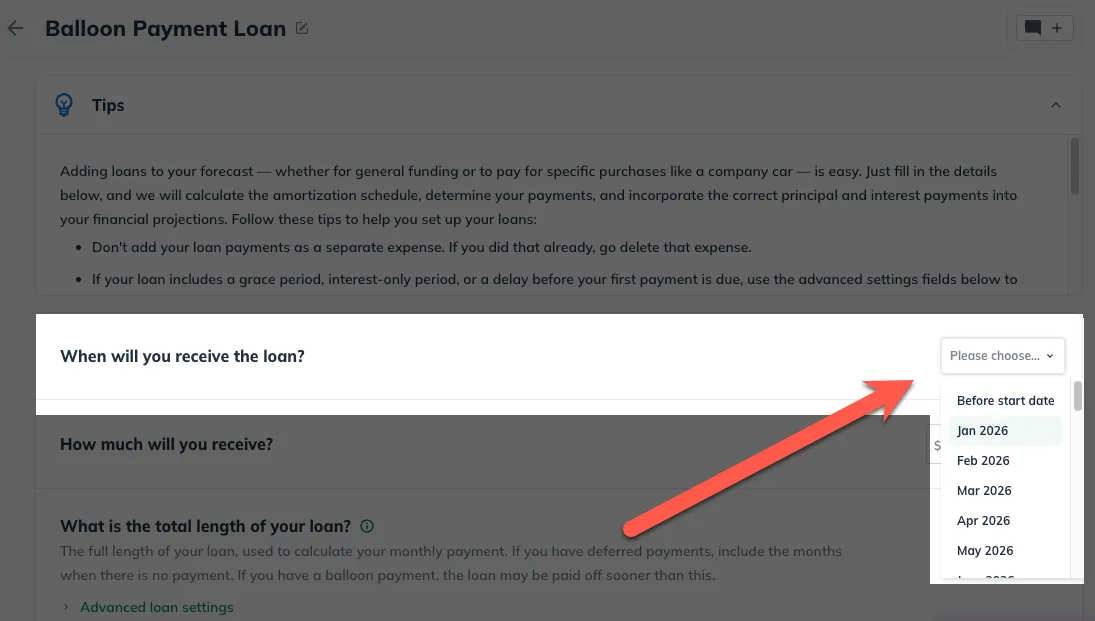
Enter the amount and total length of the loan.
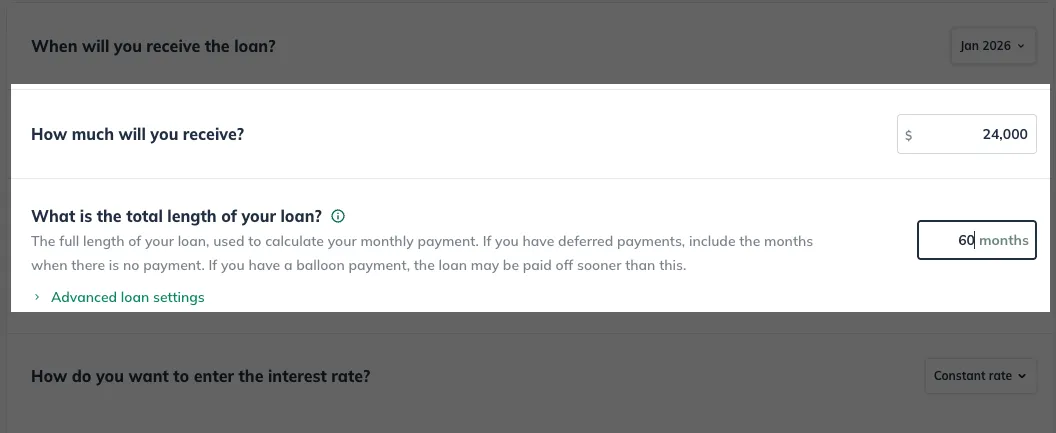
Expand Advanced loan settings.
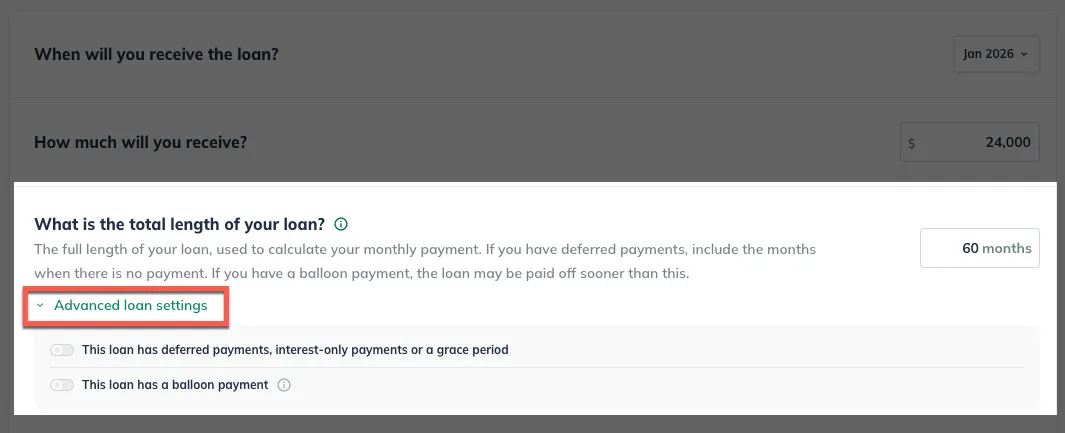
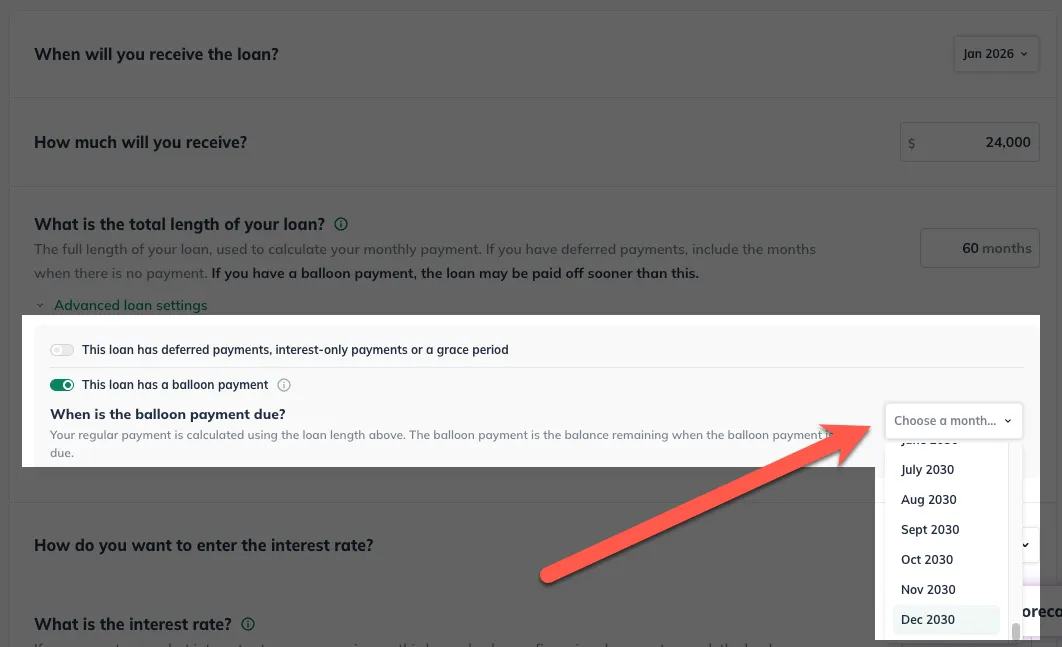
Enable This loan has a balloon payment
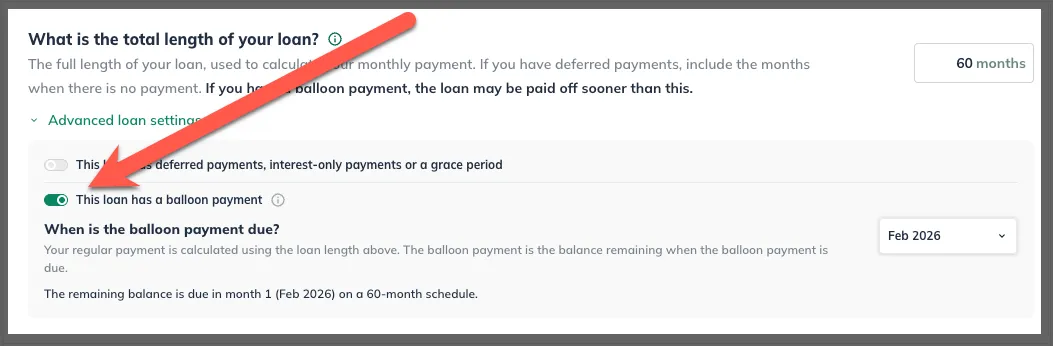
Under When is the balloon payment due, select the appropriate date.
Select whether the loan has a Constant rate or Variable rate, then enter the applicable interest rate.
Click Create & Exit:\
Entering a deferred interest loan
When you enter a loan with a constant interest rate into your LivePlan forecast, the software will automatically begin applying interest the month after you receive the loan. However, some loans have rates that vary over time depending on the terms of the loan. A common version of this is when you're taking on a loan that won't accrue interest immediately (also known as deferred interest).
In the Forecast section, click Financing:
On the Financing page, click the Add New button and select Loan:
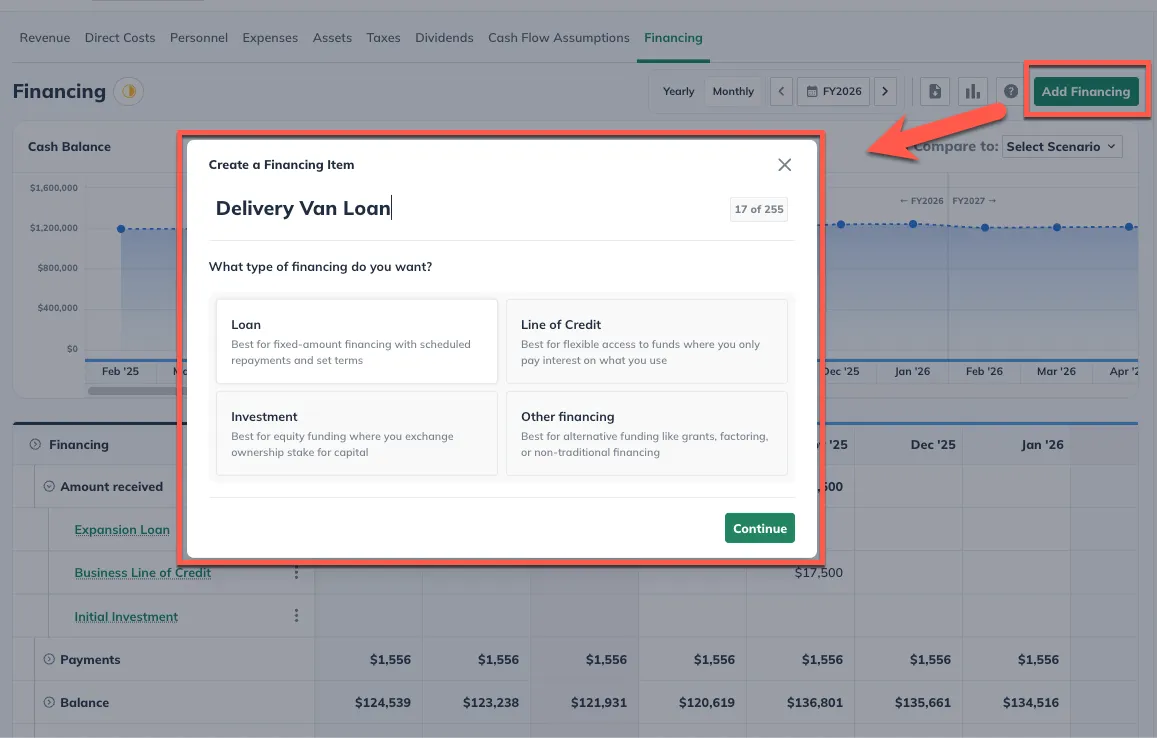
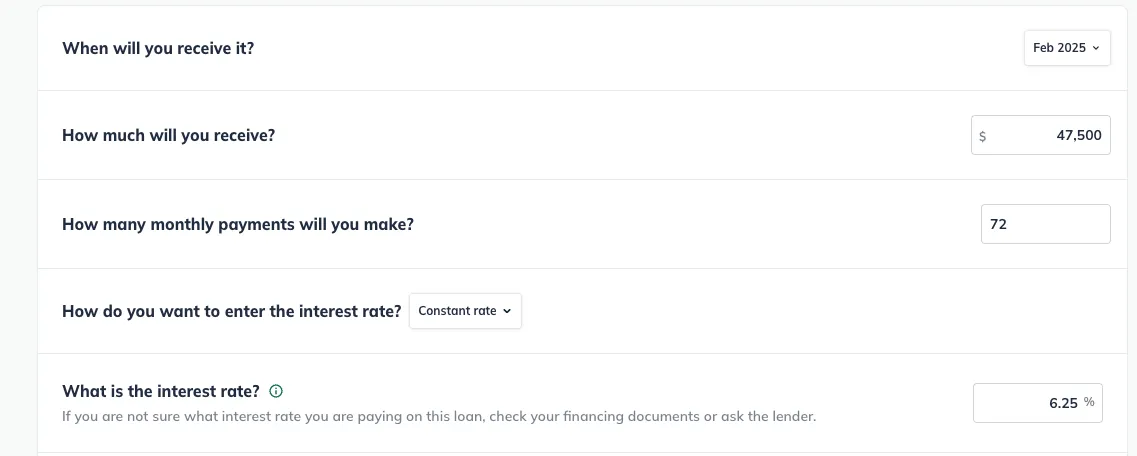
Give this loan a name and select when you will receive it:
Next, enter the amount received and the number of payments you will make. In our example, we're receiving $37,500 and will make 72 monthly payments:
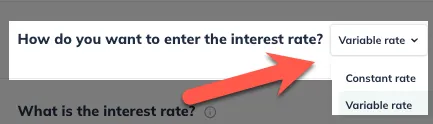
Next, you will select the type of interest rate. Since this loan has zero interest to start and increases to 8% after 6 months, you will select Variable rate from the two options in order to represent this:
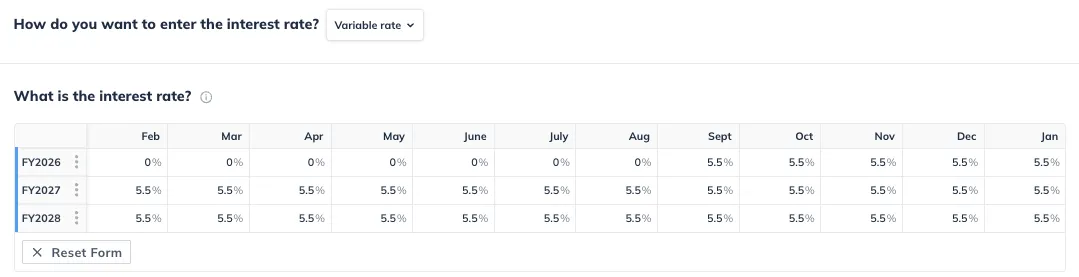
In the table, input the interest rates to your loan according to the terms. In this example, we input 0% for the first six months and 8% for the remaining months of the 72 month term of our loan.
Click Create & Exit:\
(For more details, read How LivePlan handles loans and other financing.)
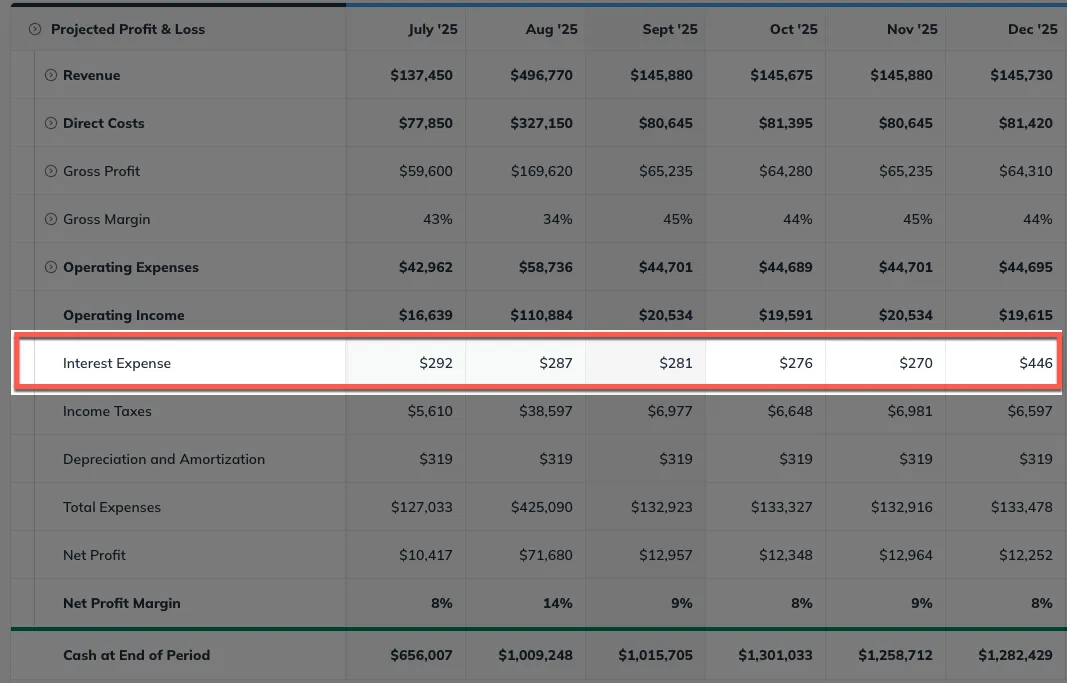
Only the interest portion will appear in your Profit and Loss table when you enter a custom loan, under the Interest Expense line. This is because the interest is the only actual cost your business incurs in the loan:
Loans will appear on one or two lines of the Balance Sheet, depending on their length. Short-Term Debt includes loans paid back within 12 months. A loan of over 12 months will be divided into Short-Term Debt and Long-Term Debt.
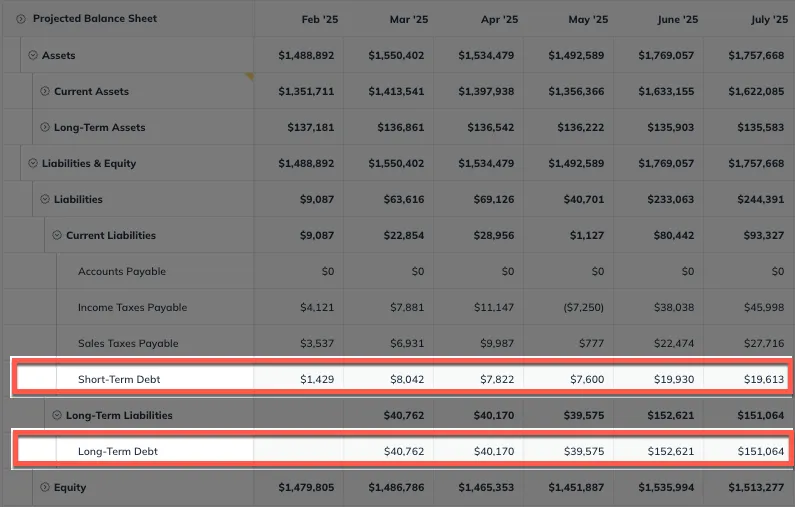
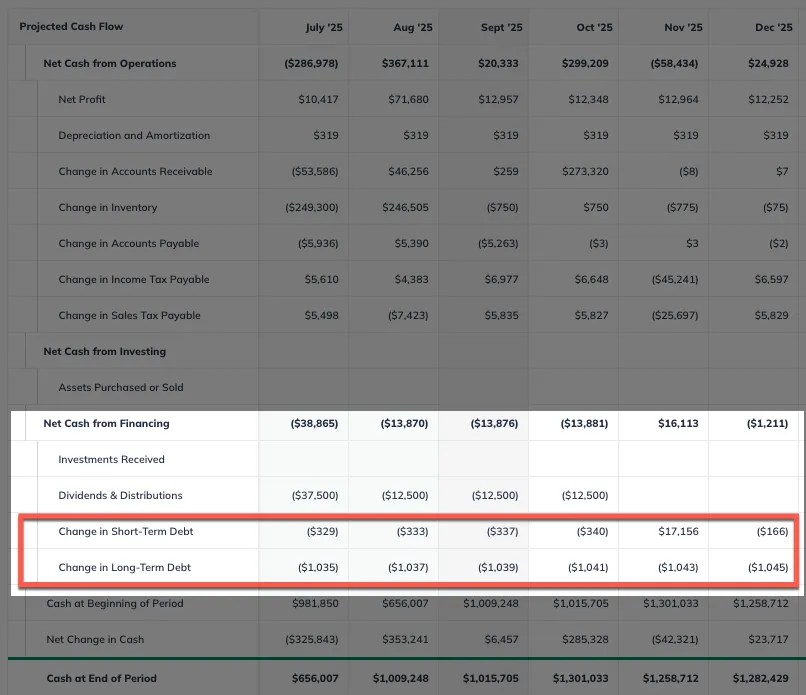
In the Cash Flow, similarly, loans (or portions of loans) may be considered Short-Term Debt or Long-Term Debt: