Once you’ve built out your Idea Canvas, you can export it as a PDF or share it via a public Web Link.
Summary: Sharing via Web Link
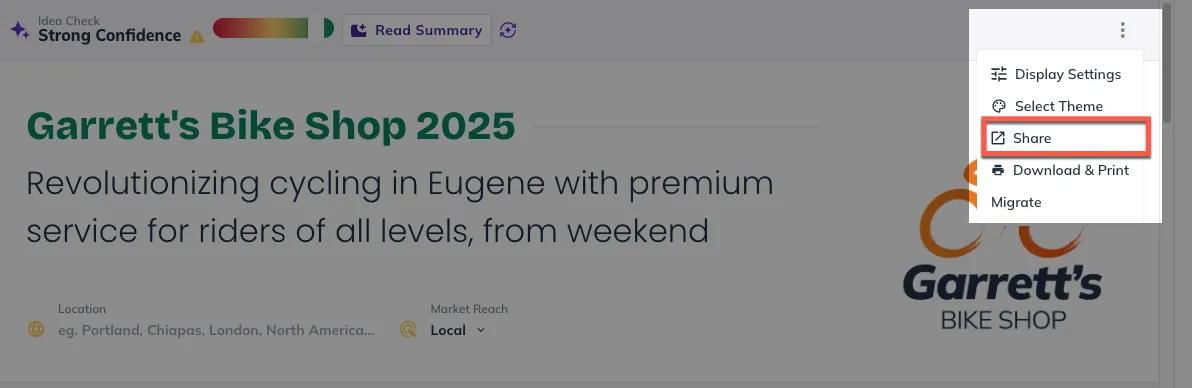
Click the publishing menu in the top right of the navigation bar.
Select your options, including whether to include status badges and your confidence score.
LivePlan generates a shareable web link that can be quickly shared.
Step-by-step guide: Sharing via Web Link
In the publishing menu in the top right of the navigation bar, click Share to display the Web Link menu.
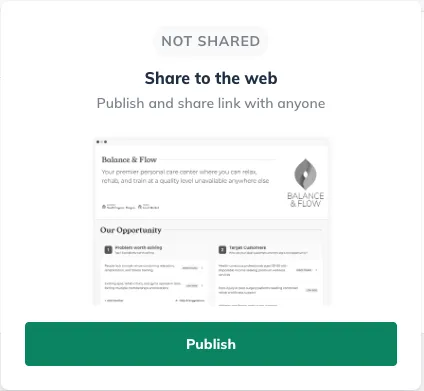
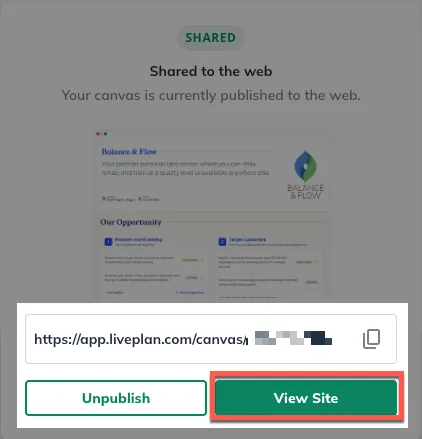
In the Web Link menu, click Publish to generate a private URL link to a view-only version of your Idea Canvas. The published canvas includes only visible, supported sections and items; hidden chapters, discarded or superseded content, and unavailable images are excluded.
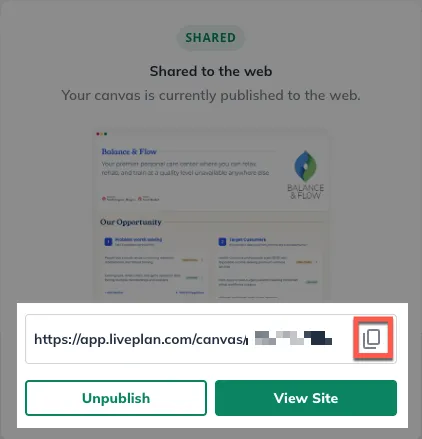
Once published, you can copy the private URL link into your clipboard to be pasted into emails or other communication.
You can also view the currently published link by clicking View Site.
This will take you to the current version of your private URL link where you can review.
Formatting your Idea Canvas
If you want to change the presentation of your Idea Canvas, you have a couple options:
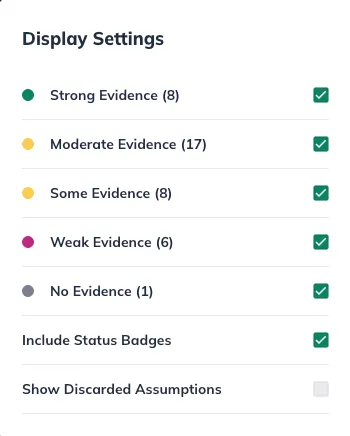
Display Settings lets you filter displayed assumptions by evidence level.
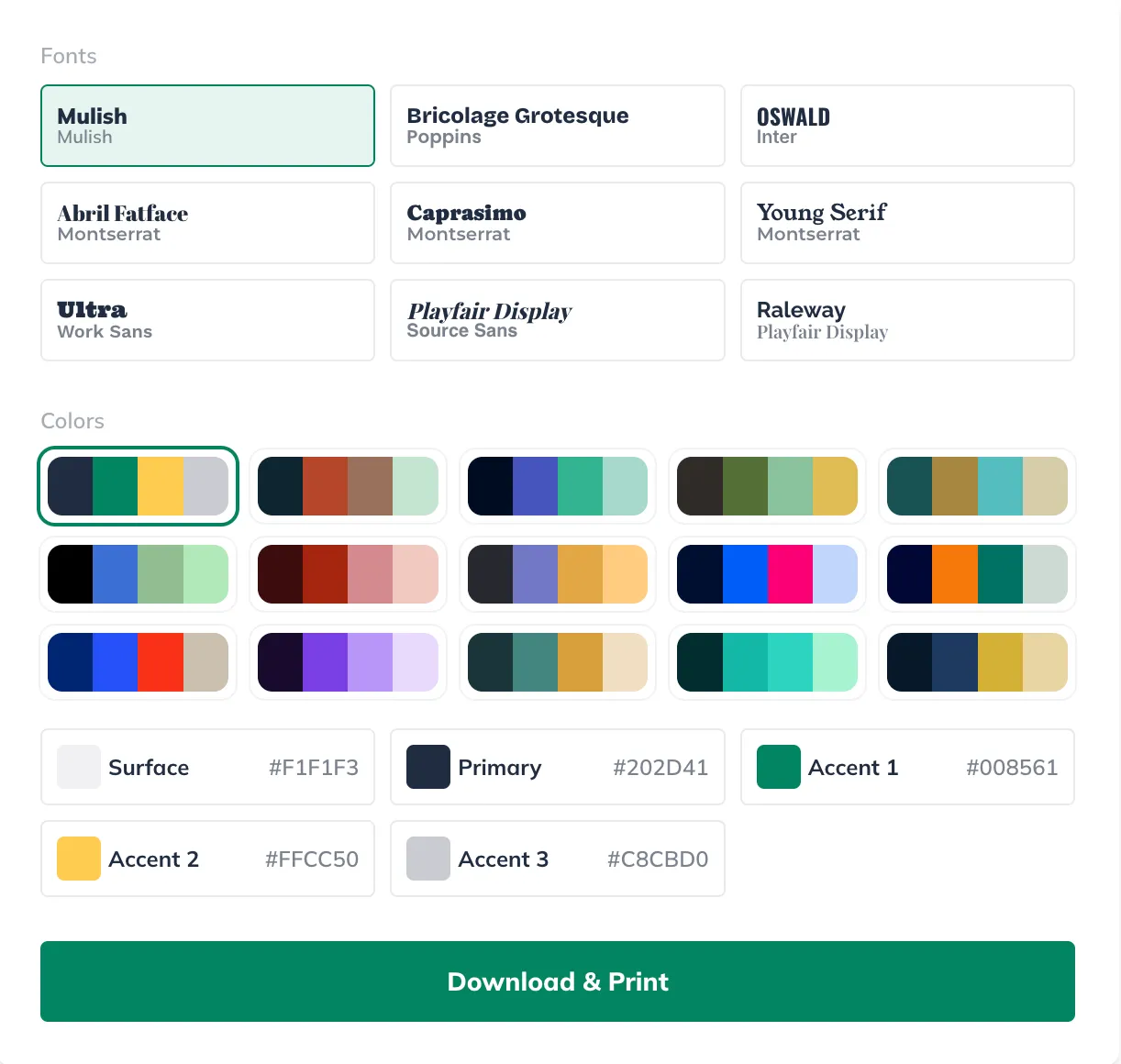
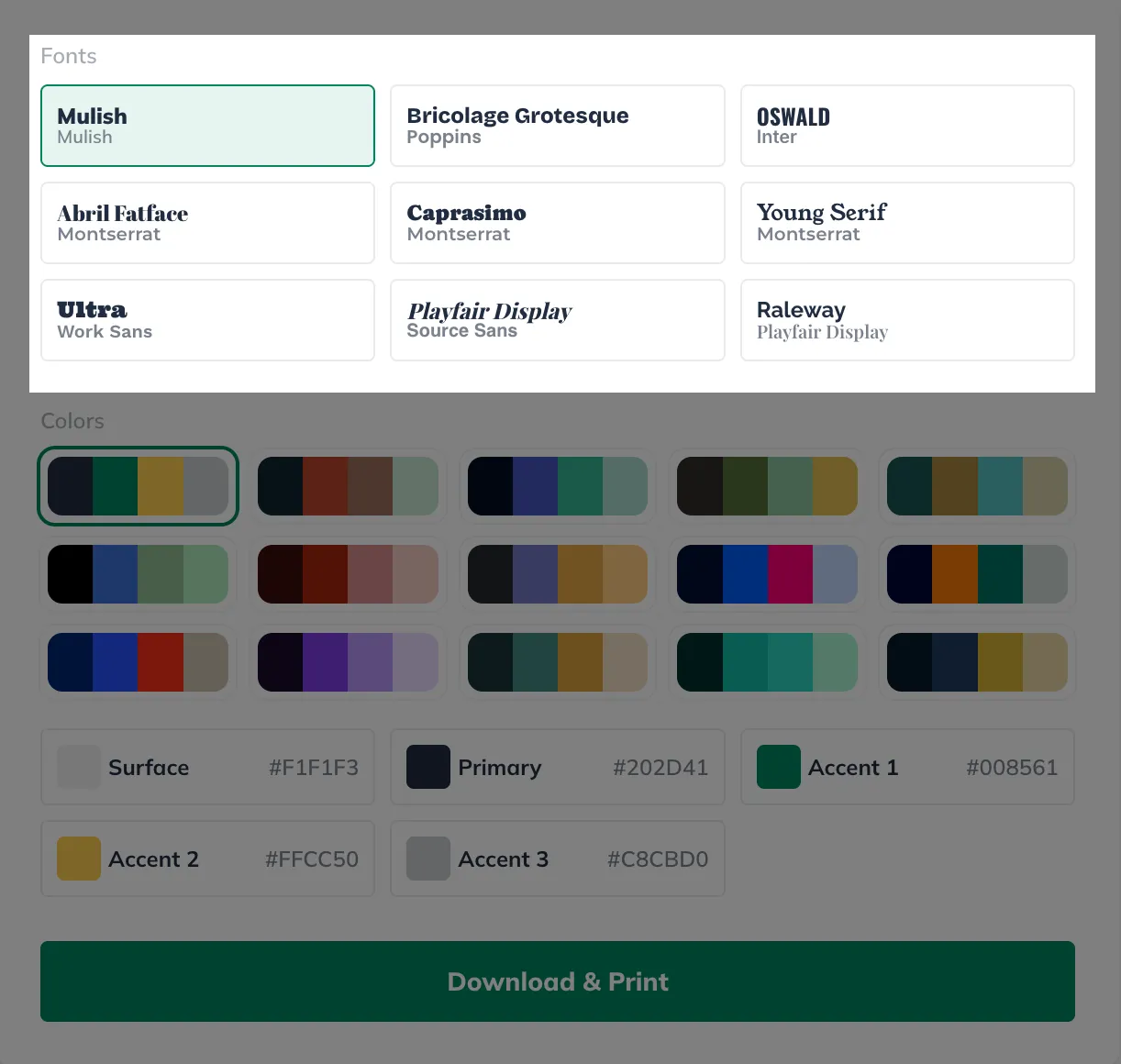
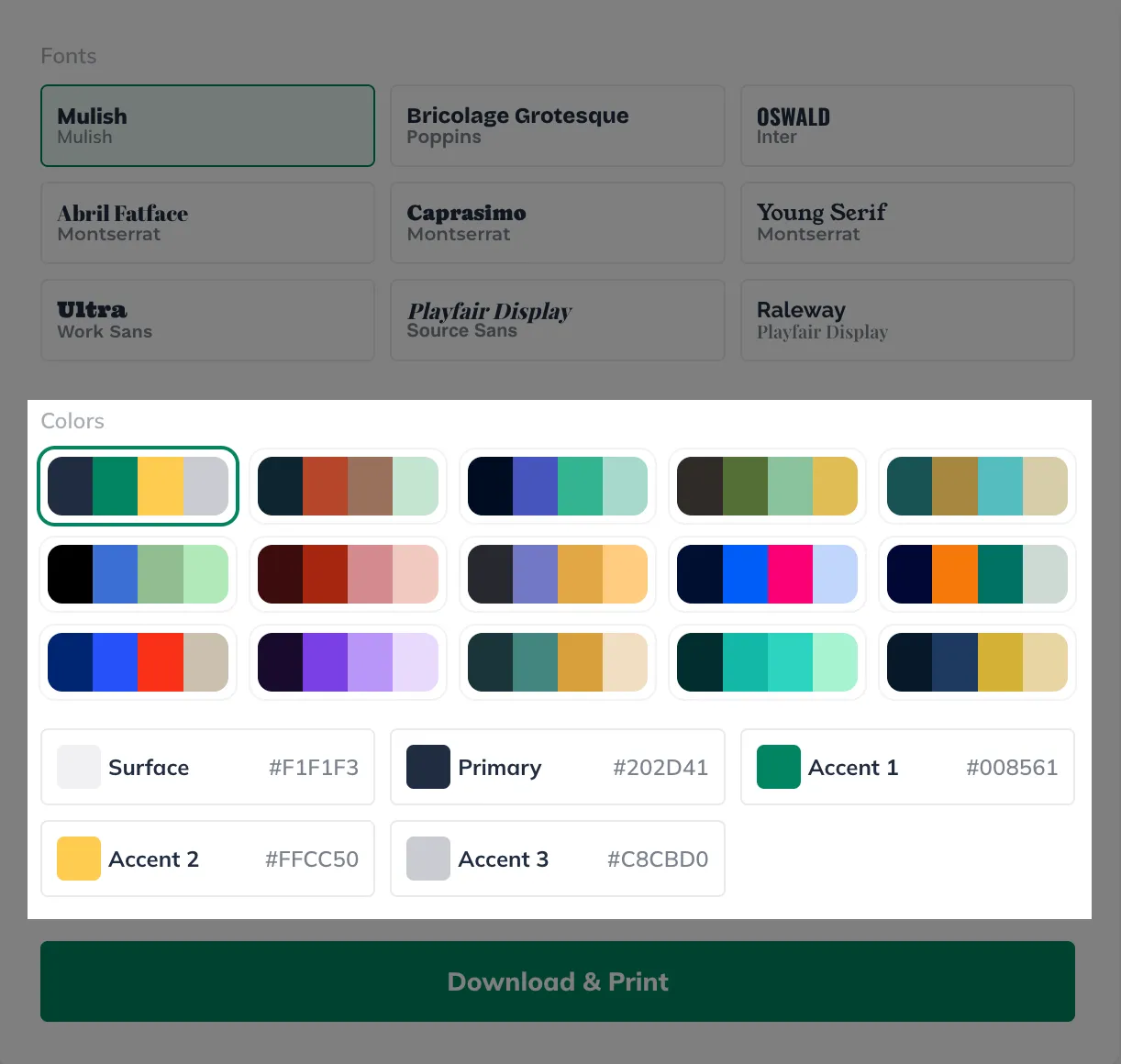
Select Theme lets you choose your font or color theme. You can also customize your color theme.
Published Canvas Display Settings
Display Settings lets you filter displayed assumptions by evidence level.
Why is this important?
This lets you curate which sections of the Idea Canvas are shared so you only share visible, supported content while you continue to iterate on less developed ideas. Hidden chapters, discarded or superseded content, and unavailable images are not included in the published canvas.
Selecting Canvas Themes
Fonts
Select Theme lets you choose from one of 9 professional fonts.
Color theme
You can also choose from one of preset 15 color themes or customize your own color theme.